
2D Plan to Elevation AI: Turn a Floor Plan Into Facade Views
If you don’t want to read the whole guide or have difficulty reading, you can listen to this guide instead.
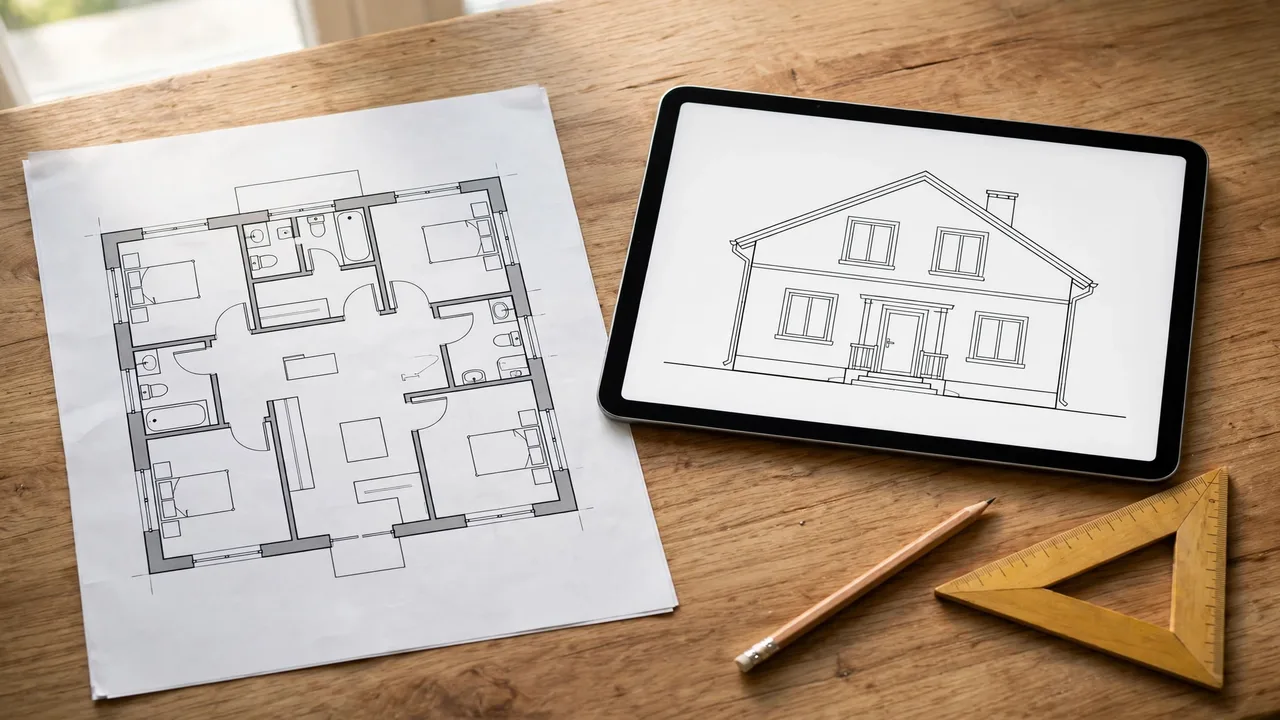
A 2d plan to elevation ai tool does the job that used to take a draftsperson hours. You upload a floor plan, and it draws the building from outside: front, back and both sides.
The catch is hidden in the input. A floor plan shows lengths and widths, but no heights at all, so part of every result is an educated guess. Knowing which part is guessed is the whole skill in using these tools well.
At AI Holic we test design tools and explain where their output can be trusted. This guide covers how these tools work, what to upload, and where the guessing starts.
What a 2D Plan to Elevation AI Tool Actually Does
An elevation is a flat drawing of one side of a building, drawn as if you stood far away and looked straight at it. A floor plan is the view from above. The tool converts one into the other.
The workflow is short. You upload the plan as an image, PDF or DXF file, pick the views you want, and the tool reads the walls, doors and windows and builds the facades.
Archybase, one dedicated tool, generates all four elevations from a single upload and lets you adjust roof style, window types and height labels. Exports include PDF, PNG, SVG and DXF, the formats presentations and drawing software use.
The Missing Piece: Your Plan Has No Heights
A plan is a map of one floor. It says where walls run and how wide rooms are, and it says nothing about how tall anything is.
So the tool fills the gap with standard sizes. It applies typical floor-to-ceiling heights, standard door and window sizes, and picks a roof shape, such as gable, hip, flat or shed, that fits the outline of the building.
You can steer the guess. Tools in this space ask how many floors the building has, which side faces the street, and what roof you prefer. Multi-floor plans are stacked level by level, so a two-storey plan becomes a two-storey facade.
Two Kinds of Tools
Most tools are web generators. You upload, choose a style and materials, and get facade images and drawings in minutes. They are built for concepts: seeing a farmhouse version and a modern version of the same plan side by side.
The second kind lives inside drawing software. Lizatek’s LizArk plugin for SketchUp turns a prepared plan file into editable 3D geometry, and its elevation step stacks organized floor plans into a model you can keep editing.
The difference is the output. A web generator gives you pictures and drawing files. A plugin route gives you a model inside the program where the rest of your project already lives.
Elevation, Render, or 3D Model?
Tool pages mix three words that mean different things. An elevation is a flat, measured-style drawing of one side, with no perspective.
A render is a styled picture of the building, with light, shadows and materials. A 3D model is the building as data, which you can orbit and edit.
None of the three is better in general. Pick by purpose: elevations for comparing proportions, renders for showing a client a mood, and a model when the design will keep changing.
What to Upload for a Good Result
Start with a clean plan. The outline of the outer walls should be complete, and doors and windows should be visible, because the tool takes its window positions from them.
Crop out handwritten notes and unrelated parts of the sheet. One tool in this space accepts JPG, PNG or WebP images up to 20 MB, and PDF and DXF files are common across the others.
Then set the facts the plan cannot show: the number of floors, the street-facing side, ceiling heights if you know them, and the roof you want. Every fact you supply is one less guess.
The Honest Limits
These outputs are concepts, and the tool makers say so themselves when you read closely. Rendair notes that its visuals are not a measured drawing tool and tells users to check dimensions against their own plans.
ArchVision, another platform in this space, marks dimensions taken from photos or incomplete material as estimated and requiring site verification. Its drawings are labeled for concept development and feasibility, not construction.
So the safe uses are early ones: testing styles, comparing shapes, and showing a client a direction. Anything headed for a permit or a builder needs a professional to redraw and verify it with real measurements.
This guide sits in our AI for Design & Gaming coverage. For another design job that AI now measures from photos, see our guide to AI room measurement for painting contractors.
Frequently Asked Questions
Is 2D plan to elevation AI free to use?
Most tools in this space offer a free way to try, with paid tiers for more generations, more floors or drawing-file exports. Check the tool’s own pricing page, because tiers and limits differ and change.
Can I use the output for a building permit?
No. The elevations are concept drawings with inferred heights and sizes. A permit set needs measured drawings prepared or verified by a licensed professional in your area.
What file formats can I upload?
Images such as JPG, PNG and WebP are the common route, and many tools also take PDF plans. CAD-side tools and plugins work from DXF or DWG files.
How accurate are the heights and windows?
Positions come from your plan, so they follow it. Heights, window sizes and the roof are inferred from standard sizes unless you supply the real numbers, so treat them as placeholders until verified.
Can it handle a two-storey house?
Yes. Upload the plan for each level and set the floor count. The tools stack the levels so the facade shows both storeys with aligned walls and openings.
Conclusion
Used well, 2d plan to elevation ai is a sketching partner, not a draftsperson. It turns a flat plan into facades you can react to in minutes, as long as you remember which lines came from your plan and which ones the tool guessed. Verify the guesses before anything gets built.