How to Connect Claude AI to Roblox Studio: MCP, Claude Code, and Copy-Paste Workflows
If you don’t want to read the whole guide or have difficulty reading, you can listen to this guide instead.
You can stop copying code back and forth between a chat window and Roblox Studio. The direct way to how to connect claude ai to roblox studio is the MCP server built into Studio itself, and it takes about 15 minutes to set up once your tools are ready.
At AI Holic, we checked the current guides and the official docs behind them. This guide walks you through the built-in connection first, then the manual setup, the copy-paste fallback, and the file-sync option for bigger projects.
You will also see what Claude can do once it is linked, what it costs, and the safety rules that keep your game safe. Read the short answer first if you only need the steps.
How to Connect Claude AI to Roblox Studio: MCP, Claude Code, and Copy-Paste Workflows
The Short Answer
The short version of how to connect claude ai to roblox studio is simple. Roblox Studio now ships with its own MCP server built in, so you no longer need a third-party plugin to link Claude. Open Assistant in Studio, pick Manage MCP Servers, switch on Enable Studio as MCP server, then turn on Claude Code or Claude Desktop under Quick Connect.
Once it is on, Claude can read your place, write and fix Luau scripts, run code, insert assets, and playtest your game while you watch. You still review every change before you keep it, and you still publish from Studio yourself.
There is no standalone Anthropic plugin for Studio, and you do not need one. The built-in server is the official path, and the rest of this guide shows each step in order.
What You Need Before You Start
You need a Windows or Mac computer, because Roblox Studio does not run on iPads, phones, or Chromebooks for building. You also need the latest version of Roblox Studio and either Claude Desktop or Claude Code installed on the same computer.
Claude Code is the stronger pick if you want Claude to edit files and run long building sessions. It needs a paid Claude plan, such as Pro, Max, Team, or Enterprise, or a Claude Console account with API credits. The free Claude plan does not include Claude Code, and Pro was reported at $20 a month in the US in October 2026.
Keep a place open in Studio before you connect, because Claude can only work in a place that is open on your computer. Start with a copy of your game or a fresh Baseplate place, not the only copy of a game you care about.
| Method | What it does | Best for |
|---|---|---|
| Built-in MCP, Quick Connect | Links Claude straight to your open place | Most creators, fastest setup |
| Manual MCP setup | Same link, added by hand in a config file | When Quick Connect misses your client |
| Copy-paste | You move Luau code between Claude and Studio by hand | Quick fixes with no setup |
| File sync with Claude Code | Claude edits Luau files on disk, synced to Studio | Bigger projects and teams |
How to Connect Claude AI to Roblox Studio With the Built-In MCP Server
MCP stands for Model Context Protocol, an open standard that lets an AI app call tools inside another program. Wikipedia describes MCP as an open standard introduced by Anthropic in November 2024, and you can read the full background on the Model Context Protocol page. Inside Studio, the server runs as a local process on your machine and talks to your AI client over standard input and output.
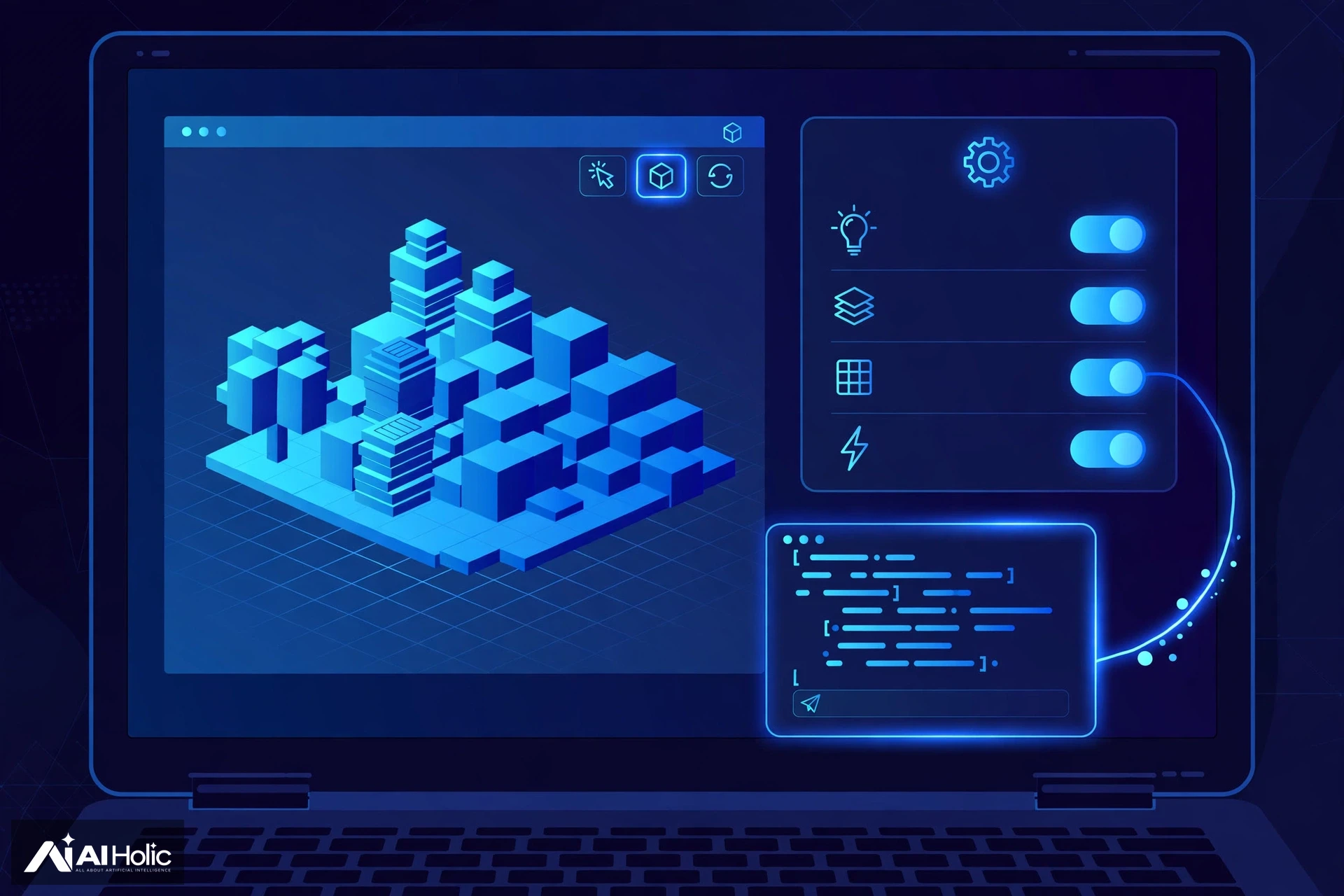
Follow these steps in order, and do not skip the restart at the end. A restart is what lets Studio spot the client and lets the client load the new server.
- Open Roblox Studio and open the place you want Claude to work on.
- Open Assistant inside Studio.
- Click the three-dot menu and choose Manage MCP Servers.
- Switch on Enable Studio as MCP server.
- Open the Quick Connect section in the same panel.
- Turn on Claude Code or Claude Desktop, whichever you installed.
- Restart the Claude app, then check the connection with the test in the section below.
If your client does not show up under Quick Connect, close Studio fully and open it again. Studio checks for installed clients when it starts, so a client installed while Studio was already running will not appear until the next launch. Once the green indicator shows, that is the whole answer to how to connect claude ai to roblox studio for most creators.
Method 2: Manual MCP Setup
Use the manual route only when Quick Connect does not work. The settings panel in Studio shows the exact config for your own install, so copy the paths from there rather than from an old tutorial. The manual route still covers how to connect claude ai to roblox studio, just by hand instead of with one switch.
For Claude Desktop, add a Roblox_Studio entry to your MCP config file. On a Mac, the entry points to the StudioMCP binary inside the Roblox Studio app. On Windows, it runs a small batch file through cmd.exe instead.
For Claude Code, you can add the same server from your terminal. On a Mac, the command looks like this: claude mcp add Roblox_Studio — /Applications/RobloxStudio.app/Contents/MacOS/StudioMCP. On Windows, the command looks like this: claude mcp add Roblox_Studio — cmd.exe /c %LOCALAPPDATA%\Roblox\mcp.bat.
Restart Claude after you add the config, then type /mcp inside Claude Code to check that Roblox_Studio shows as connected. In Studio, the Manage MCP Servers panel shows a green indicator with the number of connected clients.
Method 3: Copy-Paste Luau Code
Copy-paste is the oldest method, and it still works when you do not want any connection at all. You describe what you need in Claude, copy the Luau script it writes, paste it into a Script or LocalScript in Studio, and press Play to test it.
This method suits one small fix, such as a door script or a leaderboard tweak. It gets slow fast, because every error means copying the message back to Claude and pasting the fix back into Studio. If you find yourself doing that loop more than a few times, switch to the MCP method above.
Always tell Claude where the script lives and what kind of script it is. Roblox code runs as server Scripts, client LocalScripts, or shared ModuleScripts, and anything that touches currency, stats, or saving belongs on the server. If you want a ready-made starting point for script help, our guide to the best Roblox AI scripter tools compares the options that write Luau for you.
Method 4: File Sync With Claude Code
The MCP server edits your place directly, which is fine for a prototype. For a serious project, you want your code in files you can review and roll back, so Claude Code can edit Luau files on disk while Studio stays in sync. It suits builders who already know how to connect claude ai to roblox studio and now want version control as well.
Script Sync is built into Studio and is the simpler choice. Right-click a folder in the Explorer, choose Sync to, and pick a directory on your computer. Edits sync both ways between the files and Studio.
Rojo is the third-party open source option for teams that want the whole project on the file system and in Git. Roblox notes that Rojo is not maintained by Roblox and can change at any time, so treat it as a community tool and keep your own backups. A practical mix is to keep scripts in Git through Script Sync or Rojo, edit them with Claude Code, and leave the MCP connection on so Claude can still playtest and inspect the live place.
The same file-first habit pays off in other engines too, and you can see how AI is changing game building more widely in our report on AI for game development in Unreal Engine 5.
What Claude Can Do Once Connected
Once the link is live, Claude works with your real project instead of guessing from pasted text. It can look through the Explorer tree, read a script, explain what it does, and change it in place. It can also run Luau code, check the console output, and fix the errors it finds.
| What Claude does | Tool name | Why it helps |
|---|---|---|
| Reads and searches scripts | script_read, script_search | Finds the right code without manual hunting |
| Edits several scripts at once | multi_edit | Keeps related changes in step |
| Runs Luau in Studio | execute_luau | Tests ideas without leaving the chat |
| Inserts or creates assets | insert_asset, generate_mesh | Adds parts and models on request |
| Playtests your game | start_stop_play, screen_capture | Checks the game the way a player sees it |
Luau is the scripting language of Roblox, a dialect of Lua that Roblox built for its platform. Wikipedia notes that Luau adds gradual typing and performance gains over base Lua, and you can read more on the Luau programming language page. Claude writes Luau for you, but you should still read what it wrote before you trust it in a live game.
How to Test the Connection
Do not start by asking Claude to build half your game. Start with a read-only request that cannot change anything, such as asking it to list the objects inside Workspace or to explain one script you point it to. That small test is the safest way to confirm how to connect claude ai to roblox studio worked on your machine.
If that works, move to one small change, such as adding a checkpoint pad that saves a player stage. Ask Claude to plan before it builds, then read the plan yourself. Build in stages, with layout first, then scripts, then decoration, so a mistake stays small and cheap to undo.

Then let Claude playtest. Ask it to start play mode, check the console, and fix any error it finds.
The playtest tools can also take a screenshot and move the character, so Claude can check things that only show up while the game runs. Finish by playing the game yourself before you save or publish anything.
Safety Rules
Roblox warns that MCP clients can read and modify content in your open places, so only connect clients you trust. Treat every connected client as having write access to the place you have open, and close places you do not want touched.
Never share your Roblox password or an API key with a third-party plugin or a stranger offering setup help. Keep any API key private, and never place one inside a public script or upload it to a public repository. If a community tool asks for your login details, do not use it.
AI-written code can look right and still be wrong, especially where it trusts the client with values the server should check. Review each script, test multiplayer behavior yourself, and work on a copy or keep your scripts in Git so a bad change is easy to undo. If Studio starts acting in a way you did not ask for, you can switch off the AI features with our guide on how to turn off Roblox script AI.
Troubleshooting
Most failures after you learn how to connect claude ai to roblox studio come from one of a short list of causes. Work through them in order before you reinstall anything.
- Update Roblox Studio, because an older build may not have the MCP menu at all.
- Check that Enable Studio as MCP server is still switched on.
- Restart both Studio and Claude after any change to the setup.
- Keep the place you want Claude to reach open in Studio.
- Run claude mcp list in your terminal to see whether the server says Connected or Failed to connect.
- Check the file path if you set the connection up by hand, and check your JSON config for a missing comma.
- Use a local Claude Code session, because a cloud session runs off your computer and cannot reach Studio.
Older guides may still tell you to install a separate Roblox MCP plugin or a community server. The older standalone Rust MCP server is archived and no longer actively developed, so start with the built-in server unless you have a clear reason to use something else.
Frequently Asked Questions
Do I need a paid Claude plan to connect Claude to Roblox Studio?
Claude Code needs a paid Claude plan, such as Pro, Max, Team, or Enterprise, or a Claude Console account with API credits. The free Claude plan does not include Claude Code. The MCP link itself costs nothing extra, since the server is built into Roblox Studio, which is free.
Do I need an Anthropic API key to connect Claude to Roblox Studio?
No, you do not need an API key for the MCP connection itself. The confusion comes from a separate option: Studio Assistant can also use Anthropic models through an API key you add in Studio. Keep that key private if you ever use it, and never put it in a public script.
Can Claude publish my Roblox game for me?
No. The MCP tools cover reading and editing scripts, running Luau, inserting assets, and playtesting, but they do not include a publish tool. Review the changes, then publish from Studio yourself, and check the game is set to private if you only want testers to see it.
Is it safe to let Claude edit my place?
It is safe enough when you follow the rules in this guide. Only connect clients you trust, work on a copy of your place, and read each change before you keep it. Keep scripts in Git or save a backup before big changes, so you can roll back anything you do not like.
Why is Claude not showing in Quick Connect?
Studio only checks for installed clients when it starts, so restart Studio after you install Claude Desktop or Claude Code. Also check that Studio is up to date, that the MCP server is switched on, and that a place is open. If it still misses the client, use the manual setup in Method 2 and restart Claude.
Conclusion
Now you know how to connect Claude AI to Roblox Studio. Start with the built-in MCP server, test it with one small read-only task, and keep a backup of your place. Review every change Claude makes before you publish, and your building sessions will move much faster.