Canvas AI Explained: Canva’s Design AI and the LMS Meaning
If you don’t want to read the whole guide or have difficulty reading, you can listen to this guide instead.
The phrase canvas ai points to two different products, and that causes real mix-ups. Most people who search it mean Canva’s AI design tools, which sit inside the Canva editor under the name Magic Studio. A smaller group means the AI features inside Canvas, the learning platform used by schools and colleges.
This guide covers both meanings so you can find the one you need. You will learn what each tool does, how to use it, and where its limits sit.
At AI Holic, we check claims against sources before we repeat them, so pricing notes in this guide carry a warning where sources disagree.
What Canvas AI Means
Canvas AI is not one product. The phrase covers two different tools that share a similar name. Most searchers mean the AI features inside Canva, the design platform, while others mean AI features inside Canvas, the learning platform that schools use.
The two names differ by one letter, so the mix-up is easy to make. Canva is a design tool for posters, slides, and social posts, while Canvas is a learning management system, or LMS, where teachers post lessons and grade work. This guide starts with Canva and then covers Canvas, so you can tell them apart fast.
A third use of the name also exists. Pinterest calls one of its image models by the same name, and a few small tools use the name too. This guide focuses on the two meanings most people search for, and it names the Pinterest model only so you know it exists.
If you opened this guide looking for design help, stay in the next sections. If you are a student or a teacher, jump to the Canvas LMS section near the end.
Canvas AI in Canva: Magic Studio at a Glance
Inside Canva, the AI tools live under the name Magic Studio. The suite launched in October 2023 and has grown to more than 15 tools. They cover image creation, photo edits, writing, layouts, and video.
Canva is an Australian design platform that launched in 2013. Wikipedia lists its founders as Melanie Perkins, Cliff Obrecht, and Cameron Adams. The platform grew from a simple drag-and-drop editor into a full design workspace, and the AI tools now sit inside that workspace.
You do not need design training to use these tools. You type a short prompt or click a button, and the tool does the first pass. You still check the result and fix what looks off.
| Tool | What it does | Best for |
|---|---|---|
| Dream Lab | Turns a text prompt into a new image | Social posts, blog art, backgrounds |
| Magic Write | Writes and rewrites text inside designs | Captions, headlines, product copy |
| Magic Design | Builds a full layout from a prompt or image | Presentations, posters, quick drafts |
| Magic Edit | Changes part of a photo from a prompt | Fixes, swaps, and small edits |
| Magic Eraser | Removes unwanted objects from photos | Clean product shots |
| Magic Expand | Extends an image past its edges | Wide banners and tight crops |
Dream Lab and Text-to-Image
Dream Lab is Canva’s text-to-image tool. You type a short description, pick a style such as photo or watercolor, and get images inside your design. A 2026 review notes that Dream Lab runs on models from Leonardo.ai.
Good prompts name the subject, the setting, and the style. A prompt such as “a small coffee shop at sunrise, warm light, photo style” works better than “coffee shop”. Short prompts still work, but they leave more to chance.
The images suit design work such as backgrounds, blog art, and social posts. They are less suited to exact product shots, since the tool invents details. If you want more options, our guide to free AI image generators compares tools you can try without paying.

Magic Write
Magic Write is the writing tool inside Canva. It lives in text boxes and in Canva Docs, the document editor. You can use it to draft captions, headlines, product descriptions, and short posts.
To use it, click a text box and open Magic Write, then describe what you need. You can also ask it to rewrite text in a new tone or make it shorter. The draft goes straight into your design, so you can edit it in place.
The output works well for first drafts. It reads plain and safe, and it rarely sounds like a person wrote it. Read it once, fix the flat lines, and add facts only you know.
Magic Edit, Magic Eraser, and Magic Expand
Magic Edit changes part of a photo from a short prompt. You brush over the area, type what should appear there, and apply the change. It suits small swaps, such as a different sky or a new object on a desk.
Magic Eraser removes objects you do not want. You brush over the object, and the tool fills the space with matching background. It works best on small items against plain backgrounds.
Magic Expand grows an image past its edges. You drag the frame outward, and the tool fills the new space. It helps when a photo is too tight for a wide banner or a cover.
These three tools share one habit: they work best on small jobs, since large changes often look wrong on close inspection. Zoom in before you publish, and redo any area that looks smeared. For bigger edits, a full editor may serve you better, and our roundup of the best AI photo editing tools for 2026 compares the stronger options.
Magic Design and Magic Switch
Magic Design builds a full layout from a prompt or an uploaded image. You describe the design you want, and the tool returns layout options with text and image spots filled in. Pick one, then change the words, colors, and photos to fit your brand.
Magic Design also makes full slide decks from a text prompt. The slides come out usable but plain, so plan to edit the wording and swap at least one image per deck before you present it.
Magic Switch resizes one design into other formats. A square post can become a story, a banner, or a slide in a few clicks. You still need to check each size, since text can crowd at narrow widths.
How to Use It Step by Step
You can try canvas ai in a few minutes with a free Canva account. The steps below use the editor on the web, and the same tools sit in the Canva apps.
- Open Canva and start a design in the size you need.
- To make an image, open Magic Media or Dream Lab, type a prompt, pick a style, and add your favorite result.
- To write copy, click a text box, open Magic Write, and describe the text you need.
- To fix a photo, click the photo, open Edit photo, and pick Magic Edit, Magic Eraser, or Magic Expand.
- To build a layout, open Magic Design, type a prompt, and pick a layout to edit.
- Check the result at full size, fix errors, and download or share the design.
Most tools sit in the editor sidebar or in the Edit photo menu. If a tool asks for a paid plan, Canva marks it with a crown icon.
Free vs Pro: Costs and Limits
Canva runs a freemium model. A free account gives you some AI use, and a paid Pro plan gives you more. The exact limits change often, and sources disagree on the numbers.
One 2026 review says free users get about 50 AI credits a month, with one image costing 4 to 8 credits. Another guide says the free tier allows 50 lifetime uses of Magic Write and text-to-image. Both cannot be right at once, so treat any number you read as a snapshot, not a promise.
Pro pricing shows the same problem. Reviews from 2026 list Pro at $15 a month or $120 a year, while an older comparison page lists $10 a month. Prices move, so check Canva’s current pricing page before you pay.
The safe way to judge the free plan is to try it. Make a few images and a few lines of copy, and watch how fast your credits run out. If you hit the limit in a day, you likely need Pro or a lighter workflow that leans less on generation.
Canvas AI in the Classroom: Canvas LMS
Canvas is a different product from Canva. It is a web-based learning management system from Instructure, a company based in Salt Lake City, Utah. Instructure launched Canvas in 2011, and schools use it to post lessons, run quizzes, and grade work.
When people use the phrase in a school setting, they usually mean one of two things. Some mean the AI helpers inside Canvas itself, which assist teachers with course tasks. Others mean the AI detection tools that schools pair with Canvas to check student work.
The detection side matters more to students. Schools use detectors to flag essays that may come from AI, and a flag can lead to a review of the work. Our guide explains what AI detector Canvas uses and how those tools reach their verdicts.
If you are a student, do not rely on a detector score alone. Ask your teacher which tools your school uses and what happens after a flag. If you are a teacher, check your school’s policy before you act on any single score.
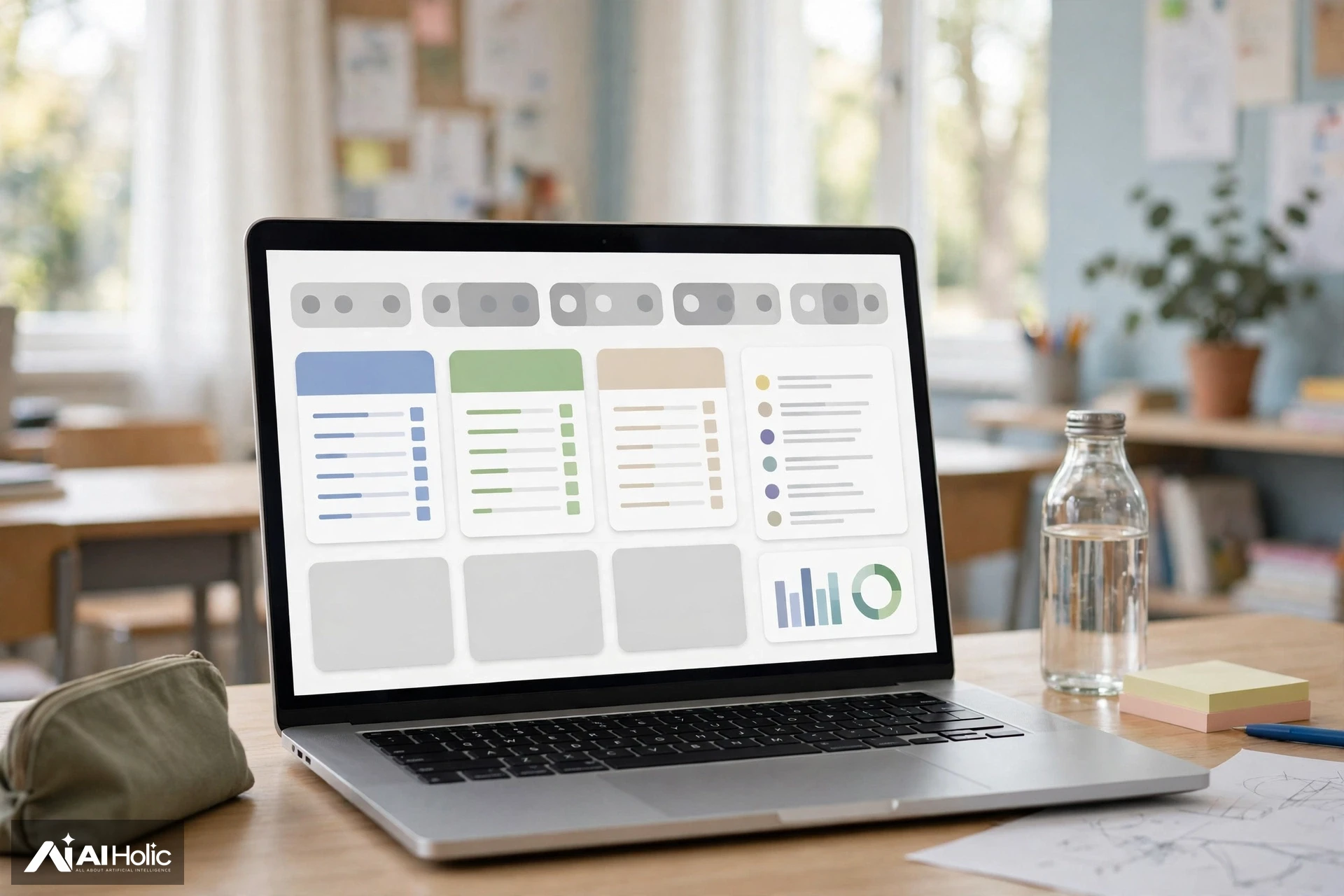
Canva AI vs Canvas LMS: Key Differences
The table below sums up the split. One product helps you design, and the other helps schools run courses. The shared letters in the name cause the mix-up, not any shared features.
| Canva AI | Canvas LMS | |
|---|---|---|
| Maker | Canva | Instructure |
| Main use | Design and visual content | Courses, grades, and quizzes |
| AI role | Makes images, text, and layouts | Helps teachers and checks student work |
| Who uses it | Creators, marketers, small teams | Teachers, students, and schools |
| Cost model | Free tier plus paid Pro plan | Set by each school or district |
Pros and Cons
Canva’s AI tools help most when the job is quick and visual. They fall short when the job needs exact facts, a real product, or a long text.
Pros
- Fast first drafts for images, layouts, and copy.
- Tools sit inside the editor, so no extra apps.
- Free tier lets you test before paying.
- Good for social posts, slides, and simple marketing.
Cons
- Image details can look wrong up close.
- Copy reads plain and needs a human edit.
- Credit limits and prices change without notice.
- Pro paywall locks the stronger tools.
Frequently Asked Questions
Is Canva AI free to use?
Yes, in part. A free Canva account includes some AI use, but the amount is limited and the limit changes, and reviews disagree on whether the limit is 50 uses in total or about 50 credits a month. Pro removes most limits, so heavy users pay for it.
What is Magic Studio in Canva?
Magic Studio is the name Canva gives its AI tool suite. It launched in October 2023 and now holds more than 15 tools. The set includes Dream Lab for images, Magic Write for text, Magic Design for layouts, and Magic Edit, Magic Eraser, and Magic Expand for photos.
Can Canva AI make images from text?
Yes. Dream Lab and Magic Media turn a text prompt into images inside your design, and you pick a style while the tool returns options to place on the page. The results suit backgrounds and social art, but they can invent wrong details, so check them before you publish.
What is the difference between Canva and Canvas?
Canva is a design platform for posters, slides, and social posts. Canvas is a learning management system from Instructure that schools use for lessons, quizzes, and grades. The names differ by one letter, which is why people mix them up.
Does Canvas use AI to detect cheating?
Canvas itself does not grade essays for AI use. Schools pair Canvas with separate AI detection tools that flag work for review. A flag is only a signal, not proof, so ask your teacher how your school handles it.
Conclusion
Canvas ai covers two products: Canva’s design tools and the AI features tied to the Canvas LMS. Start with the meaning that fits your task, try the free tools first, and check current limits before you pay. The name is confusing, but the choice is simple once you know which product you need.