Snapshots AI Employee GoHighLevel: What It Copies and How Agencies Use It
If you don’t want to read the whole guide or have difficulty reading, you can listen to this guide instead.
A snapshots ai employee gohighlevel setup is the fastest way for an agency to give a new client a working AI receptionist and follow-up system without building it from scratch. You build one master account, save it as a snapshot, and load that snapshot into each new client account. This guide explains what a snapshot copies, what the AI Employee brings with it, and what you still set up by hand.
At AI Holic, we read the current guides and the vendor docs they cite so you get the steps in plain words. You will learn which parts of the AI Employee travel in a snapshot, which parts stay behind, and how to check a loaded snapshot before your client sees it.
- What Snapshots AI Employee GoHighLevel Means
- What Is a Snapshot
- What Is the AI Employee
- Does the AI Employee Travel With a Snapshot
- What a Snapshot Copies and What It Leaves Out
- How to Build a Snapshot With the AI Employee Inside
- How to Load a Snapshot Into a New Client Account
- How to Update a Snapshot and Push Changes
- Pricing: What the AI Employee Costs Per Client
- Mistakes to Avoid Before You Go Live
- Frequently Asked Questions
- Conclusion
What Snapshots AI Employee GoHighLevel Means
Snapshots AI Employee GoHighLevel means one thing in plain words: a saved copy of a client account that already has the AI Employee set up inside it. The snapshot holds the build, not the client, the client data, or the paid plan.
Agencies use this to stop rebuilding the same setup for every client. They build one clean master account for a niche, like dental clinics or roofers, save it as a snapshot, and load it into each new client account in minutes.
The name can confuse people, so keep the two parts apart. A snapshot is the template, and the AI Employee is the bundle of AI tools that lives inside the account.
What Is a Snapshot
A snapshot is a reusable template of one sub-account, which is one client’s workspace inside an agency account. It holds the setup: workflows, pipelines, funnels, calendars, forms, and templates.
You do not build a snapshot from scratch. Build a clean master sub-account first, then save it as a snapshot, and use it as many times as you like.
GoHighLevel is a customer relationship management platform. A CRM keeps leads, chats, bookings, and follow-up in one place, and a snapshot copies that setup into a new account.
What Is the AI Employee
The AI Employee is the vendor’s name for a bundle of AI tools inside GoHighLevel. It is not one tool, but a set of modules that each do a different job.
The modules most guides name are Voice AI, Conversation AI, Reviews AI, Content AI, the Workflow AI Assistant, and the Funnel and Website AI builder. Voice AI answers calls.
Conversation AI replies to texts and web chats and books appointments. Reviews AI drafts replies to reviews. Content AI writes posts and pages.
A chatbot is the simple idea behind Conversation AI: software that talks with a person through text or speech. The AI Employee puts that idea to work on leads, so a missed call gets a text back and a web chat gets a reply at any hour.
Other AI firms sell similar bundles, and our GetMint AI company overview shows how one AI company packages its own product.
Does the AI Employee Travel With a Snapshot
Yes, the build travels. The subscription does not.
Two vendor guides published in 2026 spell out what moves. A snapshot can carry how the AI agents are built, with their flows, prompts, and settings, but it cannot carry the plan that pays for them, because that plan is charged per sub-account and switched on by the agency.
The table below sums up the parts. Treat it as a checklist, and always test the loaded snapshot before a client sees it.
| Part of the AI Employee | Travels in a snapshot? | What to check |
|---|---|---|
| Agent flow and prompts | Yes | Read the flow once |
| Knowledge base | Only if you select it | Tick it when you save the snapshot |
| Voice AI agent setup | Yes, without its phone number | Add one by hand after loading |
| Conversation AI bot | Yes, with prompts and settings | Retrain it on client FAQs |
| AI Employee subscription | No | Switch it on per sub-account |
The phone number is the part people forget most. Voice AI agents arrive without their numbers, so the agent cannot take calls until you give it one. The knowledge base is the second trap, since it only travels when you select it.
Some guides warn that the transfer is only partial in real use. Workflows that call AI actions load fine, but training data, calendars, and toggles may not come across cleanly. Treat the snapshot as the skeleton, then plan a manual setup pass.
What a Snapshot Copies and What It Leaves Out
A snapshot copies configuration, not activity. That is the rule the vendor states in its own docs.
Pipelines, workflows, calendars, funnels, and templates move. Contacts, conversations, integrations, and phone numbers do not.
The vendor’s exclusion list names 16 items that never transfer, including contacts, appointments, conversations, and Stripe connections. You cannot use a snapshot to move a client’s customer list.
| Group | Copies | Stays behind |
|---|---|---|
| Sales | Pipelines, custom fields, tags | Contacts |
| Marketing | Funnels, websites, forms, surveys | Campaign history |
| Automation | Workflows, triggers, templates | Campaign enrollments |
| AI | Agent Studio agents, Voice AI, Conversation AI | Numbers, training data |
| Admin | Calendars, custom values | Users, API keys |
Funnels and websites arrive as drafts until a custom domain is connected and they are published. Connect the domain, publish the pages, and then test the links.
Some claims about snapshots have no live vendor page behind them. One guide found no vendor page backing the claim that workflows load as drafts, so test it in your own load before you rely on it.
How to Build a Snapshot With the AI Employee Inside
Start with one master sub-account per niche. Dental, trades, real estate, and med spas each get their own master, and that master is never a live client account.
Build the full setup inside that master account: pipeline stages, speed-to-lead workflows, funnels and forms, and the calendar. Then set up the AI Employee: Voice AI, Conversation AI, and Reviews AI.
Use placeholders where client details go. Write [BUSINESS NAME], [PHONE NUMBER], and [ADDRESS] so anyone who loads the snapshot knows what to swap. Name the snapshot with a version, like Dental Practice Full Setup v3, so your team knows how fresh it is.
- Build a clean master sub-account with only what you want to reuse.
- Train Conversation AI on niche FAQs and write Voice AI scripts in plain words.
- Test every form, link, and booking flow as if you were a stranger.
- Select the AI agents and knowledge bases at save time.
- Write a one-page setup note: what to change and which workflows to switch on.
A snapshots ai employee gohighlevel build is only as good as its test run. Submit every form, click every link, and run a test chat with the AI before you save the snapshot. A broken flow in the master becomes a broken flow in every client account.
How to Load a Snapshot Into a New Client Account
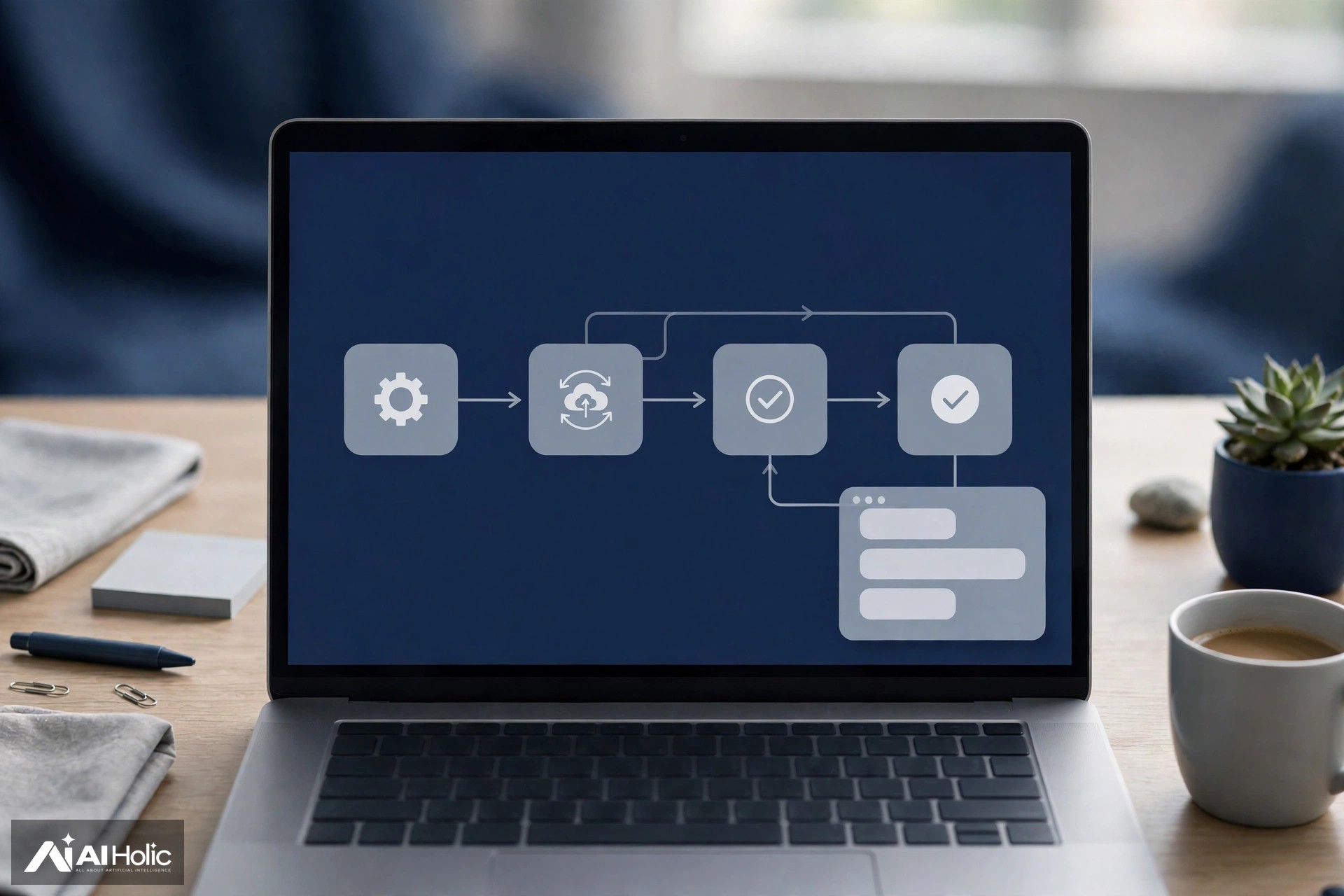
There are two ways to use a snapshot: make a new client account from it, or load it into one that already exists. Both take a few clicks, and both need the same checks after.
- Create a sub-account, or open the one you want to fill.
- Open Snapshots in the agency view and pick one.
- Load it and wait for the import to finish.
- Add a phone number to any Voice AI agent.
- Switch on the AI Employee plan.
- Connect the domain, Google Business Profile, and calendar.
- Run one test call and one test chat before the client sees it.
Loading into an existing sub-account runs a conflict check. You pick Override or Skip for each asset that clashes with what is already there.
Override cannot be undone, so read the list before you confirm it. The load itself has no preview, so the asset list is the only thing you can check first.
A snapshots ai employee gohighlevel load is fast, but the setup after it is not. The import takes minutes, while the manual pass takes longer, so do not hand over the account on load day.
How to Update a Snapshot and Push Changes
Nothing updates by itself. A snapshot is a frozen copy of the master account at the moment you saved it.
When you improve the master, refresh the snapshot by hand, then push the new version to the linked sub-accounts. Other agencies must re-import from a new link.
Push only the assets you mean to change. A push can overwrite work a client team did in their own account, so tell them first. Keep a backup snapshot each month, and keep the version name honest.
Pricing: What the AI Employee Costs Per Client
The money is per sub-account, not per snapshot. You pay the AI Employee plan for each client account that uses it, and the snapshot itself costs nothing to load.
Guides that checked the vendor pricing page report two AI tiers: Growth at $50 per month and Unlimited at $97 per month, both per sub-account. Unlimited covers inbound Voice AI, Conversation AI, Reviews AI, Content AI, and Ask AI.
Growth adds outbound Voice AI with a set amount of minutes included. These are vendor-reported prices, and they can change, so check the pricing page inside your own account before you quote a client.
Agencies often resell the setup as a fixed monthly service. One guide reports sellers charging $299 per month per business for a full AI Employee setup.
Our guide to BrightCall AI pricing and integrations covers how a voice AI product prices its plans. Compare the plan limits side by side before you pick one.
Mistakes to Avoid Before You Go Live
Most snapshot failures come from the same short list. Work through it before any client sees the account, while the problems are still cheap to fix.
- Skipping the test call. The AI may have no phone number yet.
- Forgetting the knowledge base. It only travels when you select it at save time.
- Trusting the load without a conflict check. Override cannot be undone.
- Quoting a price from an old guide. Check the billing page in your own account.
- Handing over the account on load day. Give yourself a day to test and fix.
A snapshots ai employee gohighlevel rollout fails in quiet ways. The AI answers with the wrong business name, or the calendar books into the wrong hours. A short test run catches both.
Keep a simple QA sheet for every load: test call, test chat, test booking, test form, and a read-through of every automated message. Our guide to Visor AI capabilities and reporting dashboards shows what to watch once the account is live.
Frequently Asked Questions
Does snapshots ai employee gohighlevel include the AI Employee subscription?
No. The snapshot carries the build, not the plan.
The AI Employee plan is charged per sub-account, so you switch it on for each new client account after you load the snapshot. Check the billing page in your own account for the current price.
What does a GoHighLevel snapshot copy?
It copies setup, not people or history. Workflows, pipelines, funnels, calendars, forms, and AI agent builds travel. Contacts, conversations, appointments, phone numbers, and Stripe links stay behind.
Do I need a phone number for Voice AI after loading a snapshot?
Yes. Voice AI agents arrive without their phone numbers. Add a number to the agent, then run a test call before the client uses it.
How long does it take to load a snapshot into a new client account?
The import itself takes minutes. The full setup takes longer, since you still add phone numbers, connect the domain, and test the flows. Most agencies allow 20 to 60 minutes per client.
Can I sell a snapshot to another agency?
Yes. Snapshots can be shared by link, and paid snapshots sell for $97 to $997 per niche setup, as reported by guides. The buyer still switches on the plan and connects their own numbers.
Conclusion
A snapshots ai employee gohighlevel setup saves real time when you build it once and load it well. Keep the master clean, test every load, and switch the plan on per client. Start with one niche, and grow from there.