AI Audio Restoration: Fix Noisy, Old, and Damaged Recordings
If you don’t want to read the whole guide or have difficulty reading, you can listen to this guide instead.
An old interview hisses. A family cassette crackles. A podcast guest recorded next to a humming fridge.
ai audio restoration uses trained models to pull the sound you want out of the noise, and it can rescue recordings that once sounded lost. This guide explains how it works, which tools fit each job, and the repair order that protects your audio.
At AI Holic, we test AI tools in plain words, and this guide does the same for repair tools. You will see the main defect types, a comparison of the best tools, a step-by-step workflow, and the limits to know before you start. You need no studio gear, only a copy of your file and a little patience.
What Is AI Audio Restoration?
AI audio restoration is the process of removing defects from a recording with models trained on clean and damaged sound. The models learn what speech and music should sound like, then separate that sound from hiss, hum, clicks, and room echo. Wikipedia describes audio restoration as removing hiss, impulse noise, crackle, wow and flutter, background noise, mains hum, and lossy compression artifacts from sound recordings.
Older tools used fixed filters and a noise profile. You sampled a quiet stretch, and the tool cut those frequencies from the whole file. That works on steady hiss, but it fails on changing noise such as traffic or a fan that speeds up.
AI tools work in a different way. They study the sound in short slices of time and frequency, then decide what belongs to the voice and what belongs to the noise.
| Defect | What You Hear | What Fixes It |
|---|---|---|
| Hiss | A steady fuzzy haze over everything | Broadband noise reduction |
| Hum and buzz | A low drone or buzz under the sound | A narrow filter tuned to 50 or 60 Hz |
| Clicks and pops | Short sharp ticks and crackle | De-click and spectral repair |
| Clipping | Harsh crackle on loud words | De-clip that rebuilds flat peaks |
| Reverb | Room echo that smears each word | De-reverb at moderate strength |
| Dropouts | Short gaps where sound cuts out | Gap repair from nearby sound |
How AI Audio Restoration Works
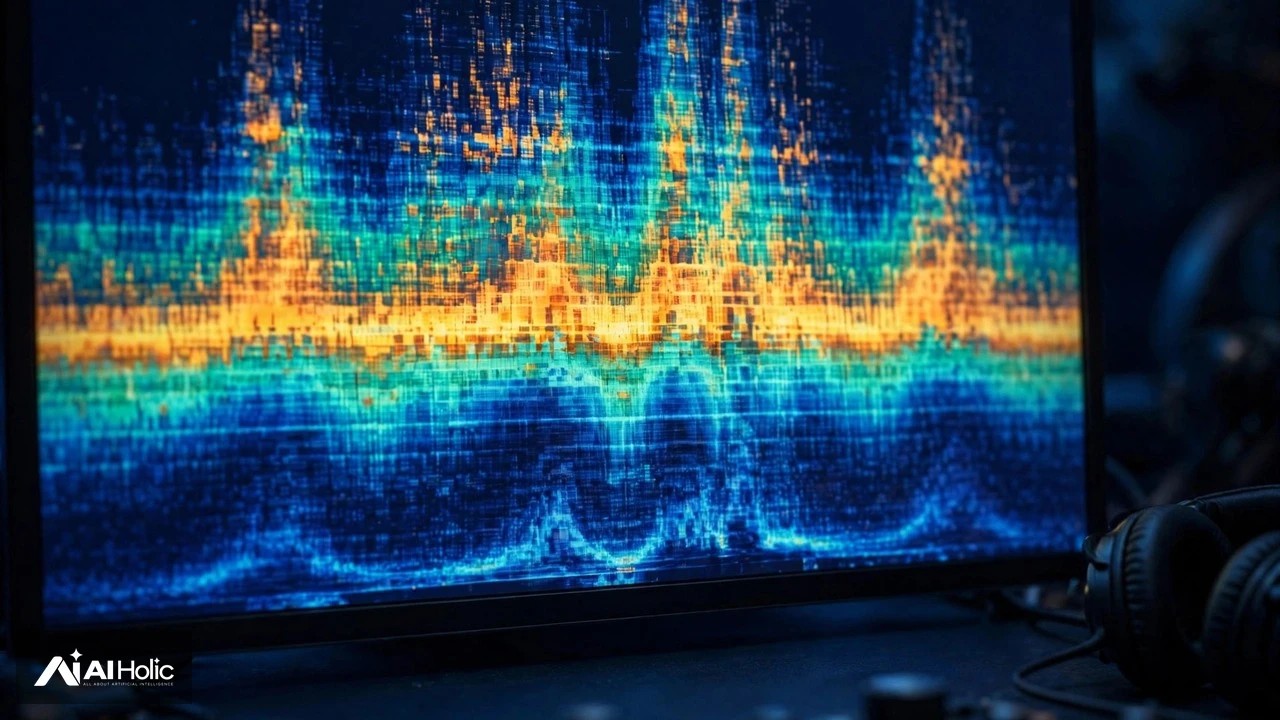
Most modern tools work in the spectral domain. The audio is turned into a time and frequency picture called a spectrogram, and the model builds a mask that keeps the voice and drops the noise. The cleaned picture is then turned back into sound.
Training decides how well this works. A model trained on podcast speech will do well on interviews and poorly on a 78 rpm shellac transfer. Match the tool to your material, not to the marketing.
Some tools go further and generate new sound. Bandwidth extension predicts missing highs from a phone-quality call, and gap repair fills short dropouts with plausible sound. That is useful for inaudible gaps, and risky for words people must trust, since the model can invent a syllable that was never spoken.
The Problems It Can Fix
Hiss is the easiest win. A steady broadband noise sits across the whole file, and a trained denoiser can pull it down without touching the voice. Leave a little room tone in place, since total silence sounds unnatural.
Hum and buzz come from mains power and bad grounding. They sit at 50 Hz in most of the world and 60 Hz in North America, with harmonics above them. A narrow filter tuned to those lines removes hum more cleanly than a general denoiser, so fix hum first.
Clicks, pops, and crackle are short spikes, common in digitised vinyl and tape. A spectrogram shows them as thin vertical lines, and a de-click tool can remove them while the music keeps playing. Dropouts are short gaps, and a repair tool can bridge one of a few milliseconds from the sound around it.
Reverb is harder. A model can estimate the dry voice from a roomy recording, but long, washy reverb often leaves a gated, choppy sound when tails get cut off.
Clipping happens when a signal is recorded too hot and the peaks flatten. Light clipping can be rebuilt, since the model only has to estimate short missing peaks.
Wikipedia notes that hard-clipped signals cannot be fully restored, because the information in the peaks is lost for good. It names iZotope RX De-Clip and Audacity Clip Fix among the repair options in its article on clipping in audio.
Best AI Audio Restoration Tools in 2026
No single tool wins for every job. The right pick depends on your material: speech, music, or archive audio. These seven cover the main needs.
iZotope RX: Best for Detailed Repair
iZotope RX is the reference tool for audio repair in post-production. It pairs a spectrogram editor, where you can see and paint out a noise, with modules for de-noise, de-reverb, de-click, de-clip, and de-hum.
Its Repair Assistant can suggest a chain of fixes, and Music Rebalance can split a finished mix into stems. It is a desktop suite with a real learning curve, so it suits editors who repair audio every week.
Adobe Podcast Enhance Speech: Best for Fast Voice Cleanup
Adobe Podcast Enhance Speech is a web tool that cleans voice recordings in minutes. You upload a file, and it cuts noise and room echo while it brings the voice forward.
Adobe launched it broadly in 2022 and has refined it since. It is built for speech, not music, and it gives you little manual control.
Descript: Best for Podcasters Who Edit by Text
Descript is an audio and video editor where you edit by changing a transcript. Its Studio Sound feature cleans voice recordings, and the same app handles filler word removal. It suits creators who want repair and editing in one place.
Auphonic: Best for Regular Episodes
Auphonic is an automatic post-production web service. You upload audio, and it levels voices, balances loudness to a target, and reduces noise.
It aims at podcast loudness near -16 LUFS and streaming near -14 LUFS. It offers a free allowance, and it suits shows that publish on a schedule.
Cleanvoice: Best for Conversation Cleanup
Cleanvoice targets podcast cleanup. It removes background noise, filler words, mouth sounds, and silence from a recording.
If your main problem is rambling takes, it cuts the repetitive edits as well as the noise. Listen through the automatic cuts before you publish.
LALAL.AI and Moises: Best for Stem Separation
Some jobs need separation, not cleanup. LALAL.AI and Moises split a finished song into vocals, drums, bass, and other parts, so you can pull a voice out from under music or crowd noise.
Our guide to LALAL.AI explains how the split works and what the free plan covers. Separation on dense mixes still leaves bleed, so check soloed stems before you trust them.
Audacity: Best Free Starting Point
Audacity is a free, open source editor with a built-in Noise Reduction effect that works well on steady hiss. It also includes a Clip Fix effect for light clipping. It will not match a paid suite on hard jobs, but it costs nothing, and it is the right first test for any repair.
AI Audio Restoration Tools Compared
| Tool | Best For | Type | Free Option |
|---|---|---|---|
| iZotope RX | Detailed repair and dialogue work | Desktop app and plug-ins | Trial access |
| Adobe Podcast Enhance Speech | Quick voice cleanup in a browser | Web tool | Free tier |
| Descript | Editing speech like text, with Studio Sound | Editor app | Free tier |
| Auphonic | Automatic leveling and noise reduction | Web service | Free allowance |
| Cleanvoice | Podcast noise, filler words, and silence | Web service | Free tier |
| LALAL.AI and Moises | Pulling vocals out of a mix | Web service | Free preview |
| Audacity | Free noise reduction and clip repair | Desktop app | Free, open source |
Desktop suites win on control and are the professional standard. Cloud tools win on speed and ease for voice content. A sensible stack is a free cloud enhancer for speech, Audacity for light hiss, and a paid suite once the free tools hit their limits.
How to Restore Audio Step by Step
Order matters, because each fix changes what the next tool sees. Check your work after each step.
- Copy the original and work only on the copy.
- Listen to the whole file once and note every defect with a timestamp.
- Fix clipping first, so later tools see a plausible waveform.
- Remove hum with a narrow filter tuned to 50 or 60 Hz.
- Remove clicks and short dropouts while transients are still sharp.
- Run noise reduction or separation at moderate strength, in light passes.
- Apply de-reverb, then gentle EQ and loudness normalisation last.
Compare the result with the original at matched loudness after every step. Processed audio often sounds brighter or quieter, and the louder version almost always sounds better in a quick test. Match levels first.
A noisy voice memo can reach near-broadcast quality in under five minutes with a cloud enhancer. A vinyl transfer can reach clean, listenable quality in an evening, while archive-grade work takes far longer. Old tape and shellac transfers often need many minutes of manual work per minute of audio, which is why libraries keep dedicated restoration teams.

Free vs Paid: Where to Start
Start free. Audacity handles steady hiss, and the free tiers of Adobe Podcast, Auphonic, and Descript cover short voice jobs. Test a 30-second sample before you pay for anything.
Pay when you hit a limit twice. If the free cap blocks the same job two weeks in a row, or if you repair audio every week for clients, a paid suite earns its price. Browser workspaces that bundle audio tools with video and image work, such as RSW AI Studio, can suit creators who already pay for one login.
Music jobs change the math. Restoring a song is different from restoring speech, since the model must keep drums, bass, and vocals in balance. Once the mix is clean, a style finder can name the sound you are hearing.
What AI Restoration Cannot Fix
AI can reduce noise, but it cannot invent words that were never captured. If two people talk over each other, separation tools may split them, and the result still carries artifacts. Severe distortion, a voice buried under loud music, and a damaged microphone are all hard cases.
In those cases a re-record beats any plug-in, even a short pickup session for the worst lines. For archive material, the honest choice is sometimes to leave a rough section alone and signpost it, rather than let a model invent sound that never existed.
Consistency is a second limit. A model that works well on one voice may behave oddly on another, so test a short sample from each speaker first. For a multi-guest show, treat each track on its own.
Common Mistakes to Avoid
- Over-processing: stacking aggressive passes until the voice sounds thin or watery.
- Restoring in a lossy format: work in WAV at the original sample rate and compress only at the end.
- Skipping the noise profile: give a denoiser a few seconds of clean noise floor to learn from.
- Trusting meters over ears: artifacts hide in the 3 to 8 kHz range, so listen on headphones at low volume.
- Deleting the original: storage is cheap, and a destroyed source cannot be rebuilt.
Frequently Asked Questions
Can AI remove background music from a voice recording?
Often, yes. Source separation can isolate a vocal stem from music, with the best results when the music is quieter than the voice. Expect some tonal hollowness and check the pauses for leftover fragments.
Can AI fix a clipped recording?
Light clipping can be rebuilt, since the model only has to estimate short missing peaks. Heavy or sustained clipping removes too much information, so the result may sound smooth but will not match what was said. Record with lower gain to avoid it next time.
Is there a free AI audio restoration tool?
Yes. Audacity is free and includes noise reduction and a Clip Fix effect. Adobe Podcast, Auphonic, and Descript all offer free tiers, so you can test a short sample before you pay anything.
Should I run noise reduction before or after de-reverb?
Noise reduction usually goes first. De-reverb tools can read a noise tail as reverb and make the noise floor pump, so a cleaner input gives the de-reverb model a better chance.
Will AI audio restoration change how my voice sounds?
It can. Strong noise reduction may make a voice sound thin, watery, or robotic. Use the lightest setting that solves the problem, leave some room tone in place, and compare with the original before you export.
Conclusion
AI audio restoration is a practical rescue tool for hiss, hum, clicks, and light clipping. Start with a copy, diagnose the defects, fix them in order, and use the lightest touch that works. Try the free tools on a short sample today, and upgrade only when the free tier blocks real work.