Krea AI: Real-Time Image and Video Generation Explained
If you don’t want to read the whole guide or have difficulty reading, you can listen to this guide instead.
If you need images or short video clips fast, krea ai packs both into one browser tab. It is a creative suite that generates, edits, and improves images and video. You type a prompt or sketch a rough shape, and the result appears in seconds.
At AI Holic, we checked what the platform actually does before we wrote this guide. This page covers the models, the main features, the pricing, and the limits you should know. You will finish with a clear answer on whether it fits your work.
The short answer is simple. It suits designers and marketers who want many models under one login. It frustrates people who want one simple button and a flat monthly price.
What Is Krea AI?
Krea AI runs entirely in your browser, so you install nothing and need no graphics card of your own. It is a creative suite, not a single model. You get image generation, video generation, editing, upscaling, and 3D tools under one login.
The platform mixes its own models with partner models from other labs. Krea 1, Krea 2, and Krea 3 are built in house, while Flux, Veo 3.1, Kling, Runway, Hailuo, Wan, and Nano Banana run in the same workspace on one set of credits.
That mix is the main reason people pick it. A designer can test a style, switch models for the final image, and send it to the enhancer without leaving the page. A video maker can animate a still image with a video model in the same session.
Krea says more than 40 million creators use the platform. The company was founded by Victor Perez and Diego Rodriguez, and it has raised about 83 million dollars, including a 47 million dollar Series B in April 2025.
Krea 2, Krea 3 and the Other Models
Krea 1 came first. It opened in public beta on 31 July 2025 and was built with Black Forest Labs. It was made to avoid the smooth, plastic look that many generators produce.
Krea 2 followed in May 2026. It is the style model, built from scratch for look and creative control. It produces native 4K images, and its Turbo mode makes a draft in about two seconds.
Krea 2 also ships as open weights, with Raw and Turbo versions on Hugging Face since June 2026 under a community licence. That matters if you want to run the model outside the app.
Krea 3 is the editing model, opened in beta on 15 October 2026. You give it text instructions and up to four reference images, and it changes one named area while the camera, framing, and layout stay put.
Krea Realtime 14B is the video model. It has 14 billion parameters and was distilled from Wan 2.1. Krea reports about 11 frames per second on a single B200 graphics card.
Partner models fill the gaps. Veo 3.1 and Kling handle video, Nano Banana handles fast image edits, and Flux covers a clean photographic look. The official docs claim more than 150 hosted models, while older reviews still say 64 or more.
Key Features
The tools sit in a left menu and share one credit balance, so you can move an image from generation to editing to upscaling without a new purchase. These are the tools you will use most.
Realtime Canvas
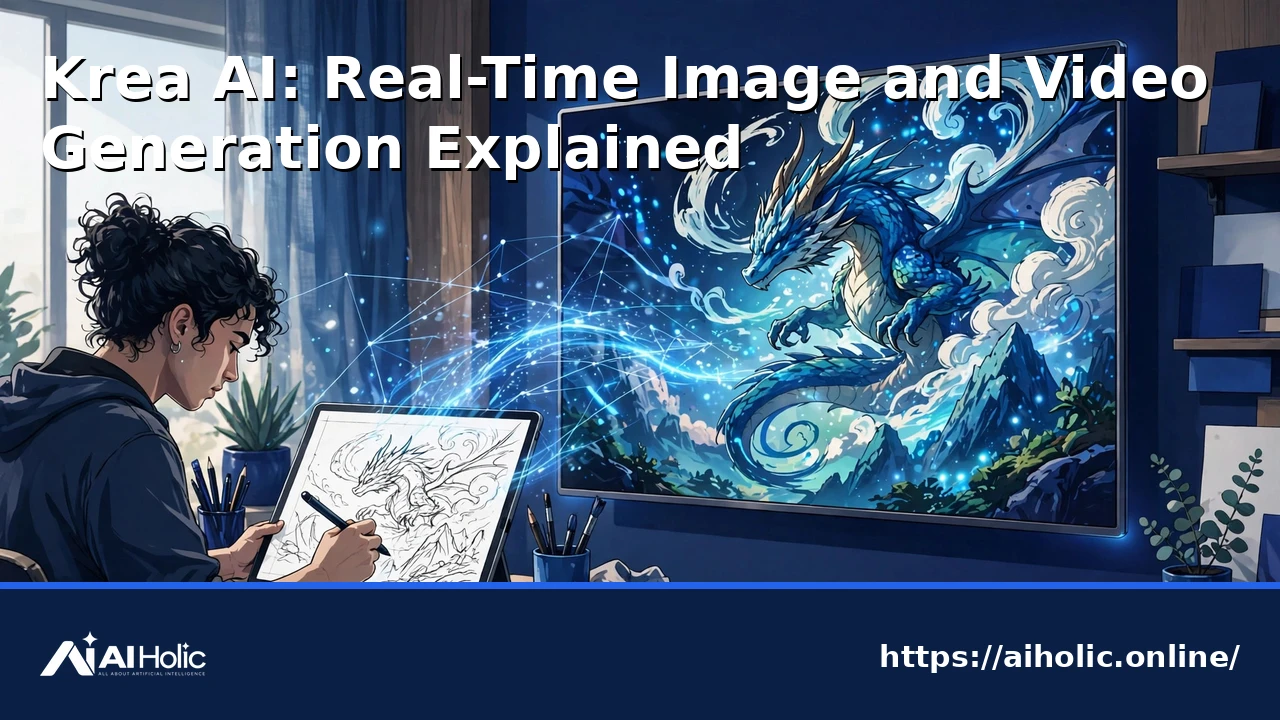
The Realtime Canvas is the feature that made Krea famous. You sketch a rough shape on one side, and a finished image appears on the other side. The image updates in under 50 milliseconds as you draw or change the prompt.
Rough sketches work fine here, since the tool reads your intent, not your drawing skill. It suits mood boards and quick concept tests.

Image Generation
The image tool takes a text prompt or a reference image. Krea 2 reads up to 10 style references and applies only their look, not their content, and you pick from seven aspect ratios at up to 1K, or use Krea 3 for custom sizes up to 2K.
Text inside images is still a weak spot, so leave blank space and add words later in a design tool. Short, concrete prompts beat long lists of adjectives.
Video Generation
The video tool animates still images or builds clips from text. You pick a model such as Veo 3.1, Kling, Hailuo, or Wan, then set the length and style, and motion transfer can take movement from one clip and apply it to a still image.
Video quality depends on the partner model, not on Krea itself. Krea controls the interface, while the model maker sets the quality ceiling. Full access to every video model starts on the Pro plan, and if video is your main job, our Pixverse AI guide covers another tool built for short clips.

Enhancer and Upscaling
The Enhancer sharpens low-resolution images and adds fine detail. Paid plans upscale to 22K, while the free plan stops at 2K, and it bundles Topaz Photo AI and Topaz Gigapixel, two pro tools that cost 199 dollars each on their own.
Use it only on your final picks. Strong settings can warp straight lines in buildings and push colours toward yellow. Keep the strength low for architecture and portraits.
LoRA Training
LoRA training teaches the platform your own style, character, or product. You upload a set of your own images, Krea builds a small model from them, and that keeps faces and products consistent across a whole batch.
Limits vary by plan: Basic and Pro allow 50 LoRA images a year, while Max and Business allow up to 2,000.
Edit, Nodes, Agent, and 3D
The edit tool handles inpainting, outpainting, and object changes without a full re-render. Nodes is a visual workflow builder for repeat jobs, and Krea Agent is a chat interface that calls the tools for you, open on all plans since 10 September 2026.
The 3D tool turns an image or a prompt into a 3D model, with about 100 models a month on Basic, 400 on Pro, and 800 on Max. Treat it as a handy extra, not the main reason to pay.
Krea AI Pricing and Plans
Pricing runs on compute units, not on a fixed number of images. Every action spends units, and the cost depends on the model, the resolution, and the length of the video. Reviewers last checked these prices on 30 September and 23 October 2026, so confirm them on the pricing page before you pay.
| Plan | Monthly Price | Yearly (Per Month) | Compute Units | What It Adds |
|---|---|---|---|---|
| Free | $0 | $0 | 100 per day | Real-time tools, limited models, upscaling to 2K |
| Basic | $9 | About $5 | 5,000 per month | All image models, selected video models, commercial licence |
| Pro | $35 | $21 | 20,000 per month | All video models, 8 image jobs at once |
| Max | $105 | $63 | 60,000 per month | LoRA training on up to 2,000 images |
| Business | $200 | $160 | 80,000 per month | Up to 50 seats, unit rollover |
| Enterprise | Custom | Custom | Custom | Contact sales |
Yearly billing cuts about 40 percent off Basic, Pro, and Max, and 20 percent off Business, while monthly billing suits a short project with no year-long lock in.
Units do not roll over on Free, Basic, Pro, or Max. Anything left at the end of the month is lost. If you run out, you can buy a compute pack of 2,000 to 50,000 units that stays valid for 90 days.
The free plan gives 100 units a day, which Krea says covers about 50 Krea 2 Turbo images, about 18 Krea 1 images, or about 5 Krea 3 images. Older pages still say 50 units a day, so that number has changed.
Video costs far more than images, and a single 10-second clip on a top video model can take a large share of a daily free allowance. Check the unit cost shown before you press generate, and test with a short, low-resolution clip first.
How to Use Krea AI
A first result takes under five minutes, and the free plan is enough to test the workflow. Follow these steps.
- Create a free account with Google, Apple, or an email address.
- Open the Image tool and pick a model. Krea 2 Turbo is the cheapest choice for drafts.
- Write a prompt that names the subject, the style, the light, and the camera angle, or add a reference image.
- Generate a small batch, pick the best result, and send it to the Edit tool or the Enhancer.
- Use the Video tool to animate the final image if you need motion.
- Download the file, and check your unit balance before the next batch.
Prompt quality matters more than the model you pick, and a clear subject and a clear style beat a long list of adjectives. If video is your main goal, our Mind Video AI guide shows how a video-first tool handles the same job.
Strengths and Limits
The platform’s strength is range: many models, real-time tools, and strong upscaling in one workspace. The price of that range is a credit system that needs care and an interface that can feel busy.
- Many models under one login: image, video, edit, 3D, and upscaling in one workspace.
- Realtime Canvas: images update in under 50 milliseconds as you draw.
- Strong upscaling: enhancer reaches 22K with Topaz tools bundled.
- LoRA training: keeps styles, faces, and products consistent.
- Units run out fast: video and upscaling burn credits quickly.
- No rollover: units expire each month on Free, Basic, Pro, and Max.
- Weak text: words inside images still need several tries.
- Billing complaints: some users report problems with charges and cancellation.
Trustpilot scores it 3.5 out of 5 from 129 reviews, and the most common complaints are billing disputes, credits that vanish fast, and trouble with cancellation. Read the refund terms before you pay.
Alternatives Worth a Look
No single tool fits every job. Midjourney suits people who want one clear artistic look from its own models, while Leonardo AI offers model variety with a stronger free tier. Freepik mixes stock photos with AI tools, which suits marketers who need both in one place.
Whisk AI is another image tool worth a look, and our guide explains how its subject-first workflow differs. Image tools like these are built on text-to-image models, which turn a written prompt into a picture by learning from large sets of image and text pairs.
The wider field is generative AI, a branch of artificial intelligence that creates images, video, audio, and text from a prompt. Krea wins on range and real-time tools, while a simpler tool wins if you want one button and one look.
Who Should Use It
Designers, social teams, and small studios get the most from it, since they can test styles fast, keep a brand look steady with LoRA training, and move from image to video in one session.
It is a poor fit for total beginners and for anyone on a tight budget who needs a lot of video. Start free, and only pay for Basic when the tool already fits your work.
Frequently Asked Questions
Is it free to use?
Yes, the free plan gives 100 compute units a day with limited model access, covering real-time tools, basic image generation, and upscaling to 2K. Commercial use is not included, so check the terms before you sell anything made on the free plan.
Can I use the images commercially?
Paid plans include a commercial licence, starting with Basic at 9 dollars a month. The free plan does not clearly allow commercial use, so use a paid plan for client work.
What is Krea 2?
Krea 2 is the platform’s own image model, built from scratch for style and creative control. It generates at up to 1K across seven aspect ratios, and its Turbo mode makes drafts in about two seconds.
What is Krea 3?
Krea 3 is the editing model. It takes text instructions and up to four reference images, then changes one named area while the rest stays put.
Does it make video?
Yes, it hosts video models such as Veo 3.1, Kling, Hailuo, Wan, and Seedance. Basic covers selected video models, and Pro opens all of them.
Do credits roll over?
No, units on Free, Basic, Pro, and Max reset each month, and leftovers are lost. Business is the only plan with rollover. You can buy compute packs that stay valid for 90 days.
Conclusion
Krea AI gives you many models, real-time tools, and strong upscaling in one browser tab. Start free, learn the unit costs, and move to Basic only when the workflow already fits your work.