Mind Video.ai: What It Does, What It Costs, and Who Should Use It
If you don’t want to read the whole guide or have difficulty reading, you can listen to this guide instead.
mind video.ai is a website that puts many AI video and image tools in one login. You type a prompt or upload a photo, pick a model, and get a short clip back. It suits people who want to test video models without paying for each one on its own.
At AI Holic, we read the latest hands-on reviews and checked what the platform actually gives you. This guide covers what it does, what the free plan includes, what credits cost, and where it falls short.
You will also see a worked cost example, a free versus paid table, and plain answers to the questions people ask most before they sign up.
The Short Answer
mind video.ai is a web-based AI media studio. It bundles third-party video models with its own free video model, plus image, music, and voiceover tools in the same account. You can test it for free, but free clips carry a watermark and stay public.
The free plan gives you one short video and a few images. Paid plans remove the watermark and add credits, but credit prices differ by model, so one clip can cost more than you expect.
What Mind Video.ai Is
It is an online platform for making short videos, images, and audio with AI. It runs in your browser, so there is nothing to install and no desktop app to download. Reviewers describe it as a hub, not a single model, and it sits in the wider field of generative artificial intelligence, where one prompt can produce text, images, video, or audio. If you make clips with Meta AI instead, our guide to meta ai video download shows how to save those clips on any device.
The idea is simple. You bring a prompt or a photo, choose a model from the list, and the platform renders a short clip. Image, music, and voiceover tools sit in the same studio, so you can build a whole social post without opening five tabs.
People search for it because they want one cheap way to reach the big-name video models. The draw is access, not a new model with its own look. Each clip still carries the style of the model that made it, so results vary from one model to the next.
What You Can Make With It
The studio covers four kinds of output. Video is the main draw, but images, music, and effects share the same credit balance.
Text to Video
You write a short prompt that describes a scene, a subject, and a mood. The model turns that text into a clip of a few seconds. Keep prompts short and plain, since the free model caps prompts at 1,500 characters.
A good first prompt names one subject, one action, and one setting. For example, a dog running on a beach at sunset gives the model a clear job. Long prompts with five scenes in one line tend to lose the middle scenes.
Image to Video
You upload a still photo and the tool adds motion to it. A product shot can turn slowly, a portrait can blink or smile, and a street scene can gain moving clouds or traffic. This is the fastest way to test the platform, since you start from a photo you already like.
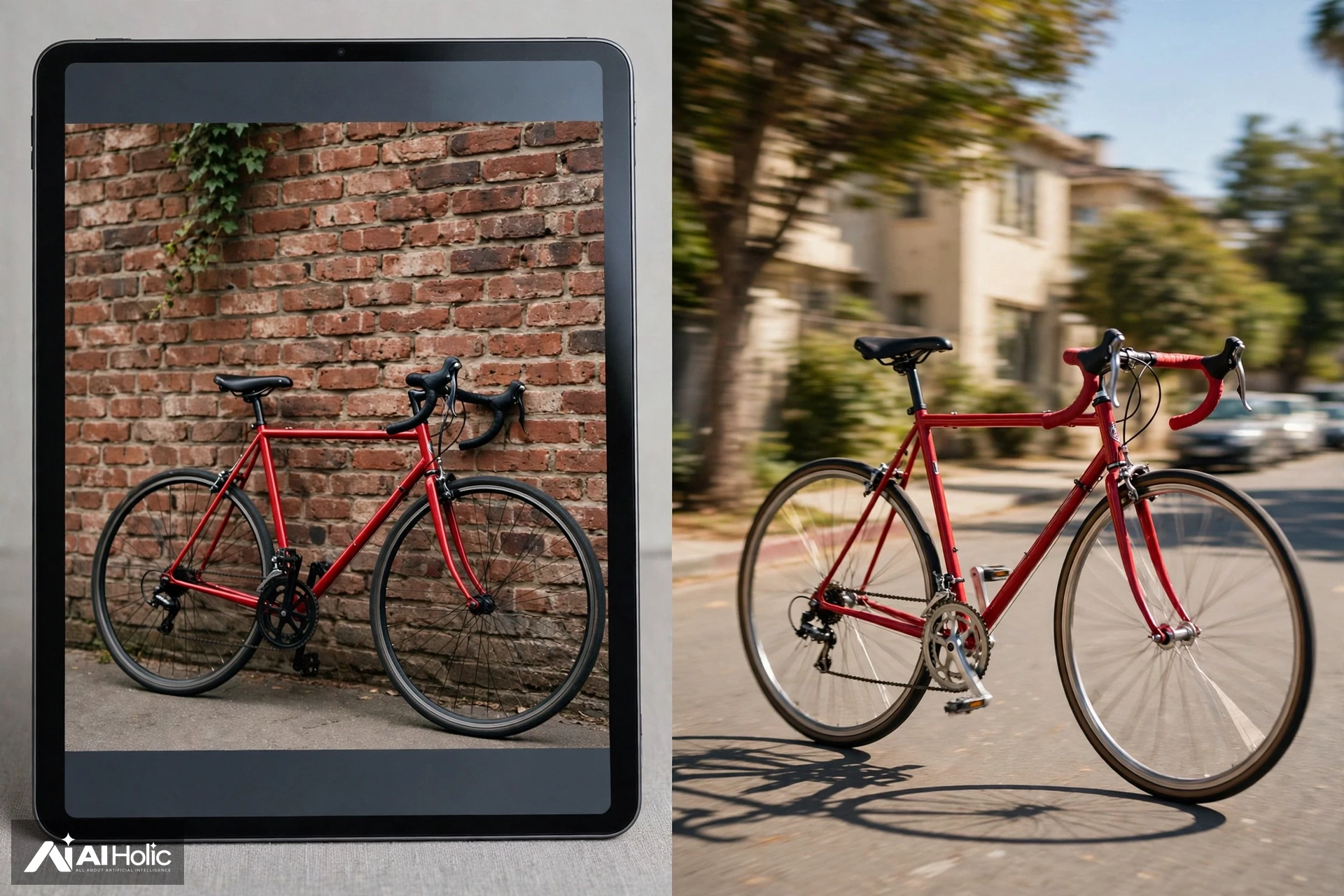
First-and-last-frame tools go one step further. You give the tool a start photo and an end photo, and it fills in the motion between them. One hands-on test found that this tool did not accept WebP files, so keep a JPG or PNG copy ready.
Still Images
Text to image turns a written idea into a picture, and image to image reworks a photo you upload into a new style. Reviewers note the image side works well, and one hands-on test found a GPT Image 2 result with natural light and a believable face. If you mainly want still images, our Whisk AI guide covers a tool that was built for that job.
Music, Voiceovers, and Effects
A music tool builds short royalty-free tracks from a mood or a few lyrics, and a voiceover tool reads a script aloud. Effects such as Hug, Kiss, and Morph turn a photo into a short playful clip for social feeds. These extras are useful for a quick post, but they do not replace a real audio editor.
Templates
Ready-made templates cover marketing clips, tutorials, and short stories. They help when you need a quick draft, but the output still needs a real editor before it looks finished. Treat a template clip as a starting point, not a final video. If you want a tool built only for marketing clips, read our guide to topview ai, which turns a product link into a short ad.
The Models Inside the Studio
The model list is the main reason people visit. Reviewers list Seedance 2.5, Wan 3.0, GPT Image 2, Nano Banana, Veo 3.1, Kling 2.1 Master, PixVerse V5, and Hailuo 2.3 among the choices. The list changes often, so treat any single review as a snapshot, not a fixed menu.
One name on older lists needs a warning. Sora 2 appears in several reviews, but OpenAI shut the Sora app down on April 26, 2026, and ended its API on September 25, 2026, according to Sora on Wikipedia.
A model list that still shows Sora may be out of date, so check the live studio before you plan around one model. If you want Sora-style clips from tools that still work, see our Sora AI alternatives.
PixVerse V5 is one of the models on the list, and our PixVerse AI guide explains what that model does on its own. Try two or three models with the same prompt and keep the one that fits your style. The same words can look very different from one model to the next.
| Model | Type | Noted For |
|---|---|---|
| Seedance 2.5 | Video | Current flagship video model in the studio |
| Veo 3.1 | Video | Realistic motion and clean scenes |
| Kling 2.1 Master | Video | Smooth movement and steady subjects |
| PixVerse V5 | Video | Short social clips and playful effects |
| Hailuo 2.3 | Video | Quick drafts and varied styles |
| GPT Image 2 | Image | Still images with natural detail |
| Nano Banana | Image | Image edits and restyles |
Model names change with each update, and new models arrive without much notice. The table above shows the names reviewers reported most often in 2026. Use it as a starting list, then confirm the live lineup inside your own account.
How to Make Your First Video
Your first clip takes only a few minutes to set up. The wait comes after you press generate, not before.
- Create a free account on the mind video.ai site and open the studio.
- Pick text to video or image to video.
- Write one clear prompt or upload one photo.
- Choose a model and a clip length, then check the credit cost shown before you confirm.
- Wait for the render, watch the clip, and save it if you like it.

Start with the free model and a simple prompt. A short scene with one subject and one action gives you a fair test of motion and style. If the first clip looks wrong, change one thing in the prompt and try again, instead of rewriting the whole prompt at once.
Use JPG or PNG for uploads. One hands-on test found that WebP files did not work in the first-and-last-frame tool, so keep a JPG copy ready. Give the queue time to clear, since free video renders can take about 15 minutes at busy times.
Pricing and Credits
The platform runs on credits, not on a flat video count. Each model charges its own credit price per second, so the same plan can buy many short image runs or just a few premium video clips.
| Plan | Monthly Price | Monthly Credits | Who It Fits |
|---|---|---|---|
| Lite | $16.90 | 400 | Casual testing and light use |
| Pro | $29.90 | 1,000 | Regular social posts |
| Max | $69.90 | 2,500 | Heavy use and small teams |
These are the monthly prices reported by a hands-on review in September 2026, and a July 2026 review lists the same three figures. Yearly billing cuts the monthly equivalent to about $9.90 for Lite, $15.90 for Pro, and $39.90 for Max, with the full year charged up front. Other reviews list different figures, so open the live pricing page before you pay, since prices change and an old review may already be out of date.
A Worked Cost Example
One hands-on test ran Seedance 2.5 at 720p without a video reference. Four seconds used 108 credits, which is 27 credits per second. On the Lite plan that four-second clip costs about $4.56 in credit value, and on the Max plan about $3.02.
The lesson is plain. Check the credit cost of your chosen model and clip length before you press generate. A failed clip still spends credits, so test with the free model first.

Image credits work on their own track. GPT Image 2 packs start at $3.90 for about 100 images and rise to $19.90 for about 2,300 images, and those credits last a year but cannot pay for video models. Keep the two credit types apart when you compare plans, since a cheap image pack does not help your video bill.
The Free Plan and Its Limits
The free plan is a real test, not a demo video. You get one free six-second video and two free GPT Image 2 images, plus 2 credits a day from a seven-day check-in task. That is enough to learn the layout and judge the quality.
| Feature | Free | Paid |
|---|---|---|
| Video length | 6 seconds, free model only | Longer clips, up to 1080p |
| Watermark | Yes | No |
| Privacy | Videos are public | Private generations |
| Queue | Waits of about 15 minutes | Shorter waits |
| Tasks at once | One | Three at once |
Free results carry a MindVideo watermark, and free videos are public. Do not upload client work, private photos, or anything you cannot share. Paid plans remove the watermark, allow 1080p output, and let three tasks run at once.
The daily check-in gives you 2 credits a day for seven days. Two credits buy about two more GPT Image 2 images, since each image costs 1 credit. Those credits do not stretch far enough to test a paid video model, so use the free video allowance for your video test.
What Works Well
- Many current models in one login, so you can compare looks without five subscriptions.
- A free test that produces real output, not a locked preview.
- Image results with natural light and clean detail in hands-on tests.
- A short queue for free images, even with dozens of tasks ahead.
- One place for video, images, music, and voiceovers.
The strongest point is choice. You can try Seedance for one clip and Kling for the next, then keep the model that fits your style. The free allowance is small, but it is enough to learn the tool and see real output before you spend anything.
Where It Falls Short
- The credit system is hard to follow, with regular credits and GPT Image 2 credits on separate rules.
- Free video waits run long, and you cannot run a second free video the same day.
- Some generations fail with a “suspicious activity detected” message, and support can be slow.
- There is no built-in timeline to trim, join, or arrange clips into a finished video.
- Clip length stays short, so long videos still need a real editor.
None of these flaws kills the tool. They set the limit of what it can do, and that limit is short test clips and early drafts. If you need a finished video, plan to edit the clips in a video editor after you generate them.
This Hub vs Buying One Model Directly
A hub wins when you want to compare models. One login gives you many looks, and you pay only for the clips you make. A single-model subscription wins when you already know your model and you render often, since its price per clip is usually lower.
Do the math for your own use. If you render ten Seedance clips a month, compare the credit cost here with the price of a direct Seedance plan. If you render two clips a month across five models, the hub is the cheaper test bed.
Privacy and Safety Notes
Free videos are public, so treat the free mode as a public stage. Keep faces, client files, and private photos out of it until you hold a paid plan with private output. Read the current terms before paid work, since ownership and commercial-use rules can change.
There is no official MindVideo app. Files that claim to be a MindVideo APK come from third-party sites, and reviewers warn they are unverified and may carry software you did not ask for. Use the website in your browser and skip any download that claims to be the app.
Who Should Use It
mind video.ai suits casual creators, social media managers, and marketers who need quick test clips. It also suits people who want to compare video models before they commit to one. The free plan is enough to learn the tool and judge the output.
It suits you less if you need long videos, exact motion, or strict brand control. It also suits you less if you need private output on a free plan, since free clips are public and watermarked.
Frequently Asked Questions
Is mind video.ai free?
Yes, in part. The free plan gives you one six-second video and two GPT Image 2 images, plus 2 credits a day through a seven-day check-in. Free results carry a watermark, and free videos are public.
How much does mind video.ai cost?
Recent reviews list monthly plans at $16.90 for Lite with 400 credits, $29.90 for Pro with 1,000 credits, and $69.90 for Max with 2,500 credits. Yearly billing lowers the monthly equivalent. Check the live pricing page before you pay, since prices change.
How long are the videos?
The free model makes six-second clips. Paid models make longer clips, and reviewers report clips of about ten seconds as typical. Long videos still need an editor to join clips together.
Can I use the videos for commercial work?
Paid plans are meant for that use, but read the current terms first. Free clips carry a watermark and are public, so they do not suit client work.
Is there a Mind Video app?
No. The platform runs in a web browser, and it has no official app. Avoid third-party files that claim to be a MindVideo APK.
Which models does it include?
Reviewers list Seedance 2.5, Wan 3.0, GPT Image 2, Nano Banana, Veo 3.1, Kling 2.1 Master, PixVerse V5, and Hailuo 2.3. The list changes often, so check the studio for the current lineup.
Conclusion: Is Mind Video.ai Worth a Try?
mind video.ai is worth a free test if you want many video models in one place. Try the free video and images, watch the credit cost, and keep private work out of the free mode. If the clips fit your style, a paid plan is a fair next step.