Opendream AI Art: A Complete Guide to Free Text-to-Image Creation
If you don’t want to read the whole guide or have difficulty reading, you can listen to this guide instead.
You have a picture in your head and no drawing skill to match it. With opendream ai art, you can type a short sentence and get a finished image in seconds. The tool runs in your browser, and the free plan needs no credit card.
At AI Holic, we test AI image tools so you can skip the weak ones. This guide explains what OpenDream does, how its four models differ, what it costs, and how to make your first image today.
You will also see a simple prompt formula, a fair comparison with two big rivals, and the mistakes that waste free credits. Start with the short answer below.
Opendream AI Art: The Short Answer
In short, opendream ai art is a free browser tool that turns written prompts into images. You type what you want, pick a model and a style, and the tool builds the picture for you. It suits social posts, concept art, anime characters, and quick mockups.
| Detail | Answer |
|---|---|
| What it is | Text-to-image generator in your browser |
| Cost to start | Free, 24 credits a day, no credit card |
| Models | Four, two free and two paid |
| Best for | Beginners, anime art, fast social visuals |
| Commercial use | Yes, on free and paid plans |
What Opendream AI Art Is
OpenDream is a web app from opendream.ai. You open it in Chrome, Safari, or Edge, sign in, and start creating. Nothing is installed on your computer, so it works on a basic laptop or a phone.
The tool is built for people who want images fast. Designers use it for mood boards and mockups. Marketers use it for social visuals.
Anime fans use it for character art. Students use it for class projects.
A template library sits at the center of the tool. Each template holds a ready-made prompt and style for a common job, such as a banner, a book cover, or a product shot.
You can also start from a blank prompt and write your own. If you like quick portrait tools, our guide to the AI photo booth shows a related way to make stylized portraits in seconds.
The Four Models and Which One to Pick
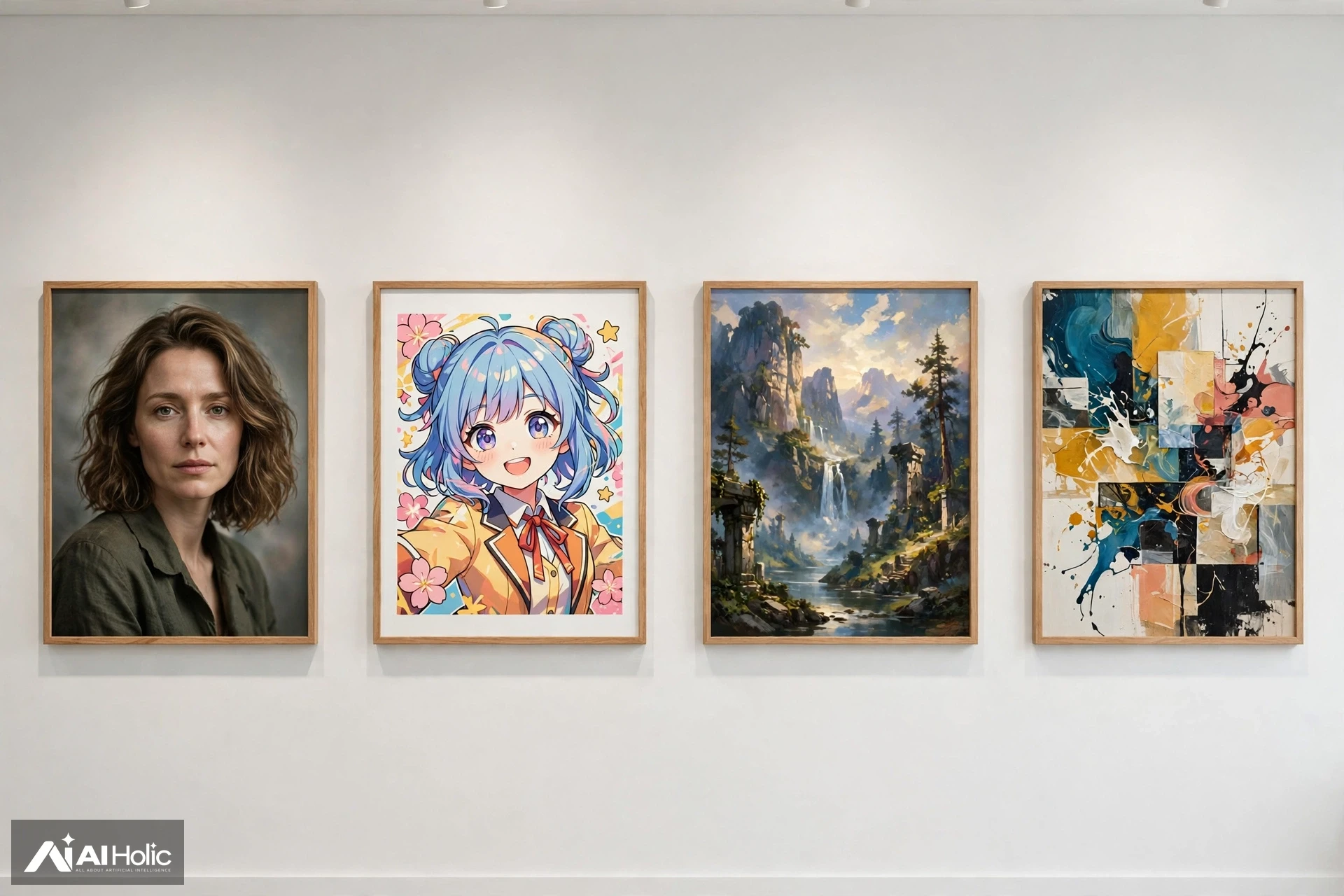
opendream ai art gives you four models, and each one has a clear job. The free plan opens the first two.
Paid plans open all four. Pick the model before you write the prompt, since it shapes the whole result.
| Model | Best for | Who can use it |
|---|---|---|
| Dreamlike Photoreal 2.0 | Realistic portraits, product shots, scenes | Free and paid |
| Dreamlike Anime 1.0 | Anime characters, manga scenes | Free and paid |
| Stable Diffusion 2.1 | Mixed styles, creative tests | Paid plans |
| Deliberate | Painterly and experimental art | Paid plans |
Dreamlike Photoreal 2.0
This model suits photos that need to look real. Use it for portraits, rooms, products, and outdoor scenes. It keeps skin, light, and texture natural, so it is the safe pick for client work.
Dreamlike Anime 1.0
This model suits anime and manga art. It handles bright hair, big eyes, and clean line work well.
If you make character art for games or stories, start here. Our Gemini AI hairstyle guide shows how a different tool handles hair and portrait styles, which helps you compare looks.
Stable Diffusion 2.1
This is the all-round model. It is built on Stable Diffusion, a text-to-image model released in 2022. It gives you more room to test odd ideas, and it suits mixed styles that do not fit one box.
Deliberate
This model suits painterly and experimental work. It leans toward art styles that look hand-made. Try it when you want mood over realism.
How OpenDream Works
Under the surface, the tool uses diffusion models. The model starts with random noise and removes it step by step until a picture forms. Your prompt guides each step, so clear words lead to clear images.
The model reads your prompt as a set of cues: subject, style, light, and mood. It then builds pixels that match those cues. The same prompt can give a new result each time, since the process starts from fresh noise.
You can shape the result with templates, aspect ratio, and seed settings. A fixed seed repeats a look, while a new seed gives a fresh take. Built-in tools let you upscale an image, repaint one part, or remove a background without leaving the site.
How to Use Opendream AI Art in 6 Steps
You can make your first image in about two minutes. Follow the steps below in order, and use a template for your first try.
- Open opendream.ai in your browser and create a free account. You can sign in with Google or Discord, and no credit card is needed.
- Pick a template or start blank. Templates suit beginners, while a blank prompt suits people with a clear idea.
- Choose your model. Photoreal fits real scenes, and Anime fits character art.
- Write your prompt. Name the subject, the style, the light, and the mood in one or two sentences.
- Set the size and the number of images, then click Create. Your first image takes a few seconds.
- Save the best result or refine it. You can repaint a weak spot, upscale it, or run a new version with a small prompt change.
Keep your first prompts short. One clear sentence beats a long list of adjectives, and you can add detail once you see the first result. If you need a character to look the same across many frames, our guide to the AI video character consistency workflow explains how to hold a look steady across a whole video.
A Prompt Formula That Works
Good prompts follow a simple order: subject, action, setting, style, light, and mood. Fill each slot with a few plain words, and skip anything that adds no picture.
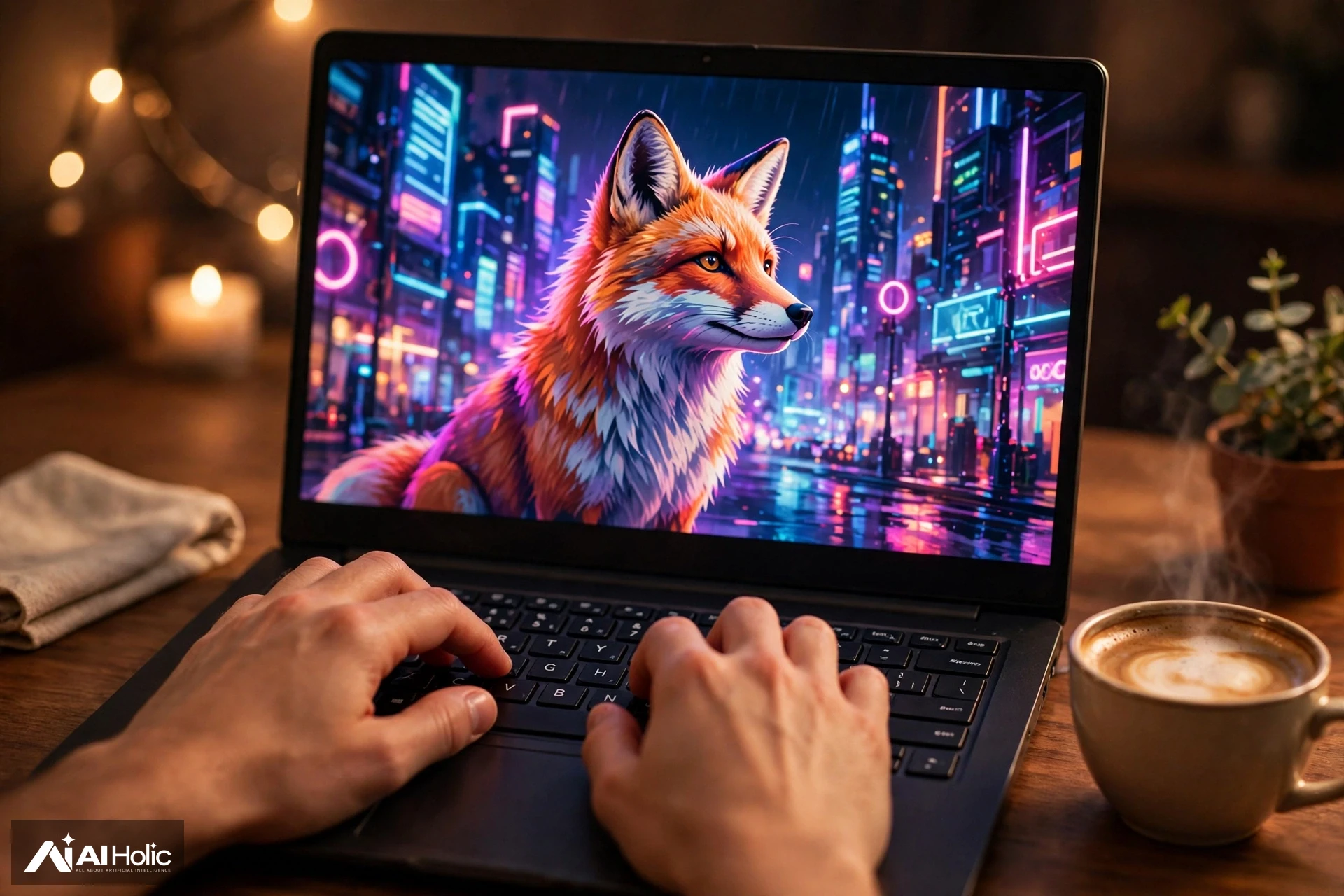
Try this formula on your next image: “a fox in a neon-lit city at night, photorealistic, cinematic light, rain on the street.” Each part does one job. The subject sets the focus, the setting sets the scene, and the style words set the finish.
- Put the main subject first, since early words carry more weight.
- Name the light and the mood, not just the object.
- Add a negative prompt to block what you do not want, such as extra fingers or text.
- Run the same prompt twice with small changes, then keep the better version.
- Save prompts that work, so you can reuse the style later.
Weak prompts fail in the same ways. A single word like “dog” gives a random result.
A prompt with ten styles at once gives a muddled image. Start simple, check the result, and add one detail at a time.
What Opendream AI Art Costs
opendream ai art runs on a freemium model. The free plan is genuinely useful, and the paid plans add credits and models. Prices can change, so check the plan page before you pay.
| Plan | Price | Credits | Models | Images at once |
|---|---|---|---|---|
| Free | $0/month | 24 credits a day | 2 | 1 |
| Core | $12/month | 3,000 a month | All 4 | Several |
| Pro | $24/month | 12,000 a month | All 4 | Several, with priority |
One image costs about 2 credits, and a batch of four costs 8 credits. The exact cost can shift with image size and model, so a large image may cost more than a small one. Annual billing cuts the price by 20% on Core and Pro.
Do the math before you pay. The free plan gives 24 credits a day, which covers about 12 single images.
If you make images every day, Core covers most needs. Pro suits creators who make images for clients or run a daily content flow.
Opendream AI Art vs Midjourney and DALL-E 3
OpenDream wins on price and ease of use. Midjourney wins on polished art quality.
DALL-E 3 wins on tricky scenes with many parts. The right pick depends on your job, not on the brand name.
| Feature | OpenDream | Midjourney | DALL-E 3 |
|---|---|---|---|
| Free plan | Yes, 24 credits a day | No | Limited, through ChatGPT |
| Ease of use | Very easy, templates included | Needs learning | Easy, inside chat |
| Anime art | Strong | Average | Average |
| Photorealism | Good | Excellent | Excellent |
| Commercial rights | Yes | Yes | Yes |
| Browser-based | Yes | Yes | Yes |
Pick OpenDream when you want a free start and fast results. Pick Midjourney when art quality matters most and you accept a paid plan from day one. Pick DALL-E 3 when you need complex scenes with many objects in exact places.
Pros and Cons
Pros
- Free plan with 24 daily credits and no credit card.
- Four models that cover photo, anime, and art styles.
- Templates that help beginners start in minutes.
- Full commercial rights on images you make.
- Built-in editing: upscale, repaint, and background removal.
- Runs in any modern browser with no install.
Cons
- Free plan allows only one image at a time.
- Only two models open on the free plan.
- Fewer advanced controls than tools built for power users.
- Complex scenes with many subjects can come out wrong.
- Credit costs shift with image size and model.
Commercial Rights, Privacy, and Limits
Every image you make on OpenDream is yours to use for personal or commercial work, on free and paid plans. That covers client work, merchandise, and marketing, as long as you follow the platform policies.
You can keep images private or share them in the public gallery. Check the privacy setting before you generate client work, since the gallery default may share your image. Read the policy page on opendream.ai for the current rules.
The tool blocks unsafe prompts, and the free plan does not allow explicit images. AI images can also show flaws, such as odd hands or garbled text. Check each image at full size before you use it in client work.
Mistakes That Waste Your Credits
- Writing one-word prompts and rerunning them ten times.
- Asking for four images when one test image would do.
- Mixing five styles in one prompt and getting a muddle.
- Generating at the largest size before you know the prompt works.
- Forgetting the private setting on client images.
- Paying for Pro before the free plan runs out each day.
Watch and Learn More
The video below is OpenDream’s own tutorial, and it walks through making your first image step by step. Watch it once, then try the same steps with your own prompt.
Frequently Asked Questions
Is Opendream AI Art Free?
Yes. The free plan gives you 24 credits each day and no credit card is needed to sign up.
You can make real images every day on the free plan with the Photoreal and Anime models. Paid plans add credits and the other two models.
Which Model Should I Use First?
Use Dreamlike Photoreal 2.0 for realistic images and Dreamlike Anime 1.0 for anime art. Both are free. Move to Stable Diffusion 2.1 or Deliberate only when you need a style the free models cannot give you.
Can I Use OpenDream Images for Commercial Work?
Yes. Images you create carry full commercial rights on free and paid plans. You can use them for client work, products, and marketing, as long as you follow the platform policies.
How Many Credits Does One Image Cost?
One image costs about 2 credits, and a batch of four costs 8 credits. The cost can shift with image size and model. The free plan resets each day with 24 fresh credits.
Is OpenDream Better Than Midjourney?
It depends on your job. OpenDream is better for a free start, fast results, and anime art.
Midjourney gives more polished art for professional work, but it has no free plan. Try OpenDream first if you are new to AI art.
Do I Need to Install Anything?
No. OpenDream runs fully in your browser on desktop and mobile. You only need an account, and you can sign in with Google or Discord.
Conclusion
opendream ai art gives beginners a free and fast way to turn words into images. The free plan covers real daily use, and the four models cover photo, anime, and art styles. Try the free plan today, test one prompt formula, and upgrade only when you hit the daily limit. The tools above are the modern end of a long story, and our guide to old ai art traces it back to Harold Cohen’s AARON in the 1970s and the grainy images of 2022.