AI Christmas Photo: Festive Portraits and Cards Made Easy
If you don’t want to read the whole guide or have difficulty reading, you can listen to this guide instead.
ai christmas photo is a festive portrait made with AI from a photo you already own. You upload a selfie or family shot, describe the scene you want, and the tool builds the tree, the snow, and the warm light around you.
Christmas 2026 falls on 25 December, and feeds are already full of these pictures. A studio shoot takes booking, travel, and cost, while an AI edit takes minutes on your phone. This guide shows you how to make one that still looks like you.
At AI Holic, we checked the leading guides and tool pages before writing this. Prices and limits change often, so we flag every figure you should confirm before you pay.
What Is an AI Christmas Photo?
An ai christmas photo starts with a real photo and ends with a festive scene built by an image model. You upload a clear picture of yourself, your family, or your pet, then tell the tool what to change. The model keeps the people and adds the tree, the snow, the sweater, or the warm light.
Christmas falls on 25 December for most Christians, and the season around it is the busiest time of year for family photos. That timing is why these AI portraits peak in December, when cards and social posts need a fresh picture fast. You do not need a studio, a costume, or snow outside your window.
This guide covers tools, not a tool of our own. AI Holic does not offer a photo generator on this page, so every option below names a tool you can open yourself. We compare what each one does well and what it charges, with prices flagged where sources differ.
How to Make an AI Christmas Photo in 5 Steps
To make your first ai christmas photo, start with the best photo you have and change one thing at a time. The steps below work in Adobe Firefly, Google Gemini, and most chat-based image editors. Keep the original file safe, since you may need it again.
- Pick a clear photo with faces looking at the camera and good light on every face.
- Open your chosen tool and upload the photo as a reference or edit input.
- Write a prompt that names what to keep first, then the scene you want.
- Generate three or four versions and compare them at full size.
- Ask for one fix at a time, such as warmer light or a taller tree.
- Download the best version and check faces, hands, and any text before you share it.
Two habits separate clean results from odd ones. Keep the prompt short and specific, and never edit the edited version more than twice. If a face starts to drift, go back to the original photo and start a fresh chat.
Best Tools Compared
Four tools cover most needs when you want an ai christmas photo, and two of them cost nothing to try. Adobe Firefly has a page built for Christmas photos, with card presets and free daily generations on a free Adobe account. Google Gemini edits photos by chat with its Nano Banana image model, which is free in the Gemini app.
Aragon and PhotoGPT take a different path and charge for it. Aragon builds a whole pack of holiday portraits from a few selfies, while PhotoGPT leans into trend styles and short videos. Both suit people who want many portraits at once and are happy to pay for them.
| Tool | Best for | What you upload | Cost to start |
|---|---|---|---|
| Adobe Firefly | Restyling one photo and Christmas cards | One photo and a prompt | Free daily generations with an Adobe account |
| Google Gemini | Quick edits by chat | One photo and a prompt | Free with Nano Banana 2 in the app |
| Aragon | A full pack of holiday portraits | A few selfies | Plans from $15 a month (reported Nov 2026) |
| PhotoGPT | Trend styles and short videos | A selfie or reference photo | Plans from $19.99 a month (reported Nov 2026) |
Prices above come from a comparison checked on 12 November 2026, so confirm the current price on each tool’s own pricing page before you pay. Free tiers also carry limits that change with demand, and Gemini adds a visible mark to generated images. If you print cards, check where that mark lands before you order.
If you already pay for Photoshop, its AI tools can do the same job inside the editor. Our guide to AI Photoshop explains Generative Fill and the Remove Tool, which handle background swaps and clean-up well.
Prompt Formula That Keeps Faces Real
A good prompt has five parts in the same order, and the face lock always comes first. Start with a line that tells the model to keep every face exactly the same. Then name the outfit, the setting, the light, and the photo style.
Here is the shape to copy: keep my face exactly the same, dress me in a red knit sweater, place me beside a lit tree in a warm living room, soft lamp light, gentle smile, realistic photo. Change only one part when you try a new version, so you know what made the result better or worse.
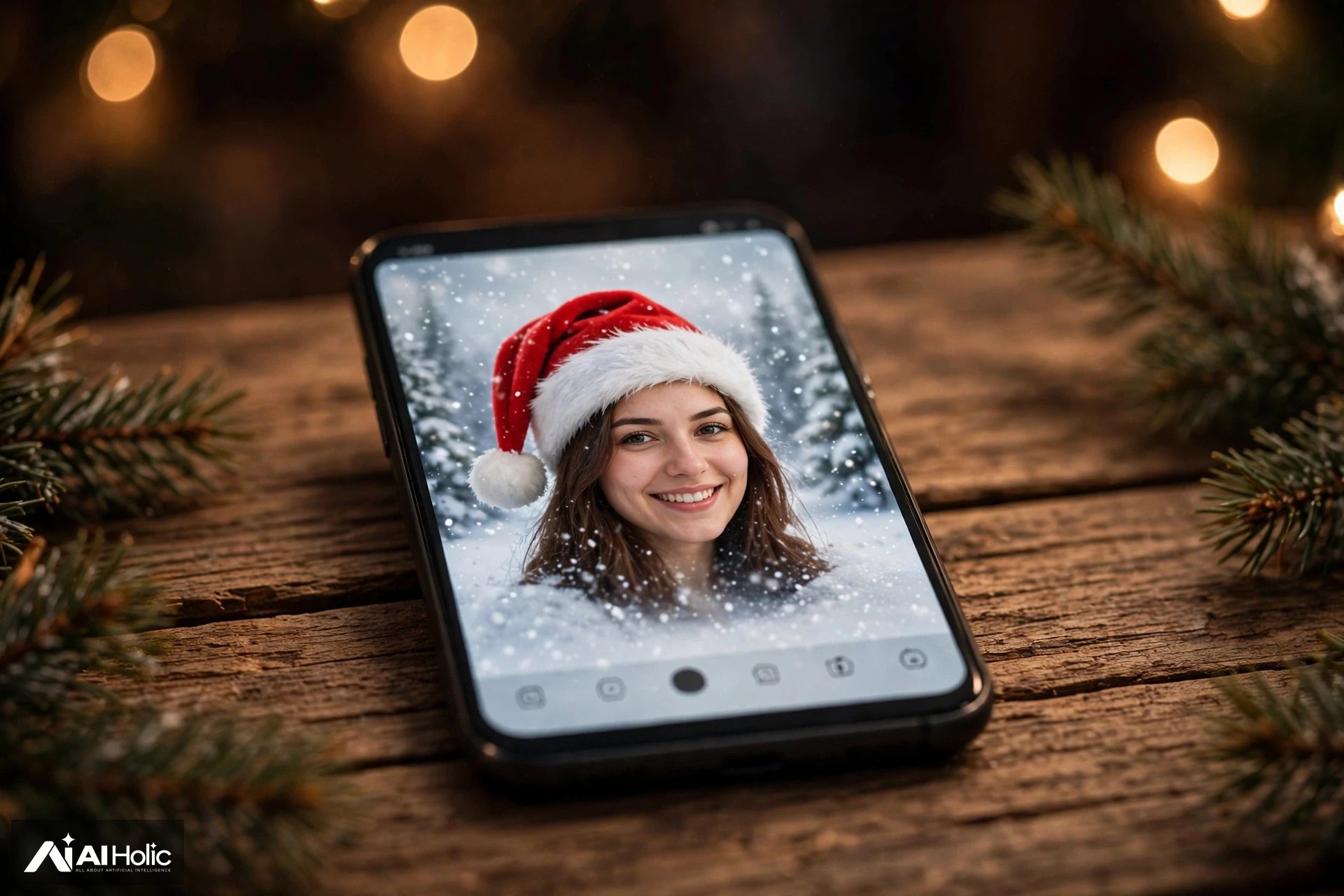
For a family photo, name the number of people and lock every face in one line. Say how many people are in the shot, since the model can add a stranger or drop a child when the count is vague. For pets, name the breed and color so the animal still looks like your own.
The best ai christmas photo prompts also say what to leave out. Add no text when you want a clean portrait, since AI text on sweaters and signs often comes out garbled. Ask for natural skin texture and soft film grain if the result looks too smooth or glossy.
Ideas for Family, Pets, and Cards
An ai christmas photo works for more than a single portrait, and the best ideas start with a photo you already love. Family portraits in matching pajamas by the fireplace are the most popular style, and they need only a clear group shot to start. Couples can try a snowy street at dusk, while kids suit a simple studio scene with soft light and few props.
Pets are the easiest win, since a dog in reindeer antlers needs no posing. Name the breed, the fur color, and the prop, and keep the prompt short. Cats suit a quiet scene by a window with snow outside, which hides the fact that the cat never sat still.
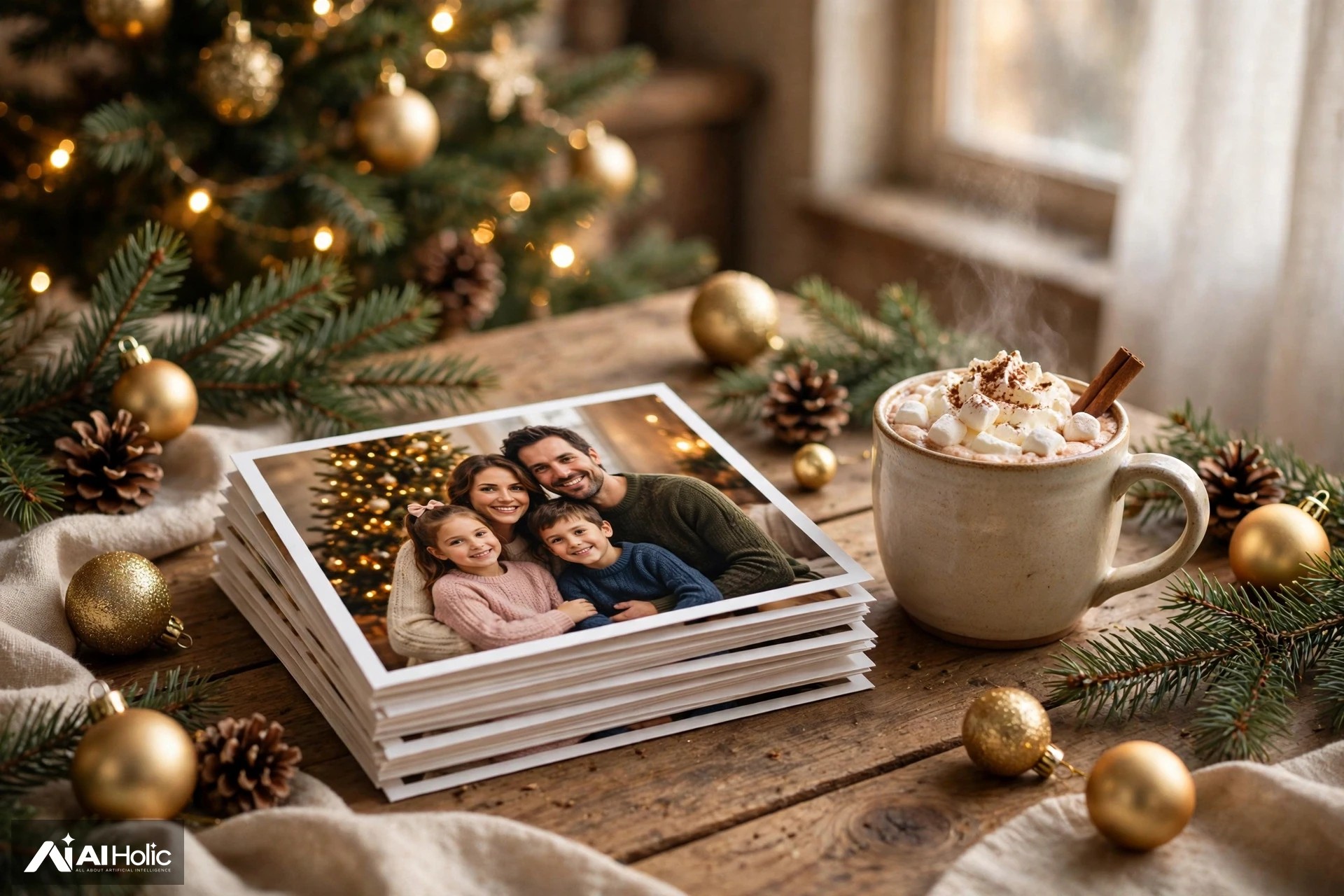
Cards need one extra step, so plan the layout before you generate. Leave empty space at the bottom for your greeting, and keep the greeting to a few words.
Check every letter at full size before you print, since AI often misspells names and short words. The Christmas tree has been a holiday symbol since the 1500s, which is why it anchors so many card designs.
If you want a seasonal parallel, our guide to the Halloween AI trend shows the same face-lock trick applied to spooky portraits. The method transfers well, since both trends start from one clear selfie and a short prompt. Swap the costume and the setting, and the same workflow gives you a Christmas portrait.
AI Photo vs a Real Photoshoot
An ai christmas photo wins on speed and cost, while a real shoot wins on trust and detail. AI can place you in a snowy village in minutes, but it can also change your face in small ways that family will spot. A studio photo takes booking and money, yet every face in it is truly yours.
| Factor | AI photo | Studio shoot |
|---|---|---|
| Cost | Free to try, paid plans for packs | Booking fee plus prints |
| Time | Minutes on your phone | Days to book and receive photos |
| Faces | Can drift after several edits | Always real |
| Weather and setting | Any scene you describe | Limited to the studio or the day |
| Best for | Cards, social posts, and fun | Framed prints and keepsakes |
Use AI for cards and social posts, and book a studio when the photo will hang on a wall for years. Many families do both, with AI portraits for the card and a real shoot for the mantel. That split keeps the fun without risking the one photo that matters most.
Common Problems and Quick Fixes
Most failures share a few causes, and each one has a fast fix. Faces drift when you edit the same image too many times, so restart from the original photo in a fresh chat. Extra fingers and odd hands appear when hands are in frame, so pick a photo where hands are hidden or out of focus.
- Faces look different: restart with the original and add keep faces unchanged.
- Garbled text on sweaters or signs: add no text to the prompt.
- Too glossy or fake: ask for natural skin texture and soft film grain.
- Wrong number of people: state the exact count in the prompt.
- Result looks flat: name the light source, such as warm lamp light or golden hour.
If a tool refuses your photo, reword the request in plain terms and keep it to a harmless holiday edit. Photos of children need extra care, so only upload pictures you have the right to use. For deeper editing help, see our roundup of the best AI photo editing tools of 2026 before you pay for a new app.
Safety and Privacy Before You Upload
Your festive portrait starts with an upload, and that upload is personal data. Treat it that way by checking the tool’s privacy settings before you send a family photo. Turn off model training use where the tool offers that choice, and strip location data from the file first.
Crop out house numbers, school logos, and other people’s faces before you upload. Skip any photo you would hate to see shared beyond your own circle. These steps take a minute, and they matter most for photos of children.
Also check the watermark on your finished image before you print or post it. Gemini adds a visible mark to generated images, plus an invisible SynthID mark. Firefly downloads are clean for personal use, but read the terms on each tool before you use a portrait for business.
Frequently Asked Questions
Is there a free AI Christmas photo generator?
Yes, two strong free options exist. Adobe Firefly gives free daily generations with a free Adobe account, and Google Gemini includes its Nano Banana 2 image model for free in the app. Both let you upload your own photo and describe the holiday scene, but free tiers carry limits that change with demand, so check the current terms on each tool’s site before you start.
How do I keep my face looking like me?
Start with a clear, front-facing photo in good light, with no heavy filter. Open every prompt with a face lock, such as keep my face exactly the same, and change only one thing at a time. If a face drifts, restart from the original photo in a fresh chat instead of fixing the bad version, and add the exact head count to group prompts, since the model can add or drop a person.
Can I print an AI Christmas photo for cards?
Yes, but check two things first. Firefly downloads go up to 2000 by 2000 pixels, which prints a sharp square of about 6.6 inches at 300 dots per inch, while Gemini adds a visible mark to generated images, so check where it lands before you order. Always zoom in at full size and check every letter of your greeting, since AI text often comes out misspelled.
What is the best prompt for an AI Christmas photo?
The best prompt locks the face first, then names the outfit, the setting, the light, and the style. A short example reads: keep my face exactly the same, dress me in a red knit sweater, place me beside a lit tree in a warm living room, soft lamp light, realistic photo. Keep it under five parts, and change only one part per try, so you can tell what improved the result.
Is it safe to upload photos of my kids?
Upload only photos you have the right to use, and only to tools you trust. Turn off training use in the tool’s settings where that choice exists, and strip location data from the file before you upload. Crop out school logos and house numbers, and skip any photo you would hate to see shared, since these steps take a minute and matter most for children’s photos.
Conclusion
Start with your clearest family photo, lock the faces, and try Firefly or Gemini free before you pay for a portrait pack. Keep prompts short, check each result at full size, and print only the version that truly looks like you. Your Christmas card will be ready in minutes, with no studio booking and no snow required.