AI Photoshop: Generative Fill, Expand, and Upscale Explained
If you don’t want to read the whole guide or have difficulty reading, you can listen to this guide instead.
ai photoshop is the short name for the AI tools built into Adobe Photoshop. They let you add, remove, or replace parts of a photo with a short text prompt. They also extend a photo past its edges, clean up distractions, and enlarge small images with new detail.
There is no separate app called AI Photoshop. The name covers Generative Fill, Generative Expand, the Remove Tool, Generative Upscale, Neural Filters, and a newer AI assistant. This guide explains what each one does, how to use it, and where it falls short.
At AI Holic, we checked the leading guides and Adobe help pages before writing this. Prices and credit limits change often, so we flag every figure you should confirm before you pay.
What Is AI Photoshop?
Adobe Photoshop is a raster graphics editor that has led photo editing since its first release in 1990. AI Photoshop is that same program with generative AI built in. The tools run on Adobe Firefly, a family of image models trained on licensed Adobe Stock images, openly licensed work, and public domain material.
Generative Fill arrived in 2023 and is still the feature most people mean by the name. Since then Adobe has added Generative Expand, Harmonize, Generative Upscale, and an AI assistant. Since 2025 you can also pick partner models inside Generative Fill, such as Google Gemini and Black Forest Labs FLUX models.
Every AI edit lands on its own layer, so your original photo stays untouched below it. You can hide, delete, or remake an AI edit at any time. That non-destructive design is the main reason Photoshop’s AI feels different from a one-click web editor.
| Feature | What it does | Where to find it | Best for |
|---|---|---|---|
| Generative Fill | Adds, replaces, or removes content in a selection from a text prompt | Contextual Task Bar after a selection, or Edit menu | Adding objects, swapping backgrounds, removing distractions |
| Generative Expand | Grows the canvas and fills the new area to match the picture | Crop tool, then Generative Expand | Changing aspect ratio, widening a tight crop |
| Remove Tool | Brushes away objects and fills the gap from surrounding pixels | Toolbar, in the Spot Healing Brush group | Quick clean-up: wires, people, blemishes |
| Harmonize | Matches a pasted object lighting, color, and shadows to its new scene | Contextual Task Bar on a layer | Composites that look pasted-on |
| Generative Upscale | Enlarges an image with AI detail instead of simple stretching | Image menu, or the Upscale option on a layer | Small images that need to print or display larger |
| AI Assistant | Carries out multi-step edits from a plain-language request | AI Assistant panel, public beta on web and mobile | Beginners, or edits with several steps |
Generative Fill
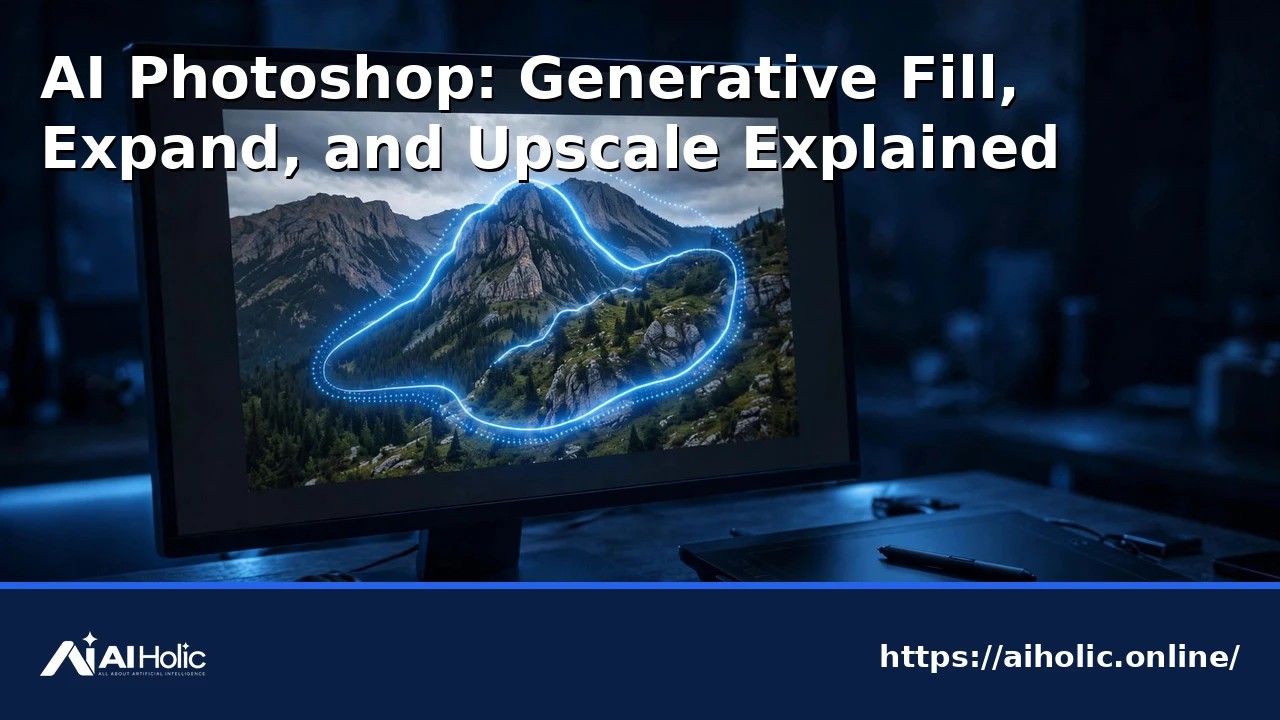
Generative Fill is the feature most people mean when they say AI Photoshop. Select an area, type a short description of what should appear there, and click Generate. Photoshop returns three variations on a new generative layer, and you pick the best one or generate three more.
A blank prompt turns the same tool into a removal tool. Select an object, leave the prompt empty, and Photoshop fills the space from the pixels around it. That trick handles tourists, wires, and stray objects in seconds.

Short, specific prompts work best. Name the object, its material, and its light, such as a wooden park bench in warm evening light. Describe what should be there, not what should not, since empty beach works better than no people on the beach.
The model picker lets you switch between Firefly and partner models for a different look. Partner models cost more generative credits per generation, so try Firefly first and switch only when the result needs a different style.
Generative Expand
Generative Expand grows the canvas and fills the new area to match the picture. Pick the Crop tool, drag the edges past the photo, and choose Generative Expand. The tool continues the scene with more sky, more beach, or more street.
This is the fastest way to turn a square photo into a wide banner or a vertical shot into a horizontal one. It beats stretching, which warps the subject, and beats cloning, which repeats the same pixels. Check the new edges at full size, since seams show up there first.
Remove Tool and Distraction Removal
The Remove Tool is the quick brush for small jobs. Paint over a wire, a speck, or a person in the background, and the tool fills the gap from the pixels around it. It works on a blank layer too, so the fix stays separate from your photo.
Distraction Removal builds on the same idea for common problems. Open Find Distractions in the options bar and pick wires and cables, people, or general distractions. Photoshop scans the whole image, highlights what it found, and removes it all in one pass after you review the selection.
Review the highlights before you commit, since the tool can pick the wrong person in a crowd. For a large or complex gap, switch to Generative Fill, which gives you variations to compare.
Generative Upscale and Neural Filters
Generative Upscale enlarges an image by creating plausible detail instead of stretching pixels. A small image holds up better at larger sizes, though it cannot invent detail that was never there. Treat it as a rescue tool, not a cure.
Neural Filters use machine learning for portrait and style work. Skin Smoothing removes blemishes, Smart Portrait adjusts faces and expressions, and Colorize adds color to black-and-white photos. They run on Smart Object layers, so you can change or remove them at any time.
Style Transfer applies an artistic look to a photo, and Super Zoom sharpens a close crop. Some filters need a download before first use. Open them from the Filter menu, then Neural Filters.
AI Selection Tools
AI selection tools save the most time on cutouts. Select Subject finds the main person, animal, or object in one click. The Object Selection Tool snaps to exact edges when you draw a rough box or lasso around a thing.
Sky Replacement detects the sky in an outdoor photo and swaps it with a preset or your own sky. Remove Background cuts a subject out in one step for product shots and composites. Refine rough edges with Select and Mask before you apply the edit.
The AI Assistant
The AI assistant is the newest part of Photoshop’s AI toolkit, and it is in public beta on Photoshop on the web and on mobile. You type or speak a plain request, such as brighten the subject and remove the background clutter. The assistant maps the objects in your photo, suggests edits, and carries out the steps while you approve or undo each one.
The web and mobile apps also offer an AI Assisted Editor mode. It gives you a simple toolbar with Prompt, Markup, Fill, Retouch and remove, Crop and expand, Upscale, and Remove background. You can switch between this mode and the full Pro Editor at any time, but switching to the simple mode flattens layered files, so keep a saved copy first.

The assistant is best for beginners and for multi-step edits with one clear goal. Check each step it takes, since it can misread a scene and pick the wrong object.
How to Use AI Photoshop in 6 Steps
The workflow is short, and the habits around it matter more than the clicks. Follow these steps on your first edit.
- Open a high-resolution photo and duplicate the background layer as a safety copy.
- Make a tight selection around the area you want to change with the Lasso or Object Selection tool.
- Click Generative Fill in the Contextual Task Bar, or open it from the Edit menu.
- Type a short, specific prompt, or leave it blank to remove what you selected.
- Click Generate, compare the three variations at full size, and pick the best one.
- Refine the edges with a soft brush on the layer mask, then adjust color or light so the new part blends in.
Two habits separate clean results from obvious AI edits. Keep selections small and specific, and generate three variations every time, since the first is rarely the best.
Credits and Pricing
Every generative action inside Photoshop spends generative credits from your Adobe plan. Standard Firefly generations cost the least, while partner models and tools such as Harmonize cost more per use. Adobe shows the credit cost next to the Generate button before you run anything.
We do not quote exact credit allowances or plan prices here, because Adobe changes them and published figures conflict between sources. Check Adobe’s own pricing page for the current numbers before you choose a plan.
Generative AI features need an internet connection and an Adobe account, since the work happens on Adobe servers. They are not available in every country, and they need Photoshop version 25.0 or later. Update the app before you go looking for the features.
What AI Photoshop Cannot Do
Photoshop’s AI is strong at editing real photos, but it has clear limits. It struggles with hands, faces, and fine text, and large generations can show warped edges or odd patterns. Generated text often turns into gibberish, so do not rely on it for signs or labels.
- It cannot create a video or animate a still image.
- It cannot merge two photos into one on its own.
- It cannot produce a large, detailed scene from a text prompt as well as a dedicated image generator can.
- It will refuse recognizable brands, trademarked logos, and real public figures in many cases.
Treat every result as a draft and zoom to 100 percent before you export, since thumbnails hide bad hands, garbled text, and warped edges. If a generation looks wrong, change the prompt or the selection and generate again.
Who Should Use It
You gain most if you edit real photos and need precise control over the result. Photographers, product sellers, and designers who work in layers will feel at home. You gain least if you only need one-off edits on your phone, where a free web editor is faster.
What works well
- Generative Fill handles add, remove, and replace jobs in one tool.
- Every AI edit lands on its own layer, so nothing is permanent.
- Selection tools cut out subjects in seconds.
- Firefly training data is licensed, which suits commercial work under Adobe terms.
- The AI assistant lowers the learning curve for beginners.
Where it falls short
- It needs a paid plan or trial, with no permanent free tier inside Photoshop.
- Every generative action spends credits, and heavy users can run out.
- Generative AI needs an internet connection and an Adobe account.
- Hands, faces, and text often come out wrong.
- The AI assistant is still in beta and can misread a scene.
If Photoshop’s price or learning curve puts you off, compare it with the other editors in our roundup of the best AI photo editing tools of 2026 before you pay. The right pick depends on whether you edit every day or only now and then.
AI Photoshop vs Free AI Photo Editors
Free AI photo editors are faster for one-off jobs, such as removing a background or erasing an object. Photoshop’s AI wins when the edit is part of a larger job, such as a composite with ten layers or a print file for a client. The AI output lands on a layer you can mask and blend like any other part of the image.
The skills transfer between tools, so learn tight selections and specific prompts in a free editor and they still apply the day you open Photoshop. For a quick start without a subscription, our guide to a free AI image editor covers one browser-based option, and our look at a local AI image generator covers tools that run on your own machine.
| Tool | Best for | Price | Layer control |
|---|---|---|---|
| Photoshop | Layered, commercial, print-bound edits | Paid plan or trial (check current price) | Full |
| Adobe Firefly (web) | Occasional generative fill and text-to-image | Free tier, paid plans for more | None |
| Photopea | Photoshop-style editing in a browser | Free, premium removes ads | Good |
| GIMP | Free open-source editing | Free | Good, no built-in generative fill |
| Canva | Fast social graphics and templates | Free tier, Pro unlocks the AI tools | Basic |
Frequently Asked Questions
Is AI Photoshop free?
No, you need a paid Photoshop plan or a free trial to use the AI features inside Photoshop. Adobe Firefly on the web has a free tier with a monthly generation allowance, which covers occasional edits without a subscription. Every generative action inside Photoshop also spends generative credits, so check the current plan terms before you commit.
What is Generative Fill in Photoshop?
Generative Fill adds, removes, or replaces part of a photo from a short text prompt. You select an area, type what should appear there, and Photoshop creates three variations on a new generative layer. A blank prompt removes the selected object instead, filling the space from the pixels around it.
Does AI Photoshop work offline?
No, generative AI features in Photoshop need an internet connection and an Adobe account, because the generation happens on Adobe servers. Basic editing tools such as cropping, layers, and adjustment layers still work offline on your computer, but Generative Fill, Generative Expand, and the AI assistant all stop working without a connection.
Can I use it without a subscription?
Not inside Photoshop itself, since the AI features need a paid plan or a trial. You can use Adobe Firefly on the web for free with a monthly generation allowance, or free editors such as Photopea, GIMP, and Canva’s free tier for the most common generative edits. Those cover single-photo jobs well, but they lack Photoshop’s layer control.
Who owns the images Photoshop AI creates?
Adobe’s terms state that Firefly generations are commercially usable under the plan terms, and Adobe offers indemnification for business users of Firefly. Partner-model generations may have different terms, so check the terms shown for the model you use before commercial work. You should also avoid generating recognizable brands, logos, or real people, since those raise separate legal issues.
Conclusion
AI Photoshop fits people who edit real photos and want control over every layer. Start with Generative Fill on a copy of a photo, keep your prompts short, and check each result at full size. If the subscription is too much for occasional edits, try the free Firefly tier first and upgrade only when your daily work needs the full editor.