
Gemini AI Hairstyle: Try a New Cut or Color on Your Photo Before the Salon
If you don’t want to read the whole guide or have difficulty reading, you can listen to this guide instead.
A bad haircut takes weeks to grow out. A gemini ai hairstyle preview takes about a minute, and it costs nothing to try. You upload a clear photo of yourself, ask Google Gemini to change only the hair, and compare the result with your current look before you book a chair.
At AI Holic, we tested this the way a real person would. We tried short cuts, long layers, new colors, and styles for different face shapes. This guide gives you the steps, the prompts, and the fixes, so your first try looks like you.
You will learn how to write a prompt that keeps your face unchanged, which styles suit your face shape, and how to take the preview to your stylist.
Gemini AI Hairstyle: The Short Answer
In short, a gemini ai hairstyle preview is a photo edit, not a haircut. You give Gemini your photo and a written prompt, and its image model changes only the hair while it keeps your face, pose, outfit, and background the same. The model behind it is called Nano Banana.
The preview helps you decide before you commit. You can test a bob, a fade, a new color, or bangs on your own face in minutes. The result is a picture to show your stylist.
| What changes | What stays the same |
|---|---|
| Haircut, length, and shape | Your face, features, and skin tone |
| Hair color and highlights | Your pose and expression |
| Texture, volume, and bangs | Your outfit and background |
| Beard shape, if you ask for it | Lighting and photo angle |
What Is a Gemini AI Hairstyle?
A hairstyle is the way hair is cut, shaped, and arranged. A Gemini AI hairstyle is a preview of a new hairstyle made with Google Gemini. You upload a photo of yourself, describe the hair you want, and Gemini edits your real photo to show the new look.
This is different from old virtual makeover apps that pasted a cartoon wig over your face. Gemini edits the photo itself, so it reads your face shape, skin tone, and lighting, then draws hair that fits the picture. The result looks like a photo of you with different hair.
The key is the prompt. A vague request like “give me a new hairstyle” gives a generic result.
A clear prompt names the cut, the length, the texture, and the color, and it tells Gemini to keep everything else unchanged. The rest of this guide shows you how to write one.
If you enjoy testing looks on your own photo, our guide to the AI photo booth covers another way to preview a new look before you commit to it.
How to Try a New Hairstyle With Gemini in 3 Steps
You need three things: a good photo, a clear prompt, and a few minutes to compare results. The steps below work in the Gemini app or on the Gemini website, and they work the same for men and women.
Step 1: Upload a Clear, Front-Facing Photo
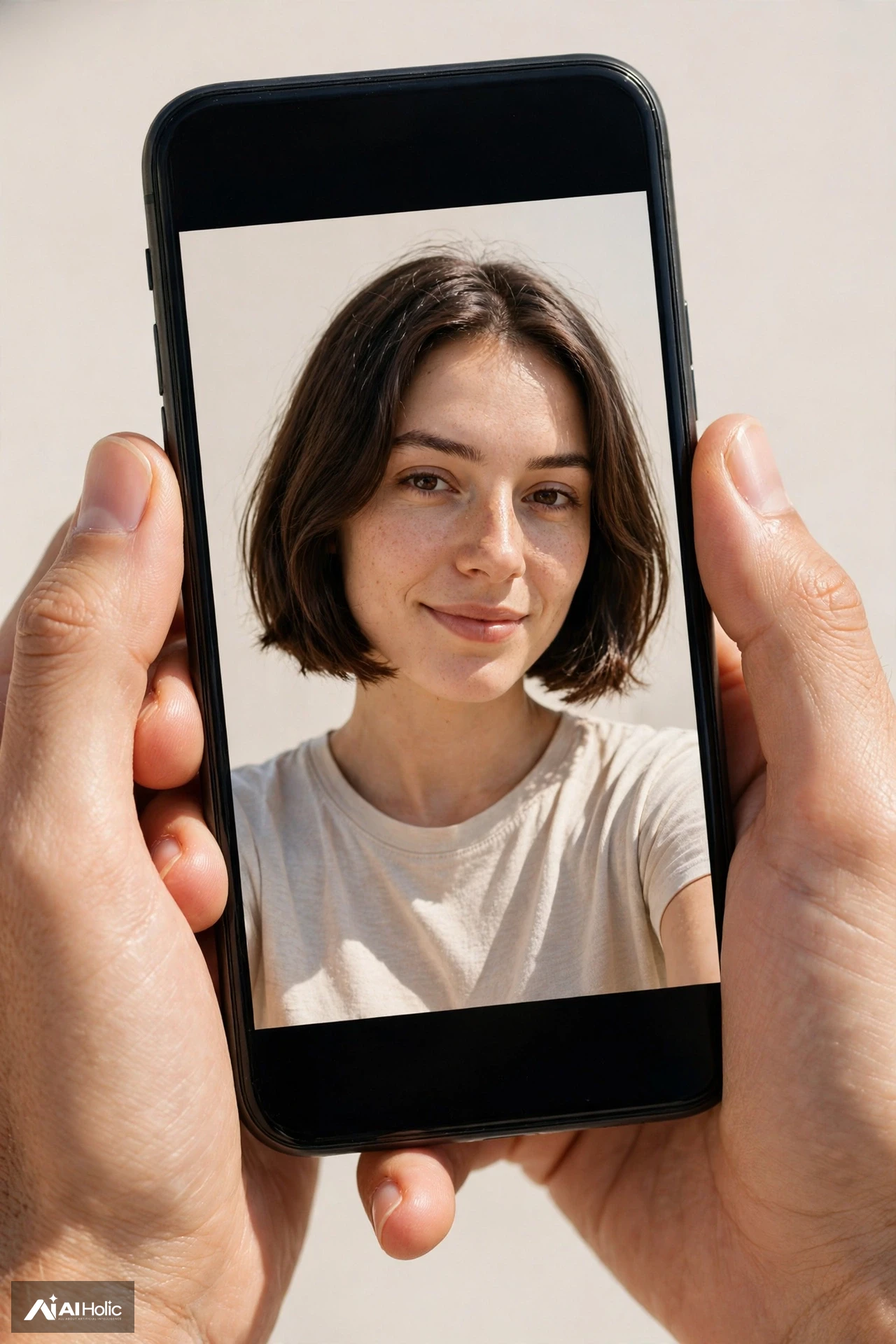
Your result is only as good as your photo. Use a front-facing shot in soft daylight, with your hair down and nothing covering your hairline.
Skip heavily edited selfies, dark photos, and shots taken from above or from the side. Filters hide your real skin tone, and a tilted angle hides your face shape.
Step 2: Write or Paste Your Prompt
Open Gemini, upload your photo, and paste a prompt from the library later in this guide. Tell Gemini to keep your face, expression, pose, outfit, and background exactly the same, and to change only the hair. Add the style, length, texture, and color you want, plus “photorealistic” and “natural lighting” at the end.
Change one thing at a time. Try the cut first, then the color, so you can see what each change does. If you change the cut and the color in one prompt and the result looks wrong, you will not know which change caused it.
Step 3: Generate, Compare, and Save
Gemini will return your edited photo. Generate the same style on the same photo two or three times, and pick the version that looks most natural. Then try two or three different styles on that same photo.
Save the versions you like at full size, and download them before you close the chat. If a result drifts and your face starts to look different, re-upload the original photo and start fresh.
Write a Gemini AI Hairstyle Prompt That Works
A good hairstyle prompt for Gemini has four parts. First, it says what to change. Second, it describes the hair in detail.
Third, it says what to keep. Fourth, it sets the style of the photo. Miss the third part and Gemini may change your face along with your hair.
Use this formula for every prompt you write: what to change, plus hair details, plus what to keep, plus a style tag.
A full prompt looks like this: “Keep my face, pose, outfit, and background exactly the same, and change only the hair to a chin-length bob with blunt ends. Make it photorealistic with natural lighting.”
- What to change: name the cut, such as a bob, a pixie, a fade, or long layers.
- Hair details: add length, texture, volume, and color, such as “shoulder length, wavy, soft volume, warm brown.”
- What to keep: list your face, features, skin tone, pose, outfit, and background, and say they stay exactly the same.
- Style tag: end with “photorealistic” and “natural lighting” so the result looks like a real photo.
The same habit helps with any AI image tool. Our list of the best free AI image generators shows how the same prompt skills carry over to other tools.
Best Gemini AI Hairstyle Prompts for Women
Copy a prompt below, paste it into Gemini with your photo, and fill in the brackets. Each prompt keeps your face unchanged and changes only the hair.
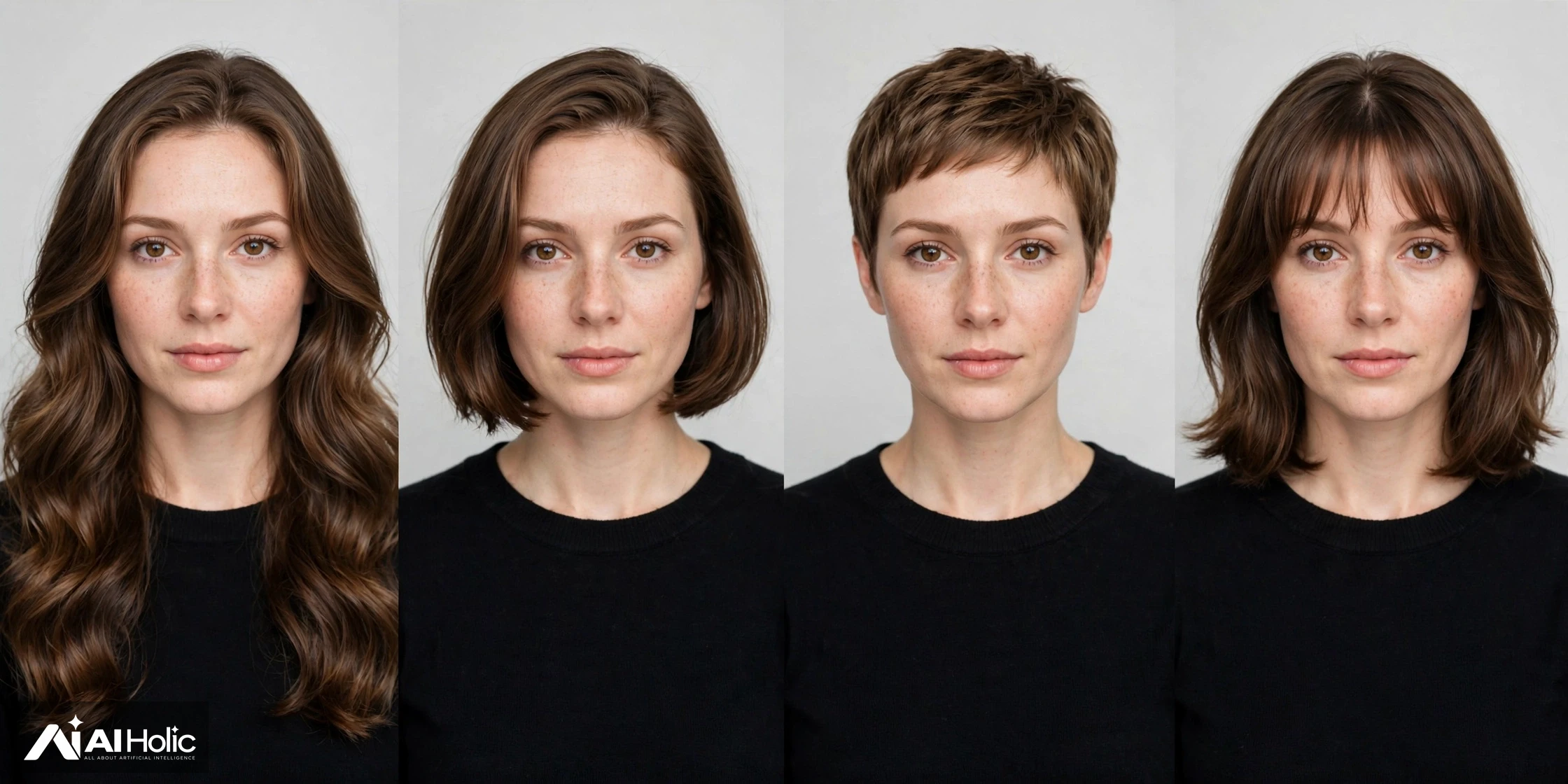
- Chin-length blunt bob: “Change my hair to a chin-length bob with blunt ends and a natural shine. Keep my face, features, and skin tone unchanged.”
- Textured pixie cut: “Change my hair to a short textured pixie with a slightly longer top and neat sides, in my natural color, like a real salon finish. Do not alter my face, features, or skin tone.”
- Soft curtain bangs: “Add soft curtain bangs that part in the middle and frame my cheekbones, leaving the rest of my hair at its current length.”
- Long layered waves: “Give me long layers that start at my chin and fall past my shoulders, with soft bouncy waves and a natural shine.”
- Butterfly layers: “Change my hair to trendy butterfly layers with soft face-framing pieces and bouncy volume. Make the hair look glossy and natural, and keep my face, pose, outfit, and background exactly the same.”
Short cuts are the change people regret most, so test them here first. A pixie or a bob looks very different on your own face than it does on a model. If a short cut feels too bold, try a lob as a middle step.
Best Gemini AI Hairstyle Prompts for Men
Men’s prompts work the same way, and fades need extra detail since the blend matters. Name the fade height and the length on top, so Gemini does not guess.
- Low taper fade: “Give me a low taper fade with clean edges and natural volume on top. Keep my face, features, and skin tone unchanged.”
- Textured crop: “Change my hair to a modern textured crop with subtle layers and a clean fade, matte finish. Preserve my face, pose, outfit, and background exactly as in the photo.”
- Middle part flow: “Style my hair into a middle part with soft layered texture and natural volume. Do not alter my face, features, or skin tone.”
- Buzz cut: “Give me an even buzz cut, short all over, with natural scalp texture visible. Keep my face, features, and skin tone exactly the same.”
Beard edits deserve the same care as hair edits. A beard changes the shape of your jaw in a photo, so ask Gemini to keep your face shape unchanged and to change only the beard.
How to Change Hair Color With a Gemini AI Hairstyle
Color is the hardest change to undo in real life, so it is the best thing to test in Gemini first. A color test works best when you keep the cut the same and change only the color. That way you judge the shade, not the shape.
Try one shade at a time. Start with a soft change, such as caramel balayage or warm brown, before you test a bold shade like copper or plum.
You can also compare three shades at once. Ask Gemini for “a side-by-side image of me with copper, burgundy, and plum hair, same cut and lighting in each.” For grey hair, ask for “soft silver and ash highlights, blended so the grey looks bright and planned, cut unchanged.”
Watch the roots and the hairline in the result. Color edits sometimes bleed into the skin, and that is the first sign the image is not reliable. If the hairline looks wrong, re-upload the original photo and try again.
Match the Style to Your Face Shape
Your face shape decides which cuts flatter you, and Gemini can help you test the match. Ask Gemini to describe your face shape from your photo first, then ask it to show the styles that suit that shape.
| Face shape | Styles worth testing | What to avoid testing first |
|---|---|---|
| Oval | Bob, pixie, long layers, curtain bangs | Very heavy blunt bangs |
| Round | Long layers, side part, textured crop | Chin-length bob with volume at the sides |
| Square | Soft waves, curtain bangs, layered lob | Sharp blunt bob at the jawline |
| Heart | Side-swept bangs, chin-length bob, soft waves | Very short crop with volume on top |
| Long | Curtain bangs, shoulder-length cut, soft curls | Very long straight hair with no layers |
Face shape guides are a starting point, not a rule. Your hair texture, your hairline, and your own taste matter as much as the shape of your face. Test the guide’s pick and one style you like, then trust your own eyes.
Curly, Coily, and Textured Hair: What to Ask For
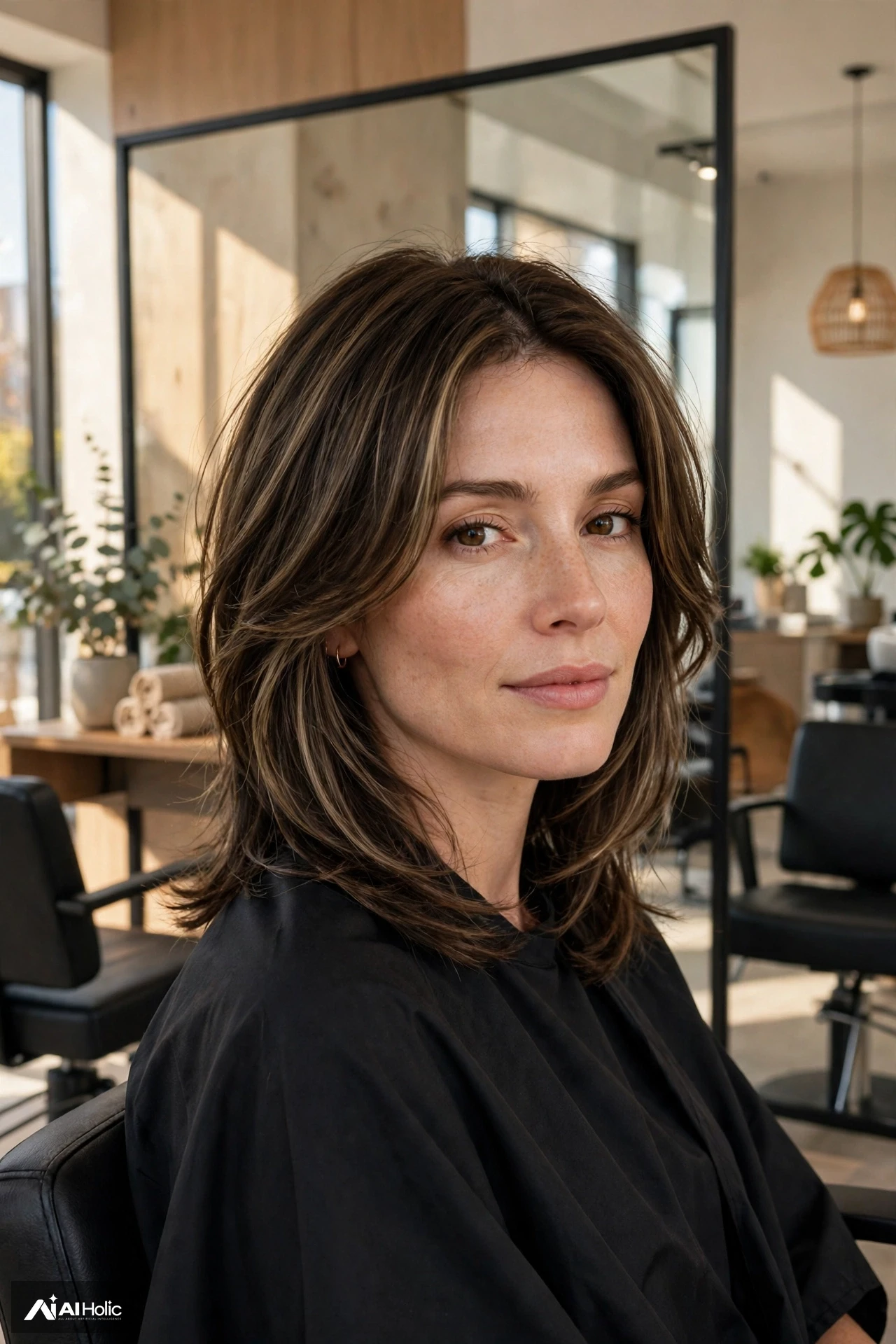
Curly and coily hair needs a prompt that respects the curl pattern. Tell Gemini to keep your natural curl type and to shape it, not smooth it away. Ask for “defined curls with a rounded shape and less frizz,” and the result will look much closer to your real hair.
For coily hair, ask for a tapered cut that is fuller on top and shorter at the sides and back. For braids, name the style and the length, such as “long knotless braids falling past my shoulders, neatly parted.”
Check the edges and the part line in the result. These are the spots where AI edits most often go wrong on textured hair. A good preview keeps the hairline sharp and the curl pattern even across the head.
When the Preview Goes Wrong
AI image editing is not perfect, and the same prompt can give a great result once and a strange one the next time. The table below covers the problems you will see most.
| Problem | Likely cause | Fix |
|---|---|---|
| Your face looks different | Too many back-and-forth edits | Re-upload the original photo and start fresh |
| The hair looks like a wig | Prompt did not name texture or lighting | Add “natural texture, realistic hairline, natural lighting” |
| Color bleeds onto skin | Color change was too big for one prompt | Change the color in two smaller steps |
| The style looks nothing like the prompt | Prompt changed too much at once | Change one thing per prompt, cut first, then color |
| The background changed | Prompt did not say to keep it | Add “keep the background exactly the same” |
Identity drift is the most common problem. Gemini holds your likeness well for the first one or two edits, but after several rounds of tweaks, faces can start to soften and shift.
The fix is always the same: go back to the original photo. Our AI video character consistency workflow covers the same idea for video, where keeping one face steady across many clips is the hard part.

Gemini AI Hairstyle vs Dedicated Try-On Apps
Gemini is not the only way to preview a hairstyle. Dedicated try-on apps let you upload a selfie and tap through ready-made styles, with no prompt to write.
| Feature | Gemini | Dedicated try-on apps |
|---|---|---|
| How you pick a style | Write a text prompt | Tap a style from a list |
| Best for | People who know the exact cut they want | People who want to browse and get ideas |
| Control over detail | Very precise, once you learn prompts | Fast, but limited to the styles offered |
| Face-shape advice | You ask for it in the prompt | Some apps suggest styles for your face |
| Learning curve | Needs a few tries to get right | Easy from the first tap |
Use Gemini when you already know the cut and want a precise preview to show your stylist. Use a try-on app when you want ideas and want to move fast. If you want the wider picture, our guide to AI beauty solutions explains how skin scans, shade finders, and virtual try-ons work together.
Either way, treat the result as a preview, not a promise.
Take Your Preview to the Salon
A preview is only useful if your stylist can read it. Once you find a look you love, ask Gemini for a reference sheet showing the cut from the front and the side. Download it at full size.
Show the reference at your consultation next to two or three real photos of your hair today. Tell your stylist what you like about the preview and what you are unsure about. Your stylist knows your hair texture and what it will really do, and that judgment matters more than any preview.
Watch and Learn More
The video below walks through finding your best hairstyle with Gemini, with real photo examples. It shows how to ask Gemini for styles that suit your face and how to compare the results. Watch it once, then try one of the prompts in this guide.
Frequently Asked Questions
Is a Gemini AI Hairstyle Preview Free?
A preview is made inside the Gemini app, which you use with a Google account. We did not verify current pricing or free limits for this guide, so check the Gemini app itself before you start.
Will Gemini Change My Face When It Changes My Hair?
It can, if you edit the same photo many times. Gemini holds your likeness well for the first one or two edits, then faces can soften and drift. If anything looks different, re-upload the original photo and start fresh.
Can I Try Several Hair Colors at Once?
Yes. Ask for a side-by-side image with each color named and the cut and lighting kept the same.
That makes it much easier to compare shades before you book. Test one bold shade at a time if the side-by-side result looks messy.
Can I Use These Prompts on a Friend’s Photo?
Only with their agreement. Google asks people not to edit photos in ways that break privacy rules, so stick to your own photos or photos of people who have said yes.
Can Teenagers Use Gemini to Try Hairstyles?
Google says image editing is not available to users under eighteen, so a parent or another adult would need to do the editing for them. An adult can run the preview and show the result to the teenager before any salon visit.
Conclusion
A gemini ai hairstyle preview helps you test a cut or a color on your own face before the scissors come out. Pick one style, write a clear prompt, keep your face unchanged, and take the best result to your stylist.