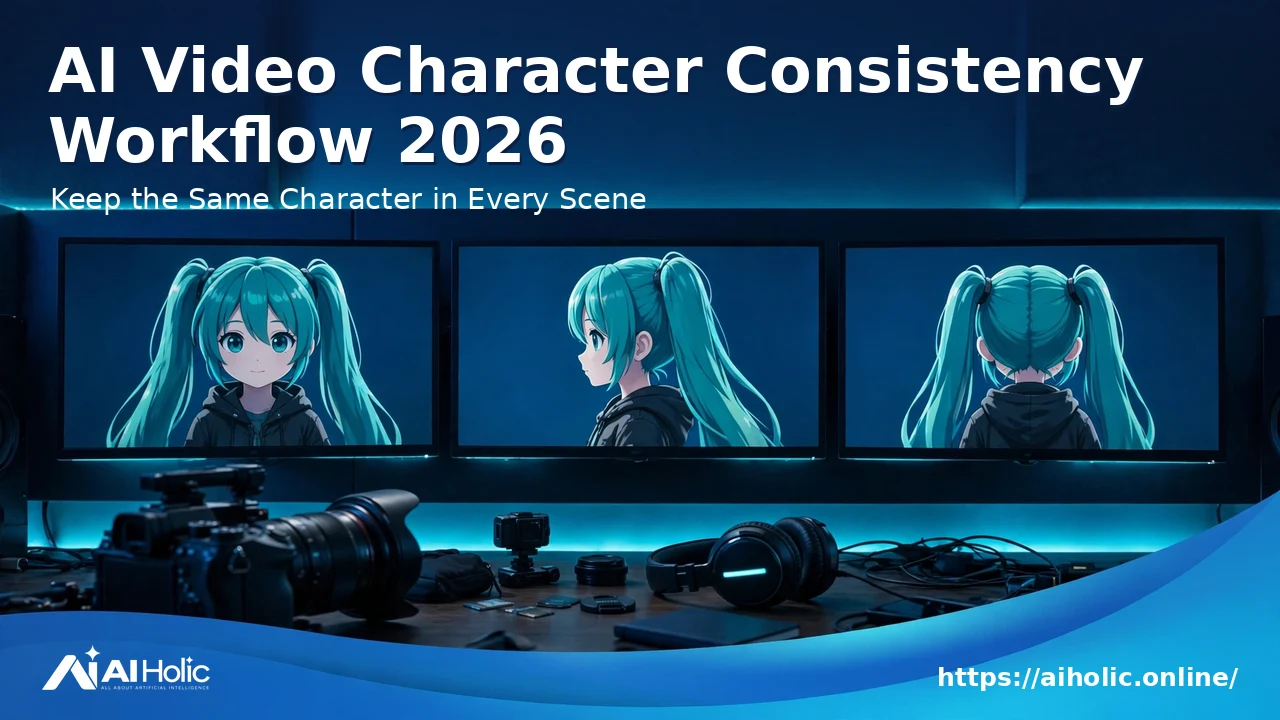
AI Video Character Consistency Workflow 2026: Keep the Same Character in Every Scene
If you don’t want to read the whole guide or have difficulty reading, you can listen to this guide instead.
Your character looks right in scene one and wrong in scene two. The face is close but not the same, the jacket changed colour, and the voice sounds like a different person. That break pulls viewers out of the story, even when each clip looks good on its own.
This guide gives you a repeatable ai video character consistency workflow 2026 you can use for a short series or a multi-scene video. You will lock one reference pack, plan your shots in advance, and check every clip before it reaches the edit. At AI Holic, we focus on steps you can repeat, not on tricks that work only once.
No tool can promise perfect sameness across every scene. You still need to review each clip, fix the breaks you can see, and redo the shots that drift too far. The workflow below keeps that review small and steady.
Since Sora shut down, many creators are looking for a sora ai alternative that keeps their characters consistent across clips.
What Character Consistency Really Means
Consistency is more than using the same name in every prompt. It means face, hair, age, body shape, outfit, and voice read as the same person from first shot to last. In film, continuity in fiction means traits of people, places, and objects stay steady over time, and viewers notice fast when they do not.
AI video models do not remember your last clip unless you give them the same anchors again. Each generation starts fresh, so a small wording change can shift a face or swap an outfit detail. Your job is to hand the model the same starting point every time, then judge the result against that point.
Think of consistency in three parts, and lock all three. Face and body cover looks, wardrobe and style cover outfit and scene feel, and voice covers sound. Fix only the face and you can still lose the viewer when the voice or outfit changes.
| Part to lock | What it covers | What breaks first |
|---|---|---|
| Face and body | Face, hair, age, build | Eyes, jaw, hairline |
| Wardrobe and style | Outfit, colours, lighting | Jacket, accessories |
| Voice and manner | Voice, pace, tone | Pitch, pace, accent |
Step 1: Lock a Character Reference Pack
Start before you make any video. Pick one approved look for your character and save it as a pack you will reuse for every scene. If you remake the character for each scene, you invite drift before you even start.
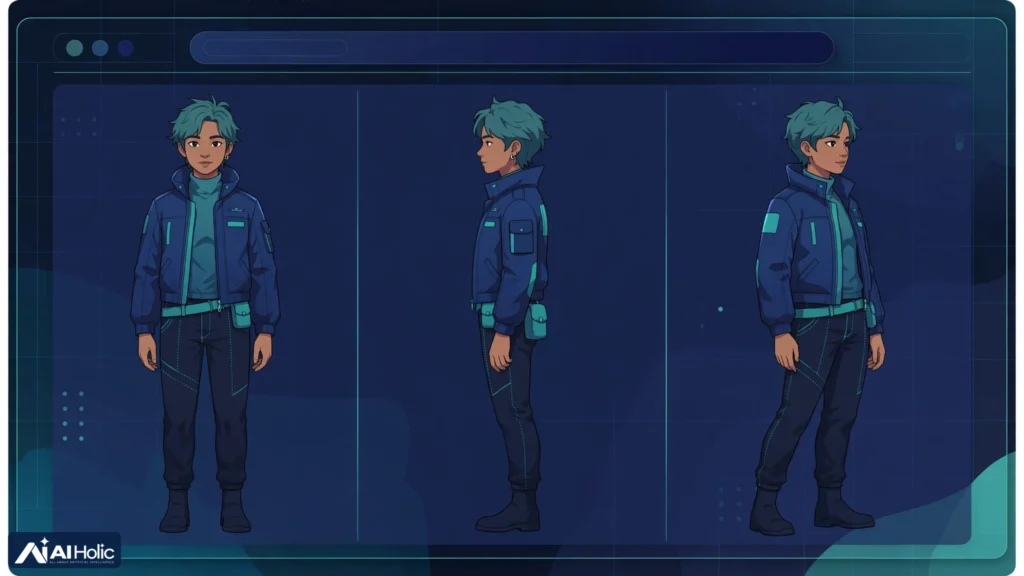
Build a character sheet with four views of the same person: front, three-quarter, profile, and full-body in the main outfit. Save each view as its own file with a fixed name, so you always attach the same files in the same order.
Write one short identity block and paste it into every prompt. List age range, face shape, eye colour, hair, build, and the exact outfit, including shoes and any item the character always carries. Keep this block short enough to reuse without edits, and change only the action, setting, and camera line for each shot.
- Front view: even light, neutral face, main outfit.
- Three-quarter view: same outfit and hair, head turned part way.
- Profile view: same outfit and hair, clear side view.
- Full-body view: whole outfit, shoes, and proportions.
- Voice note: voice name, pace, and tone in one line.
Keep approved stills in one folder and do not overwrite them. When a new take beats an old still, save it as a new approved still with the date. If your project is a fast promo, the steps for making a short sizzle reel show how a tight shot list keeps a short video on track.
Step 2: Plan Your Shots Before You Generate
Write a shot list before you open your video tool. For each shot, note scene, action, camera angle, and the reference view that fits best. A profile shot holds up better with the profile reference attached, not the front view.
Make a first frame still for each key shot when you can. A still lets you check face, outfit, and setting at low cost before you spend effort on motion. If the still is wrong, fix it first, then animate it, instead of asking motion to fix a bad starting image.
A simple storyboard helps here, even if it is just stills with one action line under each. You can spot a missing outfit, a wrong setting, or a jump in age before any clip exists, so keep the shot list short for a first project.
Your ai video character consistency workflow 2026, step by step
Use the same order for every scene. This is the core of your ai video character consistency workflow 2026: lock once, plan, generate small, check, and fix before you move on. Do not make ten scenes and check them at the end, since one early drift can spread through the edit.
- Attach the reference pack. Use the same saved reference and identity block.
- Write the shot line only. Describe action, setting, and camera move.
- Generate in small batches. Make two or three takes of one shot.
- Pick the best take. Compare takes with approved stills at full size.
- Fix or redo the shot. Reuse the same references for a redo.
- Log the take. Note shot number, take kept, and changes allowed.
Keep motion simple where identity matters most. A small head turn, short walk, or calm gesture holds the face far better than fast action or a wild camera spin. Save big moves for shots where the character is small in frame or partly out of view.
Generate short clips and join them in the edit, rather than one long clip that must hold identity throughout. Short clips give more points to check, and a bad clip costs one shot, not a scene. Cut on action where you can, so viewers follow movement across the cut.
| Stage | Do this | Check this |
|---|---|---|
| Before you generate | Attach the same reference pack | Right files and identity block |
| During generation | Make short clips in small batches | Face, outfit, voice vs stills |
| After the take | Keep the best take and log it | Shot, take kept, changes allowed |
| Before export | Watch the full cut in order | Drift, sound, and lighting |
Fix Common Breaks Before They Spread
Most breaks fall into a few clear types, and each type has a first fix worth trying. Start with the reference and the shot setup, not with a longer prompt. A longer prompt often adds new details that pull the face or outfit further from your approved look.
Face Drift
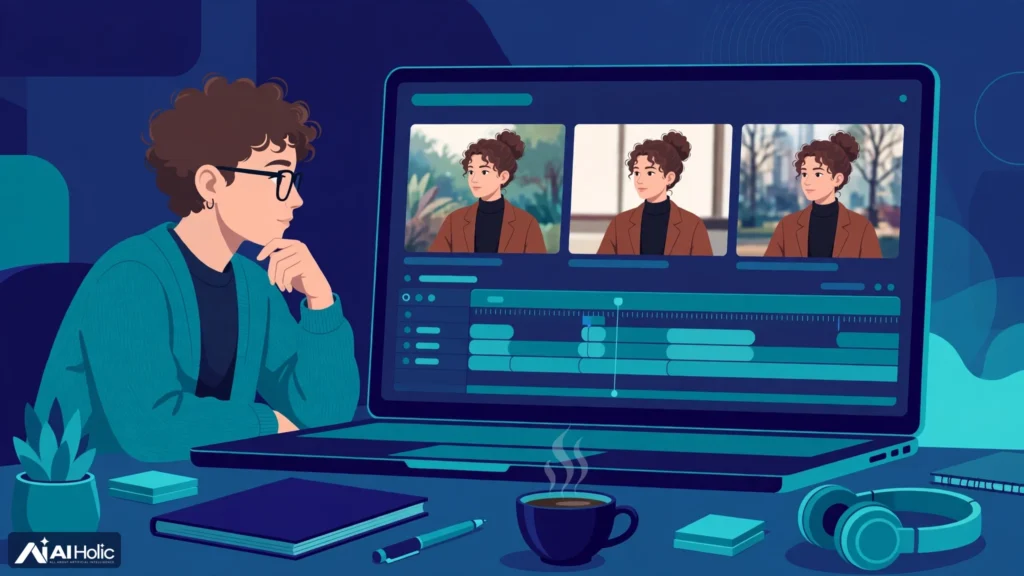
Face drift shows up as a wider jaw, different eyes, or a changed hairline. Go back to the front and three-quarter views and attach the view matching the shot angle. If the shot still drifts, remake the first frame still from your references and animate it instead of starting from text.
Check faces at full size, side by side with your approved still. Small previews hide the shifts viewers catch on a big screen. When a take drifts in the eyes or mouth, redo it, since a small face error reads as a different person in the final cut.
Outfit Change
Outfit drift is common because clothing is often described in words, not shown in a reference. Attach the full-body view for any shot where the outfit is visible, and name each item in the same words every time. Keep accessories few, since each extra item is one more detail the model can change.
If a jacket, badge, or bag keeps changing, make a separate still of that item and add it to your pack. The same care helps with virtual try-on photos, where a small lighting or fit change can alter how a person reads on screen. Do not accept a wrong outfit and hope the edit will hide it.
Voice Change
Voice drift breaks trust faster than a small face shift, since viewers hear it at once. Pick one voice for the character on the first video and reuse that voice, pace, and tone for every line. Save the voice name and pace notes with the reference pack, so a later session starts from the same choice.
Keep lines short and read them aloud before you lock them. A rushed line or sudden tone change can sound like a new speaker, even with the same voice setting. When a line sounds wrong, redo that line only.
Age Shift
Age shift creeps in when lighting, camera distance, or wording changes across scenes. State the age range in your identity block and keep it there for every shot. Use the same full-body and front views for age checks, since a close shot alone can make a person look older or younger.
If the story truly needs the character to age, treat each age as a separate locked pack. Build a new reference set for the older or younger version and use it only for scenes set in that time. Never let age slide a little in each scene, since small slides add up to a different person by the end.
Tools by Job, Named in Plain Text
No single tool covers every part of this workflow, so pick tools by the job. Some tools let you save a named character reference, while others work best with a first frame still fed into image-to-video. Use the tool that fits the shot, and keep the same pack across tools.
- Character reference tools: Kling, Google Flow and Veo, Runway References, Luma Character Reference.
- Image-to-video tools: use when a first frame still already looks right.
- Voice tools: one saved voice per character, kept with the visual pack.
- Editing tools: use for the final continuity pass on cuts and sound.
Once your clips are consistent, a browser editor such as Nova AI can add the subtitles and translations your finished video needs.
Tool features change often, so check current help pages before you start a series. For stills that feed first frames, 3D asset generation can help you plan props and sets before you animate. Do not build a series on a setting you have not tested with your own pack.
Practical Checklist for Every Scene
- Same reference pack, same file order, every shot.
- Same identity block, apart from the shot line.
- Shot list written, first frame still for each key shot.
- Short clips in small batches, best take kept and logged.
- Face, outfit, and voice checked against stills at full size.
- Full cut watched in order before export.
- Voice, pace, and tone matched to the first video.
- New stills saved as new files, never pasted over the old pack.
Frequently Asked Questions
Can AI video keep a character fully consistent now?
No, not fully. A locked reference pack, a fixed identity block, and short clips can keep a character close across scenes, but no tool today promises a perfect match on every take. Review every clip yourself and redo the shots that drift too far for your story.
How many reference images do I need to start?
Start with four views: front, three-quarter, profile, and full-body in the main outfit. That set covers most camera angles without forcing you to remake the character for each shot. Add a separate still only when one outfit item or prop keeps changing on its own.
Should I redo a whole video when one shot drifts?
No, redo only the drifted shot, using the same reference pack and identity block. Keep the good takes and the shot log untouched, so the fix stays small. If several shots drift the same way, check your reference pack first, since a bad reference can spoil every shot after it.
Conclusion
Keep one reference pack, one voice, and one shot list for the whole project. Check each clip against your approved stills, fix drift early, and redo only the shots that break the story. That steady habit is what makes an ai video character consistency workflow 2026 work in practice, even when no tool can promise a perfect match.
The same steady-character idea also applies to fan chats: for a gentle example, see undertale ai talk to toriel.
The same steady-character habits also help on a virtual stage: see how an ai vurtual concert generator works, from avatar stages to photo-to-performance clips, and what to check before you pay.
If you need a 3D model to use as a character or prop in your next video, learn how to download from meshy ai free, including the 10-model Meshy 6 Lite allowance, the formats to pick, and the free-plan limits that block most downloads.
If you want the full picture, our guide to videographer ai explains how AI tools fit each stage of a real shoot, from the brief to the final export.