Nova AI: The Browser Video Editor for Fast Subtitles and Translation
If you don’t want to read the whole guide or have difficulty reading, you can listen to this guide instead.
Subtitles take hours when you type them by hand. A browser tool called nova ai does that job in minutes, and it can translate the same captions into other languages too. It is an online video editor that runs in your browser, so you cut clips, add captions, and export without installing heavy software on your computer.
At AI Holic, we explain video tools in plain words. This guide covers what the platform does, how its subtitle and translation tools work, what the plans cost, and who should use it. You will also learn where it falls short, so you can decide before you pay.
What Nova AI Is
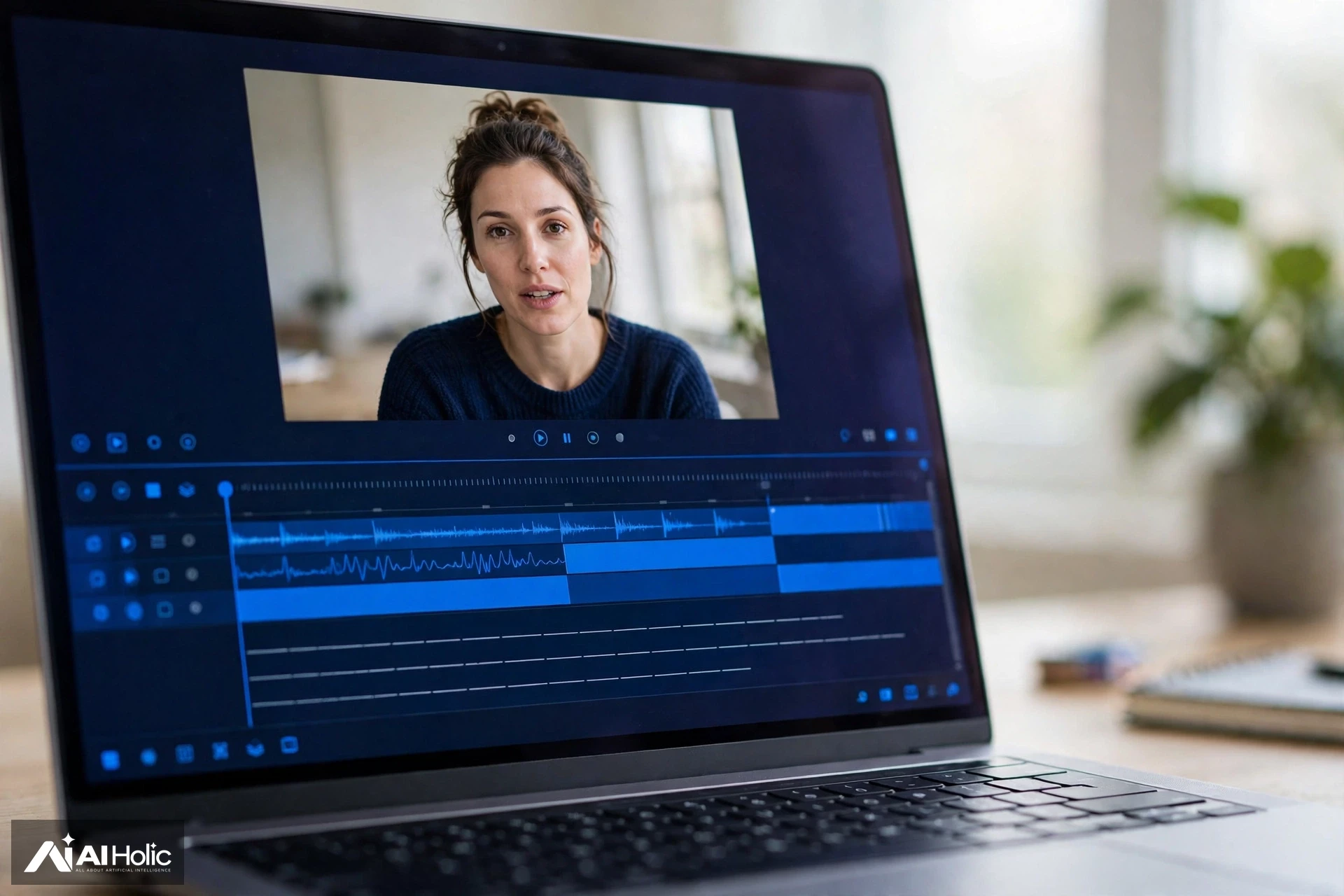
The platform is an online video editor that lives in your browser. You upload a clip, edit it on a timeline, and export the finished video, with no app to install. It works on Windows, Mac, and Linux, because the work happens in the cloud.
Its main strength is language. The tool can hear the speech in your video, turn it into captions, and translate those captions for viewers in other countries.
It is not a film-making suite. It does not aim to replace Premiere Pro or DaVinci Resolve for colour work or complex timelines. It aims to take a raw clip and turn it into a clean, captioned video fast.
The service launched in 2022, according to a 2026 review on TechShark. It has since grown into one workspace for editing, captions, voiceover, and stock media.
The vendor site is listed as wearenova.ai on software directories.
The Same Name, a Different App
The name belongs to more than one product, and that trips up new users. The platform in this guide is the browser editor at wearenova.ai.
It is the one reviewers describe when they talk about subtitles and translation.
A separate mobile app is called NOVA AI Video and Music Editor. It runs on iPhone, iPad, and Mac, and its seller on the App Store is Randy Prazak.
It cuts clips to the beat of a song, adds auto captions, and changes voices. Its paid tier is called NOVA Pro, listed at 7.99 dollars a month or 49.99 dollars a year, with 5 free exports a month.
Other apps share the name too. Nova Transcribe is a speech-to-text app, and Nova Translator is a travel translation app.
Neither one is the browser editor. If a download page asks you to install an app from an app store, you are looking at a different product.
What It Does Best
The tool is strongest when the goal is fast, practical video work. A social media manager can trim a raw clip, add captions, resize it for each platform, and post it the same day. A teacher can caption a lesson and translate it for students who speak another language.
Speed is the point. You do not open three apps to cut, caption, and translate.
The same workspace holds the editor, the subtitle tool, the voiceover tool, and a stock library, which saves time for people who publish often.
It also helps small teams. A marketer can make a product clip, a coach can caption a training video, and a podcaster can turn an episode into short captioned clips.
How Nova AI Works
You start by creating a project and adding your video. Upload a file from your computer, or paste a YouTube or TikTok link and let the tool pull the clip in. Then the clip sits on a timeline where you can cut, trim, and merge.
The editor covers the basics. You can split a clip, remove a dull section, join two clips, crop the frame, add text, drop in music, and set a transition. It also resizes video for each social platform, so one clip can fit a wide player and a tall phone screen.
Then comes the language step. You ask the tool to make subtitles from the audio, check the text it produces, and fix the errors.
Then pick the style. You can burn the captions into the video, or download them as a separate file. Translation works the same way, from the same subtitle text.
Voiceover is built in too. You type a script, pick a voice, and the tool reads it aloud. A stock library fills gaps with video, images, audio, and music, including iStock by Getty Images, according to Atomic Gains.
- Upload a clip or paste a YouTube or TikTok link.
- Cut, trim, merge, and resize on the browser timeline.
- Make auto subtitles, edit the text, and style the captions.
- Translate the subtitles into more languages if you need them.
- Add a voiceover or stock media, then export the finished video.
Subtitles and Translation
Subtitles are the clearest reason to use this tool. The platform listens to the speech in your video and turns it into timed caption text. You can edit the words, style the captions, and burn them into the video for social feeds where sound is often off.
Reviewers report that subtitle generation covers 37 languages and dialects. A subtitle editor creates and times these captions, and this platform builds that job into the editor itself. You can also download the captions as SRT, VTT, or TXT files for platforms that want their own caption file.
Translation goes further than subtitles. Reviewers report that the tool translates subtitles into more than 75 languages.
You can even translate several languages at once, and you can upload a subtitle file on its own and translate it without the video. That makes one recording useful for viewers in many countries.
Here the sources disagree, so read the numbers with care. Some vendor pages claim 100 or more languages in some workflows, while review sites stick to 37 for subtitle generation and 75 or more for translation. Caption creation covers fewer languages than translation does, and the count depends on the workflow you pick.
Accuracy is a claim, not a promise. One review reports transcription accuracy of up to 97 percent, depending on how clear the audio is.
That figure comes from the reviewer, not from a test we ran. Names, product terms, accents, fast speech, and background noise still cause errors, so check every line before you publish.
Caption files use open formats, and the Subtitle Edit page on Wikipedia explains how tools handle SRT files. Download the file and keep it with your project, so you never pay twice for the same captions.
Nova AI Pricing: Plans and Costs
The platform uses a freemium model with one free plan and three paid plans. Prices below are as listed on review and pricing sites on 2026-11-13, and they can change. Check the live pricing page before you pay.
Sources also disagree on the paid prices, because some list monthly billing and others list annual billing.
Monthly billing shows Basic at 10 dollars, Pro at 18 dollars, and Business at 55 dollars. Annual billing shows the same plans at 8 dollars, 14.41 dollars, and 44 dollars a month. The free plan costs nothing on either list.
| Plan | Monthly Billing | Annual Billing | Subtitle Minutes | Storage |
|---|---|---|---|---|
| Free | 0 dollars | 0 dollars | 30 minutes | 2 GB |
| Basic | 10 dollars | 8 dollars | 150 minutes | 100 GB |
| Pro | 18 dollars | 14.41 dollars | 300 minutes | 500 GB |
| Business | 55 dollars | 44 dollars | 900 minutes | 2 TB |
The free plan is the way to test the tool. It gives you 30 minutes of subtitles and translation, 2 GB of storage, and exports of up to 20 minutes, but the export carries a watermark. Paid plans remove the watermark and raise the limits.
One pricing page says the tool has no free plan at all. That conflicts with G2, Alternatives, and Vaslou, which all list a free plan with the same limits, so we treat the free plan as real.
Pick a plan by minutes, not by features. Most people hit the subtitle minute limit long before they hit the storage limit.
If you caption a few short videos a month, the free plan may last. If you caption daily, count your minutes first and pick the plan that covers them.
Browser Editor or Desktop Editor
A browser editor and a desktop editor solve different problems. The browser tool wins on speed and access: you open a tab, edit, and export, with nothing to install. A desktop editor wins on control: colour, audio mixing, effects, and frame-level cuts are all stronger there.
Our guide to videographer AI tools covers the wider field of AI help for video work. Use the browser tool when the job is quick and the output is a social clip, a lesson, or a promo. Use a desktop editor when the job needs fine control.
| Point | Browser Editor | Desktop Editor |
|---|---|---|
| Install | None, runs in a tab | Full install, strong computer helps |
| Subtitles | Built in, fast, translated | Often needs a plugin or extra app |
| Control | Basic cuts, text, transitions | Full colour, audio, and effects |
| Cost | Free tier, then monthly plans | Often a one-off or larger subscription |
| Best for | Social clips, lessons, promos | Films, ads, and pro client work |
Who Should Use It
Social media teams get the most from it. They can resize one clip for each platform, add captions for muted viewing, and translate the same post for more than one audience.
Teachers and course makers are a strong fit too. A lesson with captions is easier to follow, and a translated version reaches students who do not speak the first language.
Small firms and solo creators should try the free plan first. A product clip, a short ad, or a training video can be captioned and posted the same day. If you keep characters steady across scenes, our guide to the AI video character consistency workflow shows how to lock a look before you edit.
Teams with large video libraries get a bonus. The video content analyzer can search, tag, and find clips in a big archive, so old webinars and interviews become reusable.
Limits to Know Before You Pay
The tool is not a full post-production suite. It lacks the colour grading, motion graphics, multicam editing, and fine audio mixing that pro editors offer.
Auto captions need a human check. Accents, names, and noisy audio cause mistakes, and a wrong caption on a published video looks careless. Read the full caption text before you export.
Translation is a starting point, not a final version. Machine translation can miss tone, jokes, and brand terms. For a video that carries your brand in another language, have a speaker of that language read the captions first.
Browser editing has practical limits too. Very long projects and very large files can feel slow in a tab, and you need a steady internet link. The Smart Search analyzer is also limited: reviewers note it is an enterprise feature added by request.
One older review is worth noting. TangledTech reviewed the tool in 2022 and scored it 5 out of 10, calling it mainly a subtitling tool with basic editing.
The product has grown since then, but that score is a fair warning that the editor itself was never the strongest part. If you need pro-level cleanup for old footage, our guide to Topaz Video AI covers a tool built for that job.
Watch: A Hands-On Review
This review walks through the subtitle tool in action, from upload to auto captions and translation. Watch it before you try the workspace yourself.
Frequently Asked Questions
Is there a free plan?
Yes, there is a free plan with 30 minutes of subtitles and translation, 2 GB of storage, and exports of up to 20 minutes. Exports on the free plan carry a watermark, and paid plans start at 10 dollars a month on monthly billing.
How many languages does it translate?
Reviewers report translation into more than 75 languages, while subtitle generation covers 37 languages and dialects. Some vendor pages claim 100 or more in some workflows, so the count depends on whether you mean subtitle creation or translation. Check the live feature page for the language you need.
Is it the same as the NOVA mobile app?
No. The mobile app called NOVA AI Video and Music Editor is a separate product by a different seller, made for iPhone, iPad, and Mac. This guide covers the browser platform.
Can it replace a desktop video editor?
Not for pro work. It handles quick cuts, captions, translation, and resizing well, but it lacks the colour, audio, and effects control of a desktop editor. Use it for fast social and lesson videos, and keep a desktop editor for client work.
Conclusion
In short, nova ai is a fast browser editor for creators who need captions and translation more than pro effects. Try the free plan, check your captions, and upgrade only when your minutes run out.