
Lenso AI: Find Any Image Source, Face or Place With Reverse Image Search
If you don’t want to read the whole guide or have difficulty reading, you can listen to this guide instead.
Upload a photo and find where it lives on the web. That is what lenso ai does, and it does it in seconds. It is a free AI reverse image search tool that matches your picture against billions of images online, then shows you the pages where that photo, or one like it, appears.
At AI Holic, we test AI image tools in plain words. This guide explains what the tool does, how its five search types work, when face search helps, and how it stacks up against Google Lens and TinEye. You will also learn how to run a search yourself and how to use it to guard your own photos.
What Lenso AI Is
Lenso AI is a web tool that searches the internet with a picture instead of words. You upload a photo, and it looks for that photo, or photos like it, across billions of images online. The results show the matching images and the pages where they appear.
The tool is built for anyone who works with pictures. Photographers check where their work is used, shoppers track down a product they saw in a photo, and ordinary users find the source of an image they saved.
It runs in the browser, so there is nothing to install. You can also search from your phone by uploading a photo or taking one on the spot.
How Reverse Image Search Works
Reverse image search is a method called content-based image retrieval, or CBIR for short. The system reads the content of your picture, such as colors, shapes, and textures, and compares it with images in its index. You can read the plain-language guide to content-based image retrieval on Wikipedia for the full background.
That is different from a normal image search. A normal search matches words in file names and page text. A reverse search matches the picture itself, so it can find a photo even when the page around it uses other words.
The tool turns your upload into a set of visual features and ranks the closest matches first. A recent update also added similarity scores and indexing dates for Professional users, so you can see how close each match is and when it was indexed. Visual search is a wider field than still photos, and our guide to AI visual search from videos shows how the same idea works on moving pictures.
The Five Search Categories
Lenso AI splits every search into five types. Each type uses its own AI model, so the results fit the question you are asking. Pick the type that matches your goal before you judge the results.
| Category | What It Finds | Best For |
|---|---|---|
| Places | Landmarks, buildings, locations | Travel photos and unknown places |
| People | Photos of the same face | Finding where a face appears online |
| Duplicates | Exact copies of your image | Copyright checks and source tracing |
| Similar | Photos that look alike | The same shot in other sizes or edits |
| Related | Photos on the same theme | Ideas and related images |
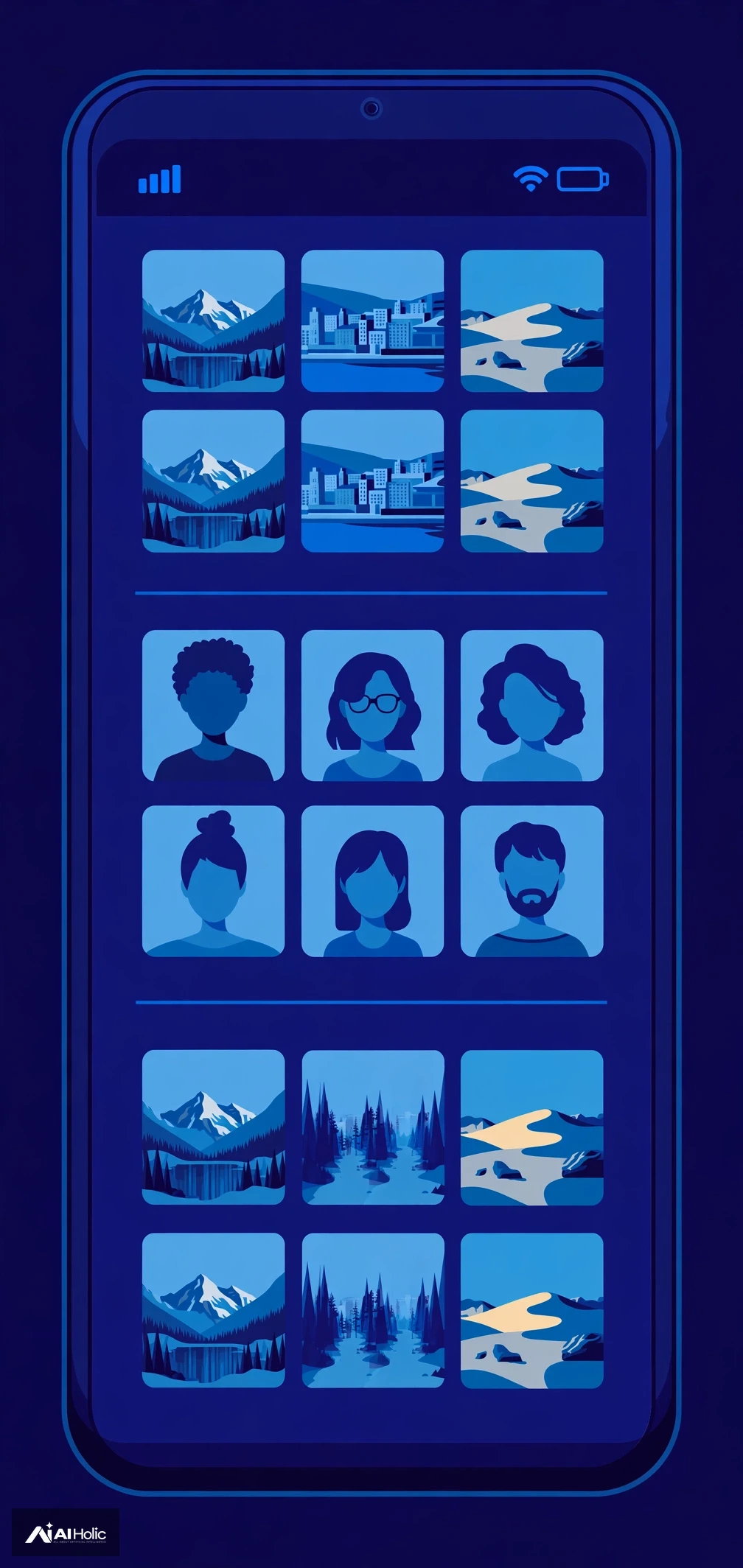
Places works well on travel shots and street scenes. Duplicates is the one to use when you want the original source of a photo.
If you pick the wrong type, switch and run the search again. The same upload can give very different results in each type, and that is normal.
Face Search: Finding People by Photo
Face search looks for photos of a person, not just a photo that looks alike. It measures the gaps between facial points, such as the eyes, nose, and mouth, then matches faces that share those points. It can match the same person in different poses and with different expressions.
You can try face search free. The site notes that it is only open in some regions, so it may not be on where you live. If it is off in your region, the other four search types still work.
Use face search with care. Only search photos you have a right to use, such as your own face or a photo you own. Searching other people without a reason can break privacy rules and trust.
Duplicates and Copyright Protection
Duplicates finds exact copies of your image across the web. It also finds edited copies, such as crops, resized versions, and shots where your image sits inside a larger picture. That makes it a strong tool for tracing the original source.
Photographers use this to guard their work. If your photo shows up on a site that never asked, you have the page link as proof. Our guide on how to use AI to grow a photography business covers more ways photographers can guard and earn from their work.
The tool only shows photos hosted elsewhere, and it links back to the source page. That helps you credit the right owner and check whether a use is fair or not.
Run a duplicate check on your best photos every few months. New copies appear over time, and a quick check keeps you in the loop.
How to Run a Search in Four Steps
To run a search here, you need only a picture and a browser. The whole flow takes less than a minute. Follow these four steps.
- Upload your picture by dragging it into the box, pasting it from your clipboard, or picking it from your files.
- Pick a search type: Places, People, Duplicates, Similar, or Related.
- Wait a few seconds while the tool scans its index for matches.
- Open any result to see the image and the page where it lives.

On a phone, the flow is the same. You can upload a saved photo or take a new one with your camera. That helps when you want to name a landmark, a plant, or a product right in front of you.
For a sharper result, use a clear photo with the subject in the middle. A blurry shot or a heavy crop gives the tool less to match, so the results get weaker.
Research Mode and Advanced Filters
Research Mode is the power option for people who need more than the first page of results. It returns up to 10,000 results for People and Duplicates, which is ten times the normal count. It takes a few seconds longer, and it is built for wide checks, not quick lookups.
Advanced Filters narrow those results fast. You can filter by page language, domain, date range, image size, and a keyword in the page title. That turns a flood of matches into a short list you can work through.
Two more tools help you stay on top of matches. Alerts tell you when new matches appear in a type you follow. Collections save your unlocked results in groups you can open again later.
Lenso AI vs Google Lens vs TinEye
Lenso AI is not the only reverse image search tool. Google Lens and TinEye are the two names most people know, and each one has a clear strength. The table below shows how they differ.
| Tool | Best At | Weak Spot |
|---|---|---|
| Lenso | Face search and five search types | Face search limited by region |
| Google Lens | Everyday visual search on your phone | No true face search for people |
| TinEye | Finding exact and edited copies | Returns few similar images |
Google Lens is the default visual search on many phones. It replaced the old Search by Image tool in 2022, and it is best for naming objects, plants, and products. You can read how reverse image search works on Wikipedia to see how all three fit the same idea.
TinEye builds a digital fingerprint of your image and matches even heavily edited copies. It is the pick for strict copy checks, but it rarely shows similar images that are not copies.
Pick Lens for a fast daily lookup, TinEye for a strict copy check, and this tool when you need face search or five search types in one place. Our roundup of the best AI photo editing tools pairs well with any of them once you have the image you need.
Free vs Paid: What Costs Money
You can try the tool free, including face search where it is open. The free tier covers a basic search across the five types, so most people can test it without paying. The site does not list a free search limit on its homepage, so we state none here.
The Professional plan adds the API, Research Mode, and newer features such as similarity scores and indexing dates. The API plan allows up to 5,000 calls per month across Image Search and Face Search. Check the pricing page on the day you sign up, since plan prices move over time.
Start free and pay only when you need the extra reach. A casual user who runs a few searches a month has no reason to upgrade. A creator who tracks copies of their work every week may find Research Mode worth it.
Privacy and Safety Notes
A reverse image search sends your photo to a server. That is how the match works, so do not upload private photos you would not want processed. Keep sensitive shots off any search tool, not just this one.
Face search raises the bar higher. Only search faces you own or have a clear right to check. The tool states that face search is open only in some regions, and local rules on face data differ by place.
Shared search links are private to the link. Anyone with the link can open the results, so share links only with people you trust. Delete collections you no longer need.
Frequently Asked Questions
Is it free to use?
Yes, you can try the tool free, including face search where it is open. The Professional plan adds the API, Research Mode, and newer features. Check the pricing page for current plan details.
Can it find a person from a photo?
Yes, face search matches facial points to find photos of the same person online. It works in some regions only, and you should only search faces you have a right to check.
Does it find the original source of an image?
Yes. The Duplicates type finds exact copies and traces the source page. It also finds edited copies, such as crops and resized versions.
How is it different from Google Lens?
Google Lens is best for everyday visual search on your phone, such as naming objects and plants. The difference here is true face search and five search types, plus Research Mode for wider checks.
Can I use it on my phone?
Yes. Upload a saved photo or take a new one with your camera. The flow is the same as on a desktop browser.
Conclusion
In short, Lenso AI is a fast, free way to search the web with a picture instead of words. Try a duplicate check on your own photos first, then test face search and Research Mode if you need them. Pick the search type that fits your goal, and you will get more from every upload.