NoteGPT AI Image Editor: What It Can Do, What It Costs, and When to Use It
If you don’t want to read the whole guide or have difficulty reading, you can listen to this guide instead.
You may know NoteGPT as a study tool that turns videos and PDFs into notes. The notegpt ai image editor is a separate feature inside that same suite, and it edits photos with plain text prompts instead of sliders and layers. It can remove a background, change a scene, or turn a photo into a cartoon in a few clicks.
At AI Holic, we read the hands-on tests published in 2026 and pulled the findings into one guide. You will learn what the editor can do, what it costs in credits, and where it falls short, so you can decide if it fits your work.
The Short Answer: NoteGPT AI Image Editor in 2026
The notegpt ai image editor is a browser-based photo editor that lives inside the NoteGPT learning suite. It runs on Google’s Nano Banana image model and handles prompt-based edits like background removal, object removal, headshots, and style changes.
It suits quick edits for social posts, slides, and study materials. It is not a replacement for a full photo editor, because it has no layers, no manual masking, and no fine control over the result.
What Is the NoteGPT AI Image Editor?
NoteGPT is an all-in-one AI learning assistant built by NoteGPT Inc. Its core job is to summarize YouTube videos, PDFs, audio files, and articles into notes, flashcards, and mind maps. The image tools sit beside that core as a bonus suite for creators.
The editor itself is a web app. You upload a photo, type what you want changed, and the model returns an edited version. There is no software to install, and the same account and credit balance cover every tool in the suite.
Under the hood, the editor runs on Nano Banana, Google’s image generation and editing model, officially called Gemini 2.5 Flash Image and released in public on 26 August 2025. A newer Nano Banana 2 option is also offered inside the tool, and tests found it handles text and detail better than the basic model.
NoteGPT is not affiliated with OpenAI or ChatGPT, even though the name sounds similar. That matters if you are comparing it with ChatGPT image tools, because the two products come from different companies.
What the Editor Can Do
The image suite holds eight tools, and the editor is the one that changes an existing photo. The table below lists each tool, what it does, and the job it fits best. All eight share the same credit balance.
| Tool | What it does | Best for |
|---|---|---|
| AI Image Editor | Edits a photo from a text prompt | Quick changes and restyles |
| AI Image Generator | Creates a new image from text | New visuals from scratch |
| AI Background Remover | Cuts the subject out of its background | Product shots and cutouts |
| AI Image Enhancer | Sharpens and improves a soft photo | Old or low-quality photos |
| AI Object Remover | Erases a chosen object and fills the gap | Photo cleanups |
| AI Headshot Generator | Restyles a portrait into nine stock looks | Profile photos |
| AI Clothes Changer | Swaps the outfit shown in a photo | ID and style shots |
| AI Passport Photo Maker | Formats a photo for documents | ID photos |
Image generation is the broadest tool of the set. You can ask for a new picture from scratch, or take a photo and restyle it as a cartoon, a comic, or a watercolor. Hands-on tests found the artistic styles work better than realistic ones, because the model has more room to improvise.
Image-to-image editing is a smaller step. You keep your photo and change one part of it, like the background, the clothes, or the art style. The model also accepts short text instructions with the style change, so you can ask for a small edit inside the same pass.
The background remover is fast and usually accurate. In testing, it separated the subject cleanly even in busy scenes, and it kept most of the foreground intact. Fine details like hair and thin edges can come out uneven, and you cannot mark the foreground by hand.
The object remover gives you more control. You can type exactly what to remove, or paint over it with a brush, and the tool fills the gap with a matching pattern. Simple scenes work well, but a complex background behind the removed object can leave a flat patch that clashes with the rest.
The headshot generator is one of the strongest tools in the set. It takes your photo and changes the pose, clothes, and background to match one of nine stock styles, and it fills in the prompt for you. Faces usually keep their key features, though testers noted they can look overly symmetrical.
The image extension tool stretches a photo past its edges. It works best on still objects and backgrounds, where the model can repeat a pattern. People and animals are harder, and testers found odd limbs and poses in some results, so check the output closely.
How to Use the Editor
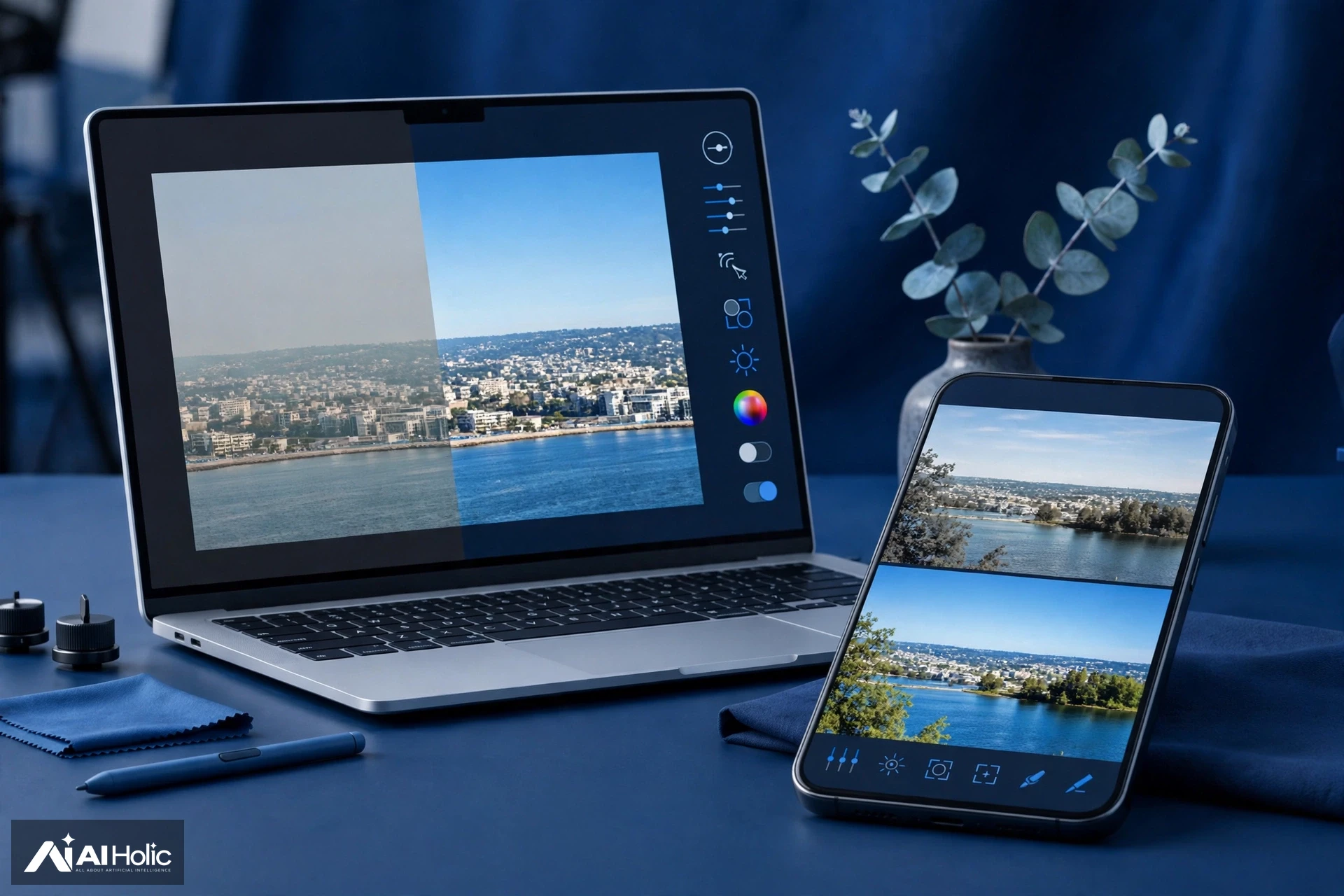
You do not need editing skill to start. The whole flow is upload, prompt, and download, and the interface fills in most of the prompt for you when you pick a preset style.
- Sign in to NoteGPT and open the AI Image Editor from the image tools list.
- Upload a clear photo. Sharp images give better results than blurry or low-quality ones.
- Pick a tool, such as background remover, object remover, or headshot generator.
- Type a short, plain prompt that names the change and where it goes, or pick a preset style.
- Generate the result, check it closely at full size, and regenerate or refine it if a detail looks wrong.
- Download the version you want to keep. Each new generation uses more credits.
Prompt wording makes a real difference. Testers found that vague prompts like “remove people on the left” fail more often than exact ones like “remove the man in the red shirt at the left edge”. Name the object, its color, and its place in the frame.
Text inside images is the weak spot. The basic Nano Banana model often garbles words, so avoid asking for signs, labels, or posters with text. If you must add text, write the exact words and their place in the prompt, and switch to the Nano Banana 2 model for a better chance.
Pricing and Free Credits
NoteGPT is freemium, and every tool in the suite shares one credit balance. Image edits cost more than text work, and most image actions use two or more credits per image. That shared balance is the key number to watch before you pick a plan.
| Plan | Monthly price (annual billing) | Quotas |
|---|---|---|
| Free | $0 | 15 quotas per month, no card needed |
| Pro | $9 | 1,000 quotas per month |
| Unlimited | $14.50 | Unlimited, with daily and monthly limits on image tools |
| Max | $49.50 | Unlimited |
The prices above are the annual billing rates listed by MobileAppDaily in its review, read on 12 November 2026. Annual billing saves 50 percent across all plans, according to the same review. The free plan gives 15 quotas a month after login, with no credit card required, according to the Turbo0 listing.
Image credits are scarcer than the headline quota suggests. A hands-on test by Shotkit in April 2026 found only two free image credits per month on a free account, and the Pro plan at $9 a month gave 50 image credits a month. At two to six credits per image, that covers fewer than 15 edited images, and a failed upload in the test still used up a credit.
The two sources disagree, because quota rules changed between April and November 2026 and because image credits are counted separately from general quotas. Treat the free tier as a short trial for image editing, not a steady supply. If you edit images every week, check the current image-credit count on the pricing page before you pay.
The Unlimited plan does not remove the cap. Even on the top tiers, daily and monthly limits still apply to image tools, so heavy batch work can still run out. That is the main reason the suite feels cheap for light use and costly for constant image work.

Strengths of the NoteGPT AI Image Editor
The biggest strength is convenience. One login covers notes, slides, chat, and image tools, so a creator who already uses NoteGPT for study can edit a thumbnail without opening a second app. The presets also do the prompting for you, which helps if you have never written an image prompt.
Speed is the second strength. Background removal and style changes take seconds, and batch generation can produce several versions of one image from a single prompt. For social posts and slide visuals, that pace is hard to beat.
Consistency is a third strength. The model keeps characters and objects steady across edits, so a series of images for one post or deck can share the same look. The headshot tool benefits most, because its nine stock styles use the same preset prompt each time.
Finally, the learning curve is short. The interface is clean and minimal, with clear upload and prompt boxes and tools grouped by job. A beginner can get a usable result on the first try, which is not true of most desktop editors.
Limits Found in Hands-On Tests
The limits are real, and independent tests found most of them. The basic model garbles text in images, so any picture that needs readable words is a risk. The newer Nano Banana 2 model is better, but it burns credits faster.
Control is limited. The background remover picks the foreground for you and offers no manual prompt or refinement, so a wrong guess means regenerating the whole image. The background changer sits in a different part of the suite from the remover, and the two tools handle prompts differently, which confuses new users.
Detail work is uneven. Hair, thin edges, and fine textures can distort, and object removal on a complex background can leave a flat patch. Faces in headshots can look too symmetrical, and extended images can show odd limbs on people and animals.
The credit system is the most cited drawback. Free image credits are few, most actions cost two or more credits, and regenerating a result costs credits again. MobileAppDaily also notes that the platform is not GDPR compliant, which matters if you edit photos that hold private data.
There are also smaller gaps. The editor needs a stable internet connection, since all work runs in the browser.
The Dev.to guide notes that zooming and scaling can misalign parts of the interface on some screen sizes, and there is no dedicated mobile app for editing on the go.
Who Should Use It
Students and educators get the most value. If you already use NoteGPT to summarize lectures and build slides, the editor covers the visuals for the same deck without a second subscription. It fits diagrams, thumbnails, and social posts for class work.
Social media creators and small business owners are the next fit. Quick product cutouts, profile photos, and post visuals are the exact jobs the tool does well. The headshot and clothes changer tools also help when you need a clean LinkedIn photo or an ID-style shot.
Bloggers and content writers can use it for article visuals and featured images. Batch generation gives you several options from one prompt, so you can pick the best of the set instead of editing one image by hand.
It is a poor fit for professional photo work. If you need layers, masks, color grading, or print-ready files, a dedicated editor is the right tool. It is also a poor fit if you edit images every day, because the credit caps will slow you down.
NoteGPT AI Image Editor vs a Dedicated Image Editor
The fair comparison is not NoteGPT against Photoshop. It is NoteGPT against a free dedicated editor, since both aim at quick results for casual users. The table below shows where each side wins.
| Factor | NoteGPT AI Image Editor | Dedicated image editor |
|---|---|---|
| Editing style | Text prompts and presets | Manual tools, layers, and masks |
| Learning curve | Minutes, no skill needed | Hours to weeks for full control |
| Text in images | Often garbled on the basic model | Full control, always accurate |
| Fine detail control | Low, no manual masking | High, pixel-level control |
| Extra tools in one login | Notes, slides, chat, audio, video | Usually image editing only |
| Cost for heavy use | Credit caps, $9 to $49.50 a month | Many free options with no caps |
| Best for | Quick social and slide visuals | Professional and print work |
If your main job is study notes with a few visuals on the side, NoteGPT wins on convenience. If your main job is the images themselves, a dedicated editor wins on control and cost. Our guide to the best AI photo editing tools of 2026 compares the dedicated options side by side if you want to weigh them first.
For new images rather than edits, the choice is wider. Our guide to the best free AI image generators lists free tools that create pictures from text, which suits you if you need fresh art instead of edited photos.
Headshots deserve a special note. The NoteGPT headshot tool is quick and cheap for a LinkedIn photo, but a tool built only for portraits can give you more styles and sharper results. Our AI photo booth guide covers portrait tools that focus on that one job.
Tips for Better Results
- Start with a sharp, well-lit photo. The model cannot fix a blurry source image.
- Write prompts like instructions to a person: name the object, its color, and its place in the frame.
- Change one thing per generation. Asking for five changes at once makes the result harder to predict.
- Use the Nano Banana 2 model for images with text, and check the words at full size before you download.
- Generate two or three versions of the same edit, then keep the best one instead of refining a weak first try.
- Check faces, hands, and edges closely. Those are the spots where the model slips most often.
- Keep your credit balance in mind. Batch only when you need several options, not for every edit.
Frequently Asked Questions
What is the NoteGPT AI Image Editor?
It is a browser-based photo editor inside the NoteGPT learning suite. It uses Google’s Nano Banana model to edit photos from text prompts, and it covers background removal, object removal, headshots, image extension, and style changes. It shares one credit balance with the rest of the NoteGPT tools.
Is the NoteGPT AI Image Editor free?
There is a free plan with 15 quotas a month and no credit card needed, but image credits are much scarcer than that number suggests. A test in April 2026 found only two free image credits per month, and most image actions cost two or more credits. Paid plans start at $9 a month on annual billing.
What AI model powers the editor?
The editor runs on Nano Banana, officially called Gemini 2.5 Flash Image, a Google image model released in public on 26 August 2025. A newer Nano Banana 2 option is also offered, and hands-on tests found it renders text and detail better than the basic model, though it uses credits faster.
Can the NoteGPT AI Image Editor remove backgrounds?
Yes, it has a dedicated background remover that is fast and usually accurate, even in busy scenes. Fine details like hair and thin edges can come out uneven, and you cannot mark the foreground by hand. A separate background changer tool lets you swap the scene behind the subject.
Can it create professional headshots?
It can create usable headshots quickly, with nine stock styles that change pose, clothes, and background from one photo. Faces usually keep their key features, though testers noted they can look overly symmetrical. For a LinkedIn photo it works well, but a dedicated portrait tool gives more control.
Should I use NoteGPT or a dedicated image editor?
Use NoteGPT if you already use the suite for notes and slides and only need quick visuals on the side. Use a dedicated editor if images are your main work, if you need layers and masks, or if you edit every day and would hit the credit caps. Image editors come in many forms, so match the tool to the job, not the brand.
Conclusion
The notegpt ai image editor is a fast, beginner-friendly bonus inside a study suite, not a full photo editor. Use it for quick social and slide visuals, watch the credit caps, and switch to a dedicated editor when control matters.