Download From Meshy AI Free: Export Your 3D Models Without Paying
If you don’t want to read the whole guide or have difficulty reading, you can listen to this guide instead.
You can download from meshy ai free, but only in one narrow case. Meshy gives free accounts 10 downloads a month for plain models made with Meshy 6 Lite. Most other models stay locked behind a paid plan, so the model type you pick before you press Generate decides whether the file can leave Meshy at all.
At AI Holic, we tested the free plan rules against the Meshy help pages and the pricing guides that rank for this topic. This guide gives you the short answer first, then the six steps that work, the formats to pick, and the fixes for the upgrade prompt that blocks most free downloads.
You will also learn the second free route, the community gallery, where ready made models carry a different licence and no generation credits at all. Read the short answer, then follow the steps in order.
The Short Answer
Yes, you can download from meshy ai free, but only up to 10 plain Meshy 6 Lite models a month. The free plan gives you 100 credits a month, and those credits pay for making models, not for taking them out. A download is free only when the model is untextured and made with Meshy 6 Lite.
Models made with Meshy 6, Meshy 7, or T2.5 cannot leave Meshy on the free plan. Textured models cannot leave either, and that includes a Meshy 6 Lite model after you add texture to it. Models from the 3D Agent and textures placed on a model you uploaded are blocked the same way.
If the Download button shows an upgrade prompt, the model is in one of those blocked groups or you have used your 10 downloads for the month. Both limits reset on the 1st of each month at 00:00 UTC. Your old models are safe, since a model made on a paid plan stays free to take out even after you move back to the free plan.
What The Free Plan Gives You
The free plan is simple once you see the two numbers that matter. You get 100 credits a month and 10 downloads a month, and the two do not mix. Credits pay for each generation, while downloads pay for each file you take out.
To download from meshy ai free, you must spend both budgets on the same model, and that only works for plain Meshy 6 Lite work. A textured model costs credits to make and still refuses to leave on the free plan. That split is the part most people miss until the upgrade prompt appears.
Unused credits do not roll over, and the same goes for downloads. If you use 20 credits this month, you still start next month at 100, not 120. Check your account page near the end of the month so a good model does not sit past the reset.
| Free plan item | What you get | What it means |
|---|---|---|
| Credits | 100 a month | Pays for making models, not for downloads |
| Downloads | 10 a month | Plain Meshy 6 Lite models only |
| Reset | 1st of the month, 00:00 UTC | Credits and downloads both start fresh |
| Licence | CC BY 4.0 | Commercial use allowed with credit to Meshy |
| API access | No | Paid plans only |
How To Download From Meshy AI Free In Six Steps
Follow the steps in this order, because the choice in step three decides everything. Pick the wrong model type and the file will not leave Meshy, no matter how good it looks. To download from meshy ai free, start with Meshy 6 Lite and keep the model plain.
- Sign up for a free Meshy account with Google or email.
- Click Model in the left sidebar, then pick Image to 3D or Text to 3D.
- Choose Meshy 6 Lite before you press Generate.
- Upload a clear photo or type a short plain prompt, then press Generate.
- Wait for the model to finish, then open it in the viewer.
- Click Download in the toolbar, pick a format, and click Download again.
Image to 3D is the best place to start if you have a clear photo or a piece of concept art. Upload one subject on a plain background and keep the shot sharp, since a blurry photo gives the model little to work with. If you have no good photo yet, our guide to the best free AI image generators can make one for you to use as the input.
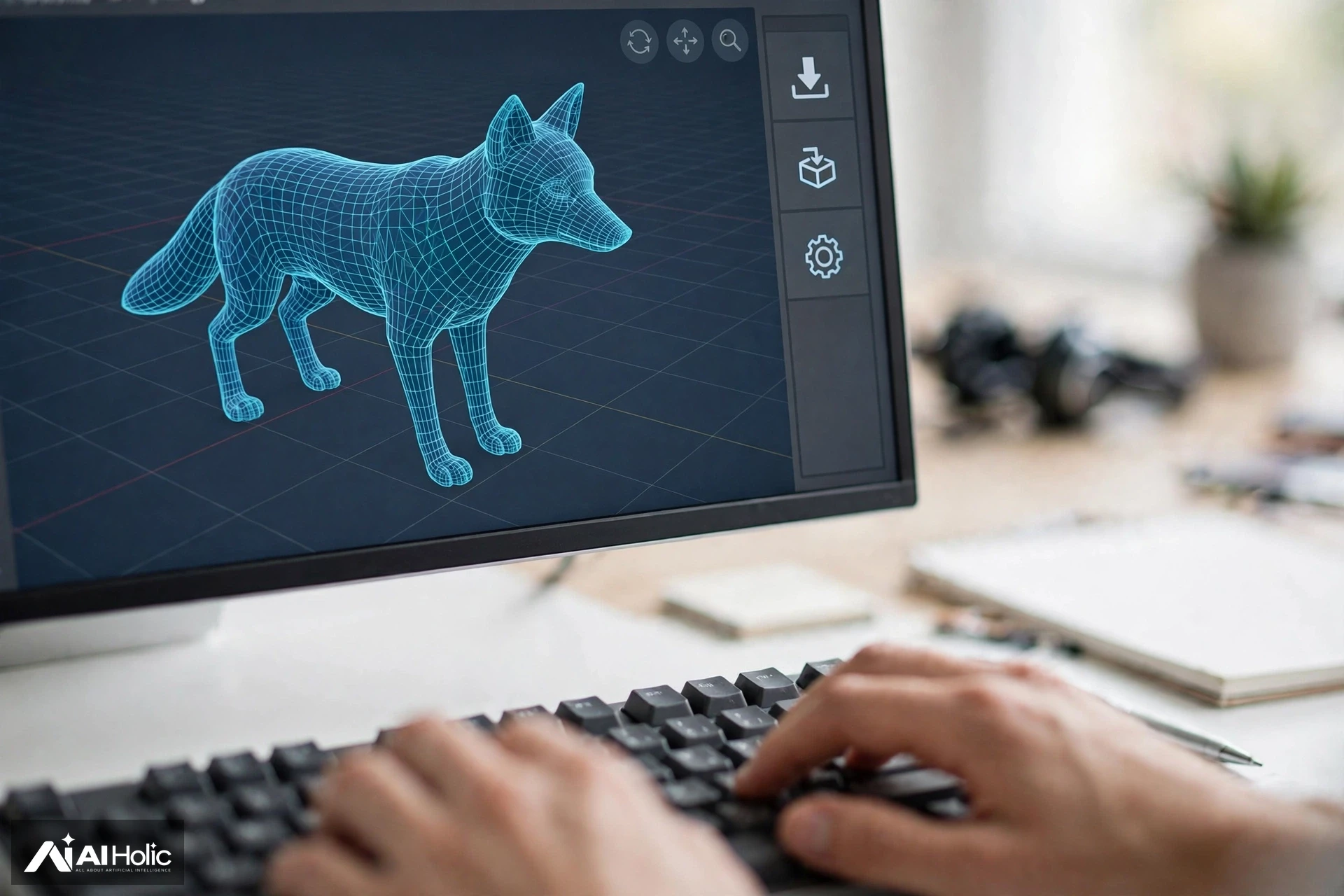
Do not press Texture after the model appears, even if the plain grey shape looks dull. Texturing turns a free download into a blocked one, and the credits you spent on the texture pass do not come back. If you want colour, make a second model later on a paid plan or use the file in other software that can paint it.
Save the file in a folder you will find again, and give it a clear name before you close the viewer. Meshy saves your results in your asset list, so you can open an old model and try the download again while you still have downloads left. Keep a note of how many of your 10 downloads you have used, since the count only resets on the 1st.
Which Format Should You Pick
Pick the format that fits the job, not the one that sounds best. To download from meshy ai free, the format choice comes last, after the model type check, and the wrong pick means extra work in other software. The table below maps each format to its normal use so you can choose in seconds.
GLB is the safe first pick for most people, since one file holds the shape and the texture together. The glTF format, which GLB is the binary form of, is built for 3D scenes and models, and one GLB file can hold geometry, textures, and animation. You can read the plain facts on the glTF format on Wikipedia if you want the full spec.
STL is the right pick for 3D printing, since slicers take it without fuss. FBX fits game engines such as Unity and Unreal Engine, while OBJ fits older desktop 3D tools. USDZ fits AR work on Apple devices, and 3MF fits multi colour prints when your slicer supports it.
| Format | Best for | Notes |
|---|---|---|
| GLB | Web and AR | One file holds shape, texture, and animation |
| FBX | Unity and Unreal Engine | Keeps animation for game work |
| STL | 3D printing | Shape only, no colour or texture |
| OBJ | Desktop 3D tools | Wide support across older software |
| USDZ | AR on Apple devices | Built for Apple AR viewing |
| 3MF | Multi colour printing | Keeps parts and colours separate |
The Community Gallery: Free Models Without Credits
The community gallery is the second way to download from meshy ai free, and it needs no credits at all. Meshy lists ready made models in groups such as detailed, animated, and tribal, and each one is free to take in STL, OBJ, FBX, GLB, and USDZ. You only need a free account to take the files.
Community models are listed under CC0, which is a different deal from the models you make yourself. Your own free plan models sit under CC BY 4.0, so you must credit Meshy when you use them in public or sell them. Community models carry no such credit rule in the gallery notes, but you should still check the licence on the page you take the file from before you use it.
Use the gallery when you need a prop fast and you do not care who made it. A chair, a plant, or a simple animal from the gallery can fill a scene in minutes. Save your own 10 downloads for models only you can make, such as a character from your own sketch.
How Credits And Downloads Reset
Credits and downloads reset together on the 1st of each month at 00:00 UTC. That shared date is handy, since one check on your account page tells you both numbers at once. Mark the date on your calendar if you plan a small project around the free plan.
A pricing guide checked 1 November 2026 puts the credit cost at 10 credits for a Meshy 6 Lite model, 20 credits for a plain Meshy 6 model, and 30 credits for a textured Meshy 6 model. That math turns 100 free credits into 10 Lite models, five plain Meshy 6 models, or about three textured models. Only the Lite models in that list can leave Meshy for free, so the cheap option is also the only one that pays off as a file.
Spend credits on a test only when the test teaches you something. A first model with a plain prompt shows you how the tool reads your words, and a second test with a photo shows you how it reads an image. After two tests, stop testing and make the model you actually need.
What To Do With The File After You Download It
Open the file in the tool you plan to use before you trust it. Blender takes GLB and OBJ without fuss, Unity and Unreal Engine take FBX, and a slicer takes STL for printing. A quick open now saves a nasty surprise later, when the model is due in a scene or on a print bed.
If you want to turn a still model into a moving clip, keep the model file safe and work from a render or a screenshot. Our guide to keeping a character the same across AI video clips walks through the same habit of saving one good source file and reusing it. That habit matters more than any single export setting.
For print work, check the size in your slicer before you start the print. A model that looks right on screen can print too small to hold detail, and scaling it up after the fact can break thin parts. Print a small test first when the model has thin arms, legs, or ears.
Some people turn a downloaded model into a short video next, and that step needs a video tool, not a 3D tool. Our check on whether Grok AI can make videos in March 2026 shows what one popular video tool can and cannot do. Read it before you pick a video tool for your model.
When The Download Button Says Upgrade
The upgrade prompt is the most common problem, and it has only two causes. Either the model type cannot leave on the free plan, or you have used your 10 downloads for the month. If you cannot download from meshy ai free today, open the model details and check which model made it before you blame the site.
A textured model is the usual culprit, since many people add texture without knowing it blocks the download. Make the same model again with Meshy 6 Lite and skip the texture step. The new file will be plain, but it will leave Meshy, which is the point of the free plan.
An empty file after download often means the generation had not finished when you pressed Download. Wait for the viewer to show the full model, then try again. If the file still comes out empty, make a fresh model and watch for the finished state before you press the button.
When Paying Makes Sense
Pay only when the free plan blocks the exact work you need to do. If every model you make needs texture, a paid plan is the honest answer, since texture is the main thing the free plan holds back. A pricing guide checked 1 November 2026 lists Pro at $20 a month for 1,000 credits, with free downloads on paid models.
A second sign is volume, since 10 downloads a month is a small shelf. If you need 30 models a month for a shop or a class, the free plan will run dry in the first week. Work out the cost per model before you pay, and check whether a different tool fits the same job for less.
Keep the free plan while you are still learning, since paid credits do not teach you faster. Make your first 10 Lite downloads, use the gallery for props, and learn which prompts give you clean shapes. Pay when the work, not the wish, asks for it.
Frequently Asked Questions
Can I Download Models On The Free Plan?
Yes, you can download from meshy ai free, but only plain models made with Meshy 6 Lite. The limit is 10 downloads a month, and the count resets on the 1st at 00:00 UTC. Textured models and models from Meshy 6, Meshy 7, T2.5, or the 3D Agent need a paid plan.
Is Meshy AI Really Free?
Yes, the free plan costs nothing and needs no credit card to start. You get 100 credits a month to make models, and 10 downloads a month for plain Meshy 6 Lite models. Paid plans add more credits, full downloads, and private ownership of your models.
Which Format Should I Pick For 3D Printing?
Pick STL for 3D printing, since slicers take it without fuss and it holds the shape your printer needs. GLB fits web pages and AR, FBX fits game engines, and OBJ fits older desktop 3D tools. Check your slicer or engine first when you are unsure, since the wrong format wastes a download.
Can I Sell Models I Make On The Free Plan?
Yes, with credit, since free plan models sit under CC BY 4.0, which allows commercial use as long as you credit Meshy. You can read how Creative Commons licences work on Wikipedia if you want the exact wording. Paid plans own their models privately, with no credit needed.
Why Does The Download Button Ask Me To Upgrade?
The button asks for an upgrade when the model cannot leave on the free plan or when you have used your 10 downloads. Check the model type first, since a textured model or a Meshy 6 model is the usual cause. Make the model again with Meshy 6 Lite and skip texture, or wait for the reset on the 1st.
Conclusion
Download from meshy ai free works when you pick Meshy 6 Lite, keep the model plain, and save one of your 10 monthly downloads for it. Use the gallery for ready made props, credit Meshy on free plan work, and pay only when texture or volume asks for it.