Local AI Image Generator: Run Stable Diffusion and FLUX on Your Own Computer
If you don’t want to read the whole guide or have difficulty reading, you can listen to this guide instead.
You type a prompt, and your own computer draws the picture. No monthly fee, no queue, and no upload. A local ai image generator turns text into images with your graphics card, right on your desk.
This guide shows you which app and model to pick, how much VRAM you need, and how to get your first image in an afternoon. It covers Windows, Mac, and Linux, and it keeps the setup steps plain.
At AI Holic, we test AI tools in plain words. This guide sticks to facts you can check, and it names the trade-offs before you spend money on a graphics card.
What a Local AI Image Generator Is
A local ai image generator is software that creates images from text prompts with your own computer. It uses your graphics card instead of a cloud service. Your prompt and your image stay on your machine.
Cloud tools send each prompt to a server farm and charge you per image or per month. A local setup flips that deal. You pay once for the hardware, and each image after that costs only a little power.
The word local can mislead new users. It does not mean the tool is small or weak. The same model families that power top cloud tools also run on a home PC.
The Two Parts: App and Model
Every setup has two parts, and you need both. The app is the launcher and the screen you work in. The model is the set of weights you download, and it holds what the system learned.
Think of the app as a kitchen and the model as a recipe book. You can swap the book without rebuilding the kitchen. Most apps run several models, so you can test a new style in minutes.
Models come as files, and some are large. A single SDXL checkpoint is about 6.5 GB, and a full FLUX.1 setup with encoders is about 21 GB. Keep 20 to 60 GB free on your drive for weights, and add room for the images you make.
Fine-tunes build on a base model. A fine-tune such as Juggernaut XL starts from SDXL and shifts the style toward photo looks. Small add-ons called LoRAs can shift a style too, and they load beside the base model without replacing it.
Our AI image guides cover cloud tools, editors, and video makers too.
Best Apps for Local Image Generation in 2026
Eight apps cover most users in 2026, and the right pick rests on your computer and your patience. Windows users have the widest choice. Mac users have two strong free picks.
| App | Best For | Runs On | Why Pick It |
|---|---|---|---|
| Stable Diffusion WebUI Forge | Easiest all-rounder | Windows | Active fork of AUTOMATIC1111, familiar layout |
| ComfyUI | Full control | Windows, Mac, Linux | Node-based workflows for precise work |
| InvokeAI | All-round studio | Windows, Mac, Linux | Clean interface with strong built-in tools |
| Draw Things | Apple users | Mac, iPhone, iPad | Free, built for Apple Silicon |
| DiffusionBee | Simple Mac start | Mac | Easy first step on a Mac |
| Fooocus | Simple prompts | Windows, Mac, Linux | Light setup with good defaults |
| Pinokio | One-click install | Windows, Mac, Linux | Handles setup and model downloads |
Start with Forge if you run Windows and want the easiest path. Pick ComfyUI if you want full control over each step of the image. Mac users should start with Draw Things, and our guide to the best free AI image generators shows how local tools compare with cloud options.
Pinokio suits users who hate setup work, since it installs the parts and fetches the model for you. Stability Matrix suits collectors who juggle many models at once. Both save time, and neither locks you into one model.
If you edit photos after you make them, our roundup of the best AI photo editing tools for 2026 covers the next step. A local setup makes the raw image, and an editor polishes it.
Which Model to Download First
Start with one model, and learn it before you collect ten more. SDXL is the safe first pick for most users. It makes 1024 by 1024 images, and it has a huge set of fine-tunes such as Juggernaut XL and RealVisXL.
Stable Diffusion 3.5 arrived in October 2024, and it runs under the Stability AI Community License. That license allows free commercial use under 1 million dollars in yearly revenue. You can read the plain facts in the Wikipedia entry on Stable Diffusion.
FLUX.1 schnell is the fast FLUX pick, and it runs under Apache 2.0. It is a 12B model that makes clean images in few steps. The Wikipedia page on FLUX explains the model family in plain terms.
Note that FLUX.1 dev weights are non-commercial, so check the license before you use an image to earn money. A quick license check takes a minute, and it can save you a costly mistake later.
| Model | VRAM Tier | Best For | License |
|---|---|---|---|
| SD 1.5 | Low (6-8 GB) | Fast drafts on older cards | Open weights |
| SDXL | Low (6-8 GB) | Balanced quality at 1024 by 1024 | Open weights, fine-tunes vary |
| Stable Diffusion 3.5 | Mid (12-16 GB) | Sharp detail and readable text | Community License, free under $1M revenue |
| FLUX.1 schnell | Mid (12-16 GB) | Fast, clean images in few steps | Apache 2.0 |
| FLUX.2 [klein] 4B | About 13 GB | New FLUX at a lower weight | Apache 2.0 |
| Z-Image Turbo | Low (6-8 GB quantized) | Fast photo-style drafts | Apache 2.0 |
| Qwen-Image | High (24 GB+ quantized) | Strong text inside images | Apache 2.0 |
New models arrive often, and old advice goes stale fast. Check the license and the VRAM need before you download. A model that fits your card today beats a stronger model that will not load.
What Hardware You Need
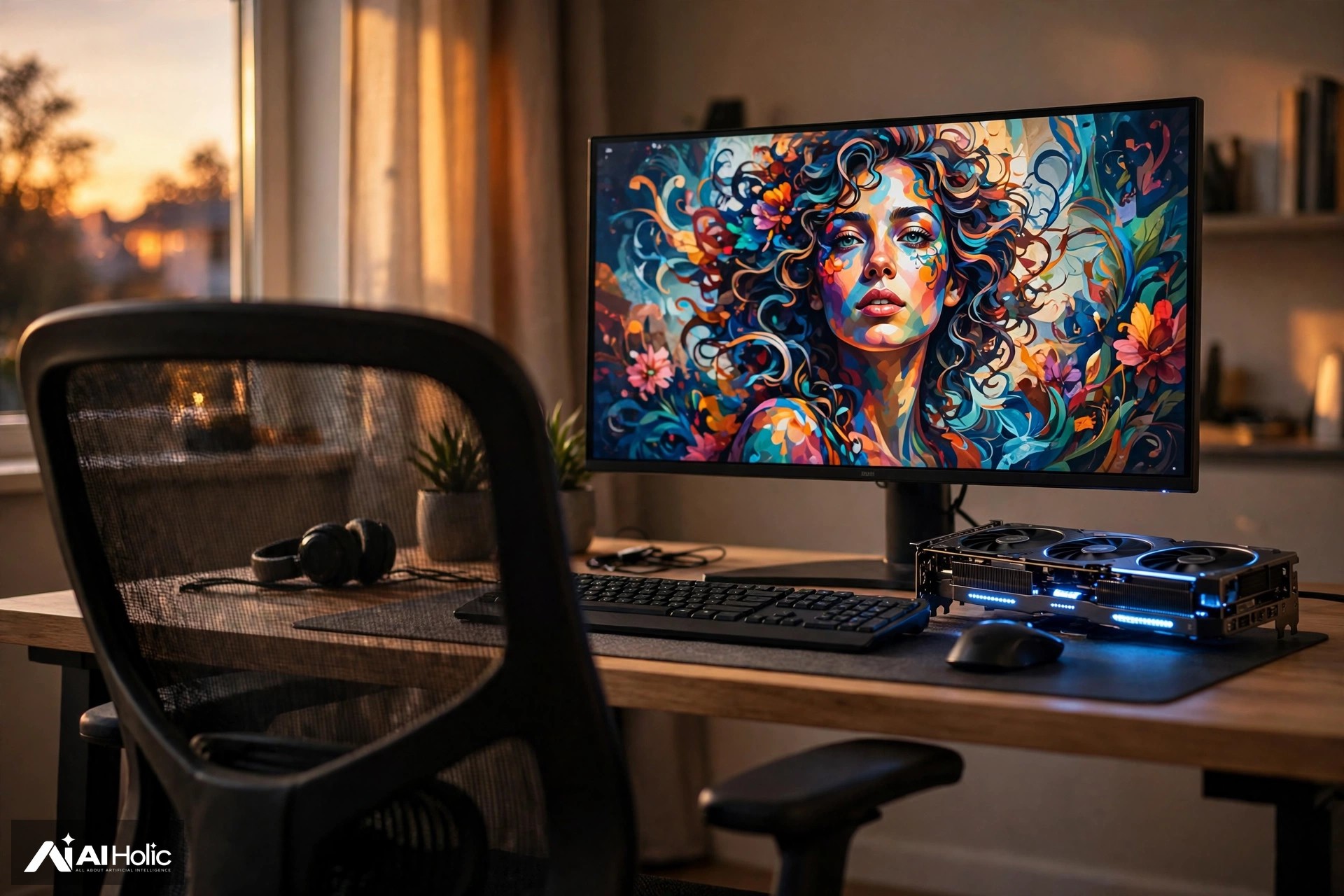
VRAM is the bottleneck, and it decides what you can run. System RAM and disk space matter too, but they rarely block a first setup. Buy for VRAM first.
A card with 6 to 8 GB of VRAM is enough to start. It runs SD 1.5, SDXL, and small quantized models without fuss. You will wait longer per image, and you will skip the heaviest models.
A card with 12 to 16 GB of VRAM is the sweet spot for most users. The RTX 3060 with 12 GB and the 4070 Ti Super with 16 GB sit in this band. They run SDXL, FLUX.1 schnell, and FLUX.2 [klein] with room to spare.
A card with 24 GB of VRAM opens the heaviest models, such as the RTX 3090 and 4090. You need 16 to 32 GB of system RAM beside it. Keep 20 to 60 GB free on disk, since one FLUX.1 setup can take about 21 GB with encoders.
If you plan to buy a card for this, our guide to the best GPU for AI compares current picks by VRAM and price. It helps you match the card to the models you want to run.
Laptop users face one more check. Heat and power limits can cut speed, even when the specs look fine on paper. See if your laptop can host an AI model before you install a full setup.
How to Set One Up in an Afternoon
You can go from zero to a first image in one afternoon. The steps below work for most apps.
- Pick your app: Forge for Windows, Draw Things for Mac, or ComfyUI for full control.
- Install the app and let it fetch its base files.
- Download one model, such as SDXL, from a trusted source.
- Place the model file in the app’s model folder.
- Type a short prompt, set the size to 1024 by 1024, and press generate.
- Save the settings that gave you a good image, and reuse them.
Linux users can run the same apps natively, and Windows users can use WSL2. Most guides assume NVIDIA CUDA, so AMD and Intel users should check app support first. A one-click installer such as Pinokio hides this work if you want a faster start.
Test with a simple prompt first, such as a red bicycle by a lake at sunset. A short prompt shows whether the setup works before you tune settings. If the image looks wrong, change one setting at a time so you know what fixed it.
Local apps are not limited to images. Our guide to using Kilo AI with local resources shows the same idea applied to a coding tool.
Why Run Images Locally
A local ai image generator saves money once the hardware is paid for. There is no subscription and no per-image fee. You can make a hundred test images while you learn, and the cost stays flat.
Privacy is the second win. Your prompts never leave your machine, and no cloud log holds your ideas. That matters for client art and private projects.
Offline work is the third win. Once the model is on your disk, you can make images with no internet at all. You also skip queues, and you set your own pace.
You also keep your own style library. Saved prompts, seeds, and models stay on your disk, and you can repeat a result months later. Cloud tools can drop a model, and your old prompt may never look the same.
The Trade-Offs to Know Before You Start
Local work is not free of cost. Setup takes time, and your first install can eat an afternoon. You also pay for power, and a long session can warm a small room.
You maintain the setup yourself. Updates, broken extensions, and driver fixes land on you. Cloud tools hide this work, and they also ship the newest commercial models first.
Storage grows fast when you collect models. Each new checkpoint adds gigabytes, and old models pile up. Keep a short list of models you use, and delete the rest.
Power cost is small per image but real over months. Long sessions draw power for hours, and the bill adds up. Run big batches in one sitting, then shut the app down.
Privacy and Safety Rules
A local ai image generator keeps your prompts on your own disk, but that freedom has limits. Your country’s laws still apply to what you make and share. Fewer filters do not mean no rules.
Keep faces of real people out of fake scenes, and never make images that harm a real person. If you sell your work, check the model license first. Some licenses allow sales, and some do not.
Download models only from sources you trust. A bad file can carry malware, and a fake model page can steal your login. Check the publisher and scan each file.
Frequently Asked Questions
Do I Need a Local AI Image Generator or a Cloud Tool?
Pick a local ai image generator if you make images often, value privacy, or want no monthly fee. Pick a cloud tool if you want zero setup or the newest commercial model on day one. Many users keep both, and they use each one where it fits.
How Much VRAM Do I Need to Start?
Start with 6 to 8 GB of VRAM, which runs SD 1.5, SDXL, and small quantized models. Move to 12 to 16 GB when you want FLUX models or faster results. A 24 GB card is only needed for the heaviest models.
Is It Free to Run Images on My Own Computer?
The apps and many models are free to download, though you pay for the hardware, the power, and the disk space. After that, each image costs almost nothing. Some models limit commercial use, so read the license before you sell an image.
Which App Is Easiest for a Beginner?
Stable Diffusion WebUI Forge is the easiest start on Windows, and Draw Things is the easiest start on a Mac. Both hide most setup work and let you type a prompt within minutes. Move to ComfyUI later if you want node-based control.
Can I Run Image Models on a Mac?
Yes, Apple Silicon Macs run image models through Draw Things and DiffusionBee. The tooling differs from Windows, and some workflows assume NVIDIA CUDA. Check that your app supports Apple Silicon before you download a large model.
Conclusion
A local ai image generator puts image making on your own desk, with no fee per image and no cloud queue. Start with Forge or Draw Things, download SDXL, and make your first image today. Add a stronger model only when your card is ready for it.