
AI Visual Search From Videos: Find Any Moment Without Scrubbing
If you don’t want to read the whole guide or have difficulty reading, you can listen to this guide instead.
You know the shot is in there somewhere. A client asks for the clip where the founder laughs, or the sunset B-roll from last summer, and you face hours of footage with file names like IMG_4412.MOV.
ai visual search from videos changes that job. You type what the shot looks like, in plain words, and the software finds the exact moment across your library. This guide explains what the technology does, how it reads your footage, what it can and cannot find, and how to pick a tool that fits your work.
At AI Holic, we read vendor pages and editor guides before we wrote this page. We did not test the tools ourselves, and this guide says so plainly where a claim comes from the vendor alone.
AI Visual Search From Videos: The Short Answer
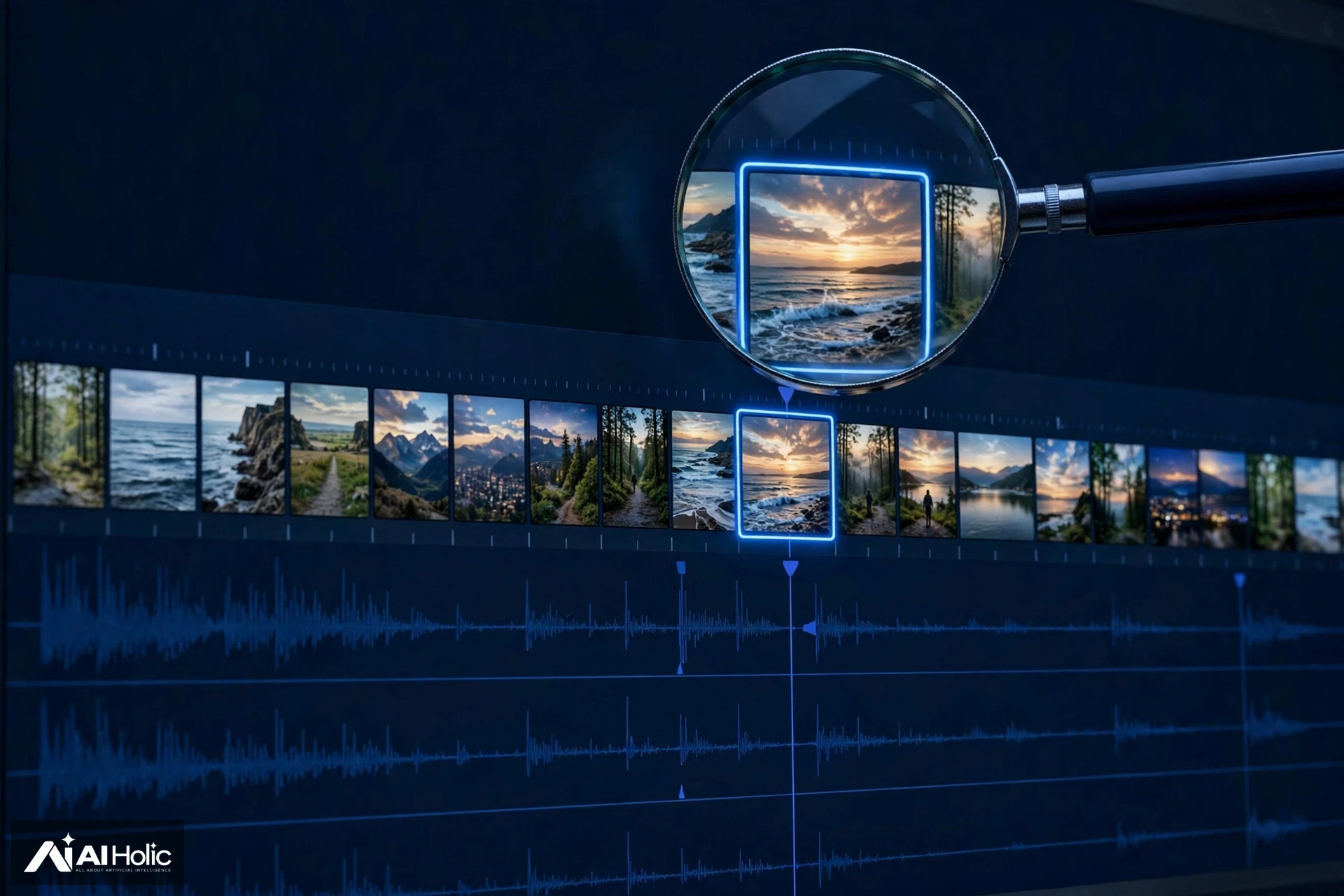
In short, ai visual search from videos lets you find a moment inside your footage by describing what appears on screen. You type a phrase like “drone shot over a coastline at sunset” or “close-up of hands typing”, and the ai visual search from videos tool returns matching clips with exact timecodes.
You do not need file names, tags, or a logging sheet. The tool reads your footage once and builds a searchable index from it. After that one-time step, each search takes seconds, even across hundreds of hours of video.
What Visual Search in Video Actually Is
Old footage search relied on facts people added by hand. File names, folder names, bins, markers, and keyword tags were the only way in. If nobody logged a shot, you could not find it without scrubbing through the timeline by hand.
Visual search works the other way around. Machine learning models study the footage itself, frame by frame, and note what each scene shows. They record objects, people, places, actions, shot types, and moods, and that record becomes the index you search.
The idea is older than the current wave of AI tools. Content-based image retrieval is the practice of searching images by what they show, such as colors, shapes, and textures, instead of by tags. The term dates back to 1992, and IBM built the earliest commercial system, called QBIC.
Still-image search is the older cousin of this technology. Tools such as Google Lens let you point a phone camera at an object and get matches for it.
Our guide to the best AI photo editing tools covers the still-image side of AI, while this guide stays with video. Video adds motion, time, and sound, so the software has more to read and more to index.
An image search engine normally matches a query against pictures on the web. A video search tool does a similar job inside your own library. The library can be a few clips on a laptop or thousands of hours in a shared drive.
How AI Visual Search From Videos Works
Every tool follows the same four steps, even when the marketing words differ. First, the software analyzes your footage. Visual models describe what is in each scene, speech models write time-aligned transcripts, and face models group recurring people.
Second, the software stores the results as a compact index. The index holds short text descriptions, numeric codes for what each frame looks like, and the timecode each one belongs to. Your source media is not changed or re-encoded.
Third, you type a query. The search engine turns your words into the same kind of numeric code and compares it with the index. It ranks the best matches first and shows you the clips they came from.
Fourth, you use the result. You open the moment, mark in and out points, or send the clip straight to your timeline. Good tools return scenes with a start time and an end time, not just a file name.
The numeric code is the part worth understanding. The software turns each frame into a long list of numbers that captures what the frame shows. Frames that look alike get codes that sit close together, so a search for “red car at night” and one for “red car in daylight” can return different results, even when the car is the same.
The Four Ways to Search Inside a Video
Most tools offer more than one search type, and each type answers a different question. The table below lists the four common types, what each one finds, and an example query for each.
| Search type | What it finds | Example query |
|---|---|---|
| Text visual search | Objects, places, actions, shot types, moods on screen | Drone shot over a coastline at sunset |
| Image search | Shots that look like a still or frame you provide | A photo of a red car, to find similar shots |
| Speech search | Words and phrases in what people say | The moment someone says the word budget |
| People search | Every appearance of one person, famous or not | Every shot where Maya appears |
Text visual search is the main type, and it is the one most people mean when they talk about this technology. You describe the shot in plain words. A good tool understands composition and action, not just objects.
Image search starts from a picture instead of words. You drop in a still frame or a photo, and the tool finds scenes that look like it. Reverse image search works the same way on the web. If you want to search by a still image instead of a video frame, our guide to Lenso AI shows how reverse image search finds the same photo across the web.
Speech search reads the transcript, not the picture. It is the fastest way through interviews, podcasts, sermons, and unscripted material. One editor guide reports its speech search covers 111 languages, though that figure comes from the vendor, so treat it as a claim to test.
People search uses face recognition on your own footage. The tool groups the people it sees, you name each group once, and then you can find every shot a person appears in. This works for anyone in the footage, not just public figures.
What AI Visual Search From Videos Can Find and What It Misses
The technology is strong on clear, visible things. It finds objects, animals, vehicles, buildings, and natural scenes with ease. It finds actions such as running, pouring, laughing, or clapping, and shot types such as close-ups, wide shots, and drone shots.
It is weaker on small or brief details. A small object in the corner of a dark frame may not register.
A two-second flash of a product in a busy scene may rank low. Two shots that look alike, such as two white kitchens, can confuse the ranking.
Meaning is another limit. The tool can tell you that a person is crying, but it cannot tell you why.
It can find a handshake, but it cannot tell you whether the meeting went well. Searches that need story context, irony, or intent will miss.
Character consistency is a related problem in AI video work. When you reuse a face or a character across clips, small changes in lighting or angle can break the match. Our guide to the AI video character consistency workflow explains how editors keep a character steady across generated clips.
Local or Cloud: Where Your Footage Goes
Before you pick a tool, decide where the analysis should run. Some tools upload your footage to a cloud service, while others run the models on your own computer. This choice decides who can see your footage.
Local tools keep your files on your machine. Nothing leaves your drive, which suits unreleased work, client footage under NDA, and personal archives. They work offline once set up, and there is no upload wait for a large library.
Cloud tools move the heavy work to a server. Analysis is often faster, and you can search from any device. The trade-off is trust: your footage leaves your machine.
The table below sums up the choice in plain terms, so you can match it to your own footage.
| Factor | Local (on your computer) | Cloud (on a server) |
|---|---|---|
| Footage leaves your machine | No | Yes, uploaded for analysis |
| NDA or unreleased material | Safe to search | Depends on the provider and your contract |
| Works offline | Yes, once set up | No |
| Analysis speed | Depends on your hardware | Often faster, server hardware does the work |
| Search from any device | Usually one machine only | Yes, through a browser or app |
| Upload time for large libraries | None | Can be significant |
For professional editors with client footage, local analysis is often the deciding factor. For a small creator who edits on a laptop and a phone, cloud search may be the practical pick.
Tools People Use for This Job
No single tool owns this space. The names below come from the top-ranking guides and tool pages we read, and we did not test them ourselves, so treat every feature and price here as a vendor claim.
FrameSeek is a browser-based tool for creators. It samples frames, groups them into shots, and transcribes speech. Its vendor page lists a free plan with 5 GB of storage and 50 visual searches a month.
Recharm is built for ad teams and creator libraries. It cuts every upload into short clips, so a search returns the few seconds you need instead of a long file. It also offers a plugin that lets Claude search the library for you.
Jumper is built for editors. It works as a panel inside Premiere Pro, DaVinci Resolve, Final Cut Pro, and Avid Media Composer, and as a standalone app. It runs its models on your own computer, which suits NDA footage.
Imaginario AI targets media and marketing teams with large libraries. Its vendor pages describe multimodal search across visuals, speech, sound, and people, in more than 100 languages, priced per minute of video imported.
Fast Video Cataloger is a Windows desktop app for editors with large local libraries. It indexes words, people, scenes, and objects on your own PC. Peakto takes a different angle: you drag a still image into it, and it finds the source video and the exact frame.
How to Test a Tool on Your Own Footage
A short test beats a long feature list. Set aside one hour, pick ten clips you know well, and run the same queries in each tool you try. The steps below keep the test fair.
- Pick ten clips that cover your real work: a bright outdoor shot, a dim indoor shot, an interview, a product close-up, and a busy crowd scene.
- Write twelve queries before you start, and include hard ones: a small object, a brief action, a specific person, and a shot type such as a drone view.
- Upload or index the clips, and note how long the wait takes and how much storage the index uses.
- Run each query and record the rank of the correct clip. A tool that puts the right clip first most of the time is worth more than one with a longer feature list.
- Test the export step. Can you send the clip to your editor, or download just those seconds, without extra steps?
Score each tool on the same sheet. Accuracy on your queries counts most, then timecode precision, then speed, then price. A tool that finds nine of twelve queries at the right second is a better buy than one that finds all twelve at the wrong second.
Keep your test clips after the trial ends. When a new tool appears, run the same twelve queries again and compare fairly. A fixed test set turns each trial into a real comparison.

Who Should Use It and Who Should Skip It
This technology fits anyone who owns more footage than they can remember. Video editors with large archives gain the most, since they stop scrubbing and start searching. Ad teams that reuse creator clips gain too, because they can pull the right shot for a new brief in seconds.
Creators who film short clips for social media gain less, but still gain something. Even a small library grows messy over a year. Our guide for videographer AI tools covers related help for people who shoot and edit video for clients.
Skip it for now in three cases. First, if your library is tiny and well named, a folder search may be faster than an index. Second, if your footage is mostly sensitive material and no local tool fits your setup, wait rather than upload it to a cloud you have not vetted.
Third, if you need exact legal proof, such as a verified source for a clip, visual search alone is not enough. It finds similar footage, but it does not prove where a clip came from. Consent deserves care too: people search groups faces in your footage, so tell the people you film what you use and get consent where your local law or client contract requires it.
Costs and Limits to Check First
Prices in this space change fast, so treat any figure in a guide as a starting point. Some tools charge per minute of video imported, some charge per search, and some charge a flat monthly fee.
Free tiers exist, but they carry limits. FrameSeek lists a free plan with 5 GB of storage and 50 visual searches a month, according to its vendor page. Other tools offer free trials of 7 to 30 days, so use the trial to run the twelve-query test above.
Watch for three hidden costs: storage fees that grow with your library, import fees that grow with each batch, and team seats that multiply the monthly price. Ask each vendor for the full price of your real library size before you commit, and get the answer in writing.
Frequently Asked Questions
What Is AI Visual Search From Videos?
It is a way to find moments inside video by describing what appears on screen. The software reads your footage once, builds a searchable index of scenes, objects, actions, and speech, and returns matching clips with exact timecodes.
Do I Need to Tag My Videos Before I Can Search Them?
No. Visual search reads the footage directly, so clips become searchable as soon as the analysis finishes, even if the files are named IMG_4412.MOV. Tags can still help for your own notes, but the search does not depend on them.
Can I Search With a Photo Instead of Words?
Yes, when the tool supports image search. You provide a still frame or a photo, and the tool finds scenes that look like it. This is useful for matching B-roll or finding alternate takes.
Does Visual Search Work on Old Footage?
Yes. Any footage you can analyze becomes searchable, including archives that were never logged. Old tapes need to be digitized first, but once they are in the ai visual search from videos tool, the search works the same.
Is My Footage Private When I Use These Tools?
It depends on the tool. Local tools keep your footage on your own machine, so nothing leaves your drive. Cloud tools upload your video for analysis, so read their privacy terms first.
Can AI Visual Search Replace a Human Editor?
No. It finds candidate clips fast, but it cannot judge story, tone, or intent.
It can find a handshake, but it cannot tell you whether the meeting went well. Use it to narrow hours of footage to a short list, then let a human pick the clip that fits the story.
Conclusion
ai visual search from videos turns a long scrub through old footage into a short typed query. Index your library once, test a tool on your own clips, and keep the final pick with a human. That mix gives you the speed without giving up judgment.