Evoto AI: Pro Portrait Retouching and Batch Photo Editing
If you don’t want to read the whole guide or have difficulty reading, you can listen to this guide instead.
evoto ai is an AI photo editor built for photographers who retouch portraits in volume. It fixes skin, eyes, teeth, and hair face by face, then copies those fixes across a whole shoot. It also culls photos, matches color across a gallery, and charges only when you export an edited photo.
This guide walks through what the tool does, how the credit system works, and where it falls short. You will see how retouching, batch editing, culling, and color grading fit into one workflow.
At AI Holic, we read the leading reviews and help pages before writing this guide. We did not test the paid plans ourselves, so we flag every price figure to confirm before you pay. Prices and credit rules change often, and sources can list different numbers on the same day.
What Is Evoto AI?
Evoto AI is desktop and mobile image editing software from Truesight Technology, whose founders started building it in 2020 after talking with working photographers. It runs on Windows and macOS, with apps for iPad and phones, plus a browser editor. Its core job is portrait retouching at volume, not general graphic design.
The tool covers the full path from picking keepers to delivering finished files. You cull the shoot, retouch one hero photo, sync the look, and export. The table below sums up the main tools.
| Feature | What it does | Best for |
|---|---|---|
| Portrait retouching | Fixes skin, eyes, teeth, and hair per person | Weddings, headshots, school photos |
| Batch sync | Copies one edit across hundreds of photos | Large consistent galleries |
| AI culling | Flags blurry and closed-eye shots | Cutting shoots to the keepers |
| Color grading | Matches color with presets and color wheels | Consistent galleries |
| Background tools | Cleans and swaps backdrops | Studio and event portraits |
| Tethered shooting | Sends camera photos into the software live | Studio sessions |
Every edit is non-destructive, so your original RAW file stays untouched below the changes. You can change a slider, remove a fix, or start over. That safety net matters when you retouch hundreds of photos at once.
The company reports customers in 158 countries and over one billion images uploaded to the platform. Treat those as company figures, since no outside source checks them.
Portrait Retouching, Face by Face
Portrait retouching is the feature that made the tool known among wedding and headshot photographers. It is built for portrait photography, where the same fixes repeat across hundreds of faces. The software finds each face and lets you adjust it on its own, so a bride and a groom in the same frame can get different settings.
Sliders cover blemishes, skin tone, wrinkles, under-eye bags, teeth, eyes, and face shape. The controls aim for a natural finish when you keep them low. Skin smoothing keeps pores and texture, and blemish removal targets spots without touching the rest of the face.
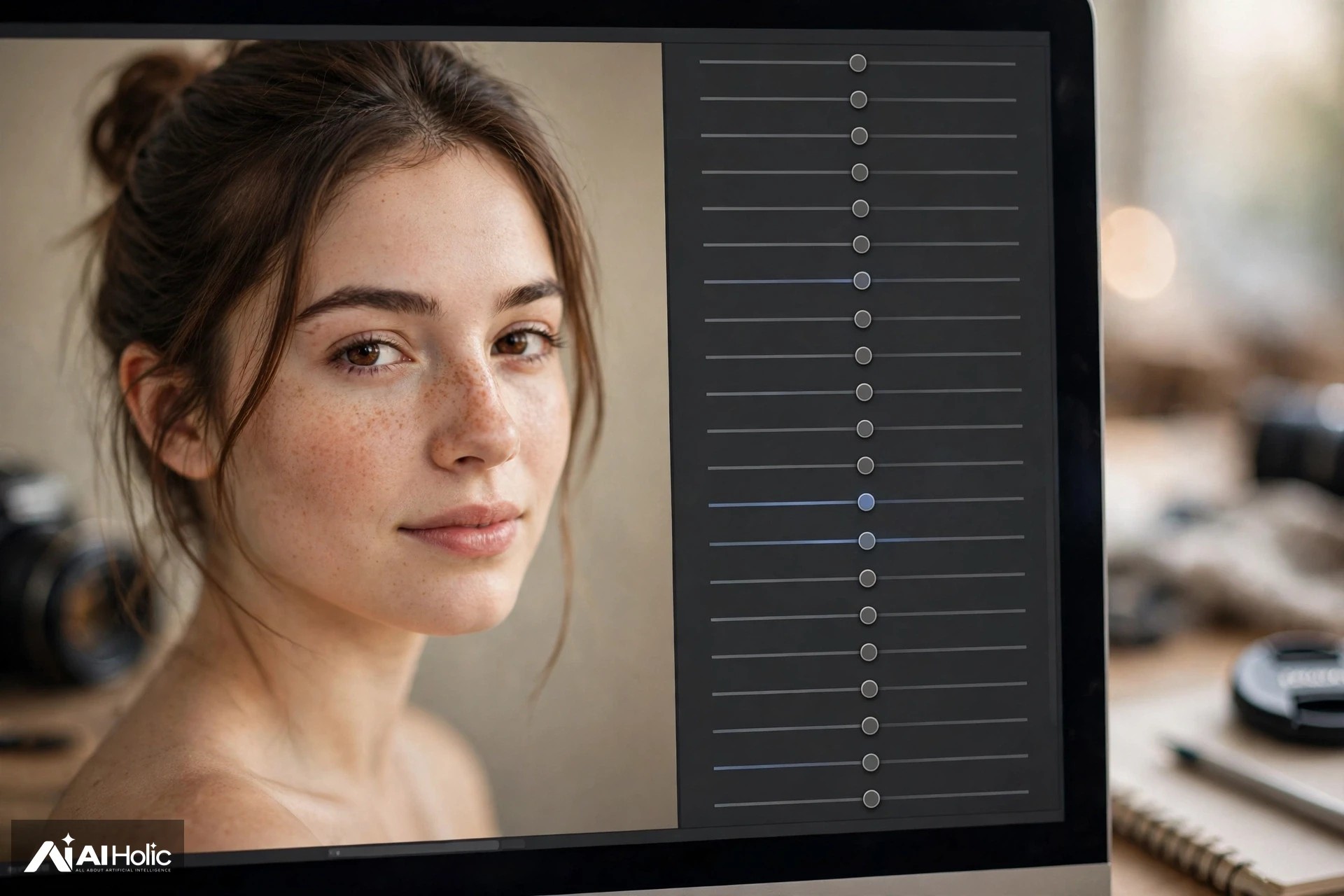
Group portraits get per-person presets, with separate settings for men, women, children, and older people. Save those settings as a preset and reuse them on the next shoot. Push the sliders too far and skin turns plastic, so check each face at full size before you export.
Glasses glare removal is a small feature with a big payoff. It clears lens reflections that would otherwise need a reshoot or a long repair job. Clothing tools smooth wrinkles and stains, and a background tool can clean a messy backdrop.
Batch Editing: Retouch Once, Sync to Hundreds
Batch editing is where Evoto AI earns its keep for high-volume photographers. You retouch one photo until it looks right, save the settings as a preset, and sync them across hundreds of photos. Face, background, clothing, crop, and color settings all travel with the sync.
Presets can carry separate portrait settings for each person type, so one sync works across a mixed group. Preview the results across the set before you commit to an export. Review synced photos in groups, since one face can need a lighter touch.
The time saving is real for weddings, school photo days, and team headshots. A set that took a full day of manual retouching can drop to a few hours of review and touch-ups. You still must check the results, since batch edits can miss one odd face in a crowd.
AI Culling: Pick the Keepers First
Culling is the step most photographers dread, and Evoto AI added AI culling in the fall of 2025. It scans a shoot and flags blurry photos, closed eyes, and poor exposure, so you start with the keepers. Near-duplicates get grouped, so you pick the best of each burst instead of scrolling through all of them.
Version 8, released in September 2026, added story grouping for weddings. It sorts the day into chapters, such as getting ready, the ceremony, and the reception. That structure helps you cull in order instead of jumping around a flat file list.
Culling is a first pass, not a final call, since a soft photo can still hold the best moment. Keep the final pick in your own hands and use the tool to cut the pile down to size.
Color Grading and Presets
Color tools in Evoto AI cover both quick fixes and careful grading. You get white balance, tone, and HSL controls, plus color wheels for a hands-on grade. A color match tool copies the look of a reference photo onto a whole set, so a gallery stays consistent.
Presets save a full look, including retouching and color, for reuse on later shoots. Photographers who shoot the same style weekly can build a small library of house looks. Apply a preset, check a few photos, and adjust before you sync it to the rest.
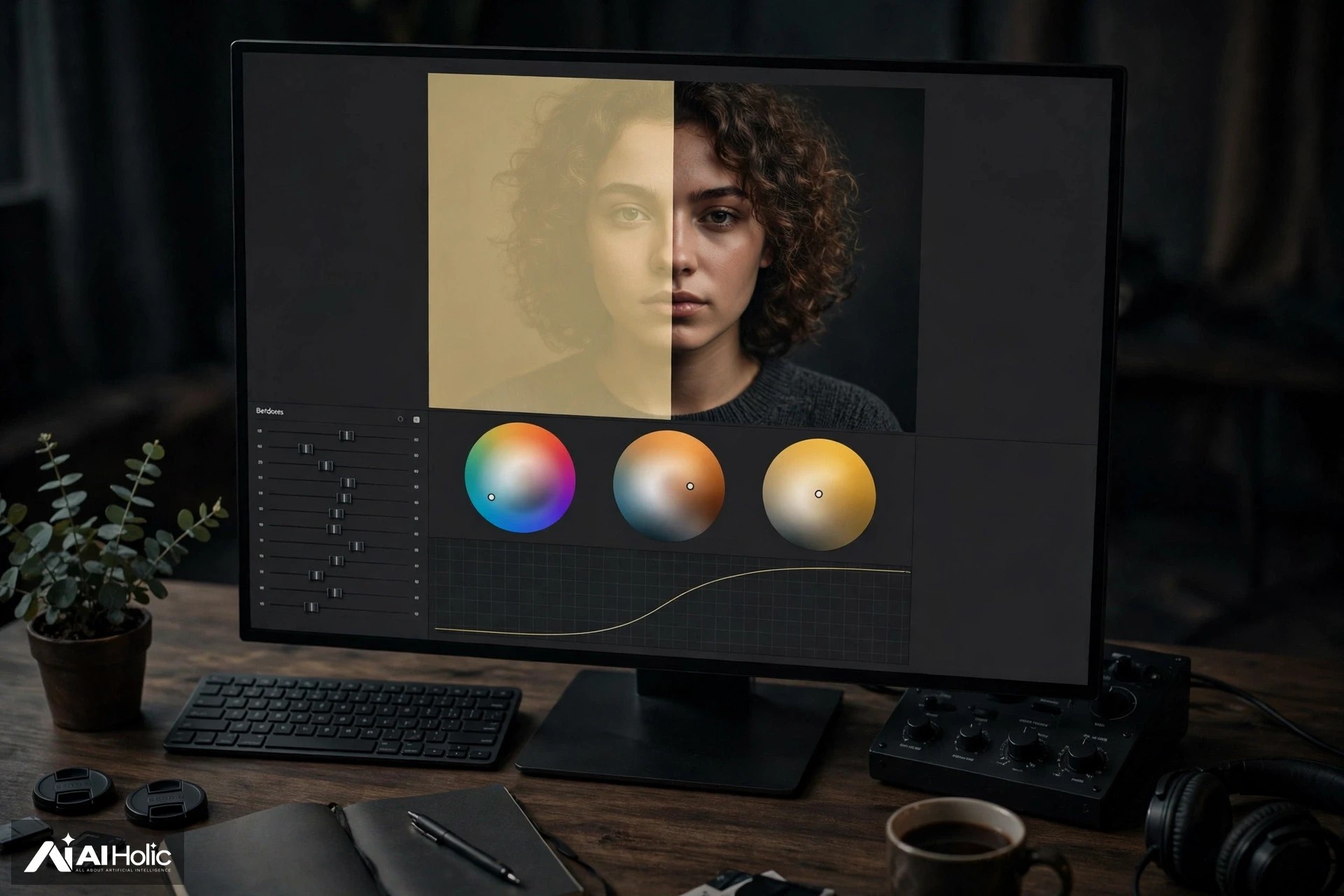
The color tools are solid for portraits, but they cannot replace a catalog editor. Photographers with large RAW libraries still tend to keep Lightroom for that job. The tool fits best as the retouching and grading stage in a wider workflow.
Tethered Shooting and Workflow Tools
The tool also covers the edges of a shoot, not just the retouching. Tethered shooting sends photos straight from the camera into the software during a studio session. You can review and retouch as you shoot, which shortens the gap to delivery.
Photos move to and from Lightroom Classic, so you can keep your catalog where it is. Do your RAW work and color in Lightroom, send the portraits out for retouching, and bring them back for delivery. That round trip is how most working photographers use it.
Version 8 also added a video retouching plugin for DaVinci Resolve. It brings face retouching to video clips, which suits photographers who now shoot short video for clients. The plugin is new, so treat it as a bonus, not the reason to buy.
How to Use Evoto AI in 7 Steps
The workflow is short, and the habits around it matter more than the clicks. Follow these steps on your first real shoot.
- Import a small test set first, such as 20 photos from one shoot, and cull it before you retouch anything.
- Pick one strong photo as your hero image and do the full retouch on that one face first.
- Set skin, eyes, teeth, and hair sliders low, then raise them in small steps until the result still looks natural.
- Save the settings as a preset, with separate portrait settings for each person type in the group.
- Sync the preset across the set and preview the results in groups before you export anything.
- Check every face at full size, fix the odd ones by hand, and re-export only the photos that changed.
- Export the finished set and track the credits each export used, so the next shoot has no cost surprise.
Two habits separate clean results from obvious AI edits. Keep the skin sliders low, and check every face at full size before you export.
Credits and Pricing
Evoto AI runs on a pay-per-export credit system, which is the part most buyers misunderstand. Downloading the software, editing, and previewing cost nothing. You spend one credit for each edited photo you export, while an unedited export costs nothing at all.
A free trial gives you a small credit allowance to test the tool on a real shoot. Reviews checked in October 2026 report a 7-day trial with 50 free credits on the lower plans, but the offer has changed before. One review also reports that the trial converts to an annual fee unless you cancel inside the 7 days, so set a reminder first.
| Plan | Credits per year | Reported list price | Devices |
|---|---|---|---|
| Starter | 800 | 89 dollars per year | 2 |
| Basic | 1,600 | 149 dollars per year | 3 |
| Basic Plus | 3,600 | 269 dollars per year | 4 |
| Standard | 9,000 | 579 dollars per year | 5 |
| Standard Plus | 24,000 | 1,339 dollars per year | 6 |
| Pay as you go | 200 to 3,600 per pack | From 49 dollars per pack | 2 |
Treat every figure in that table as reported, not confirmed. Independent reviews checked in October 2026 list the same plan prices, but sale prices, trial credit counts, and pay-as-you-go pack sizes differ between sources. One directory even lists a monthly plan that conflicts with the credit model, so we do not quote it as fact, and you should check the live pricing page before you pay.
Credits on annual plans roll over while your subscription stays active, and pay-as-you-go credits last two years. Some AI Lab features cost several credits per use, so one export can cost more than one credit. Read the credit rules before a big shoot, since a busy month can burn through a small plan fast.
What Evoto AI Cannot Do
Evoto AI is a retouching tool, not a full photo editor. It has no catalog system for a large RAW library, and its color tools are weaker than a dedicated RAW editor. Most photographers keep Lightroom beside it for that part of the job.
- It cannot design graphics, build composites, or replace a layered editor.
- It cannot work fully offline, since most features process images in the cloud.
- It cannot fix a badly exposed or out-of-focus photo, since retouching needs a decent base.
- It cannot guarantee the same result on every face, so batch edits still need a human check.
Treat every result as a draft and zoom to 100 percent before you export, since thumbnails hide plastic skin and missed blemishes. If a face looks wrong, lower the sliders or fix it by hand.
One trust note comes from early 2026, when the company briefly launched an AI headshot generator for photographers’ own clients, then pulled it and apologised. Some photographers still distrust the tool over that episode, so read the data terms first if that matters to you.
Who Should Use It
You gain most if you retouch portraits in volume and want consistent results. Wedding, headshot, school, and event photographers fit that shape best. You gain least if you edit a few photos a month, where the credit math works against you.
What works well
- Per-face retouching with separate settings for each person.
- Batch sync that copies one good edit across hundreds of photos.
- AI culling that cuts a large shoot to the keepers fast.
- Glasses glare and clothing fixes that save reshoots.
- Editing and previewing cost nothing, so you pay only for exports.
Where it falls short
- Pay-per-export costs add up fast for high-volume studios.
- Credit expiry and renewal rules confuse many buyers.
- No full RAW catalog, so you still need Lightroom for library work.
- Most features need an internet connection.
- Batch results still need a face-by-face check.
If the credit model puts you off, compare it with the other editors in our roundup of the best AI photo editing tools of 2026 before you pay. The right pick depends on whether you retouch every day or only now and then.
Evoto AI vs Adobe Photoshop and Lightroom
Adobe tools are the natural comparison, since most photographers already own one. Photoshop wins on layered edits and pixel-level control, while Lightroom wins on RAW catalogs and color. The speed gap is the point: it retouches a whole portrait set in the time Photoshop takes on a few faces.
The tools work well together rather than against each other. Do your RAW work in Lightroom, retouch the portraits in the tool, and send only the hard cases to Photoshop. Our guide to AI Photoshop covers the generative tools for those hard cases, and our look at a free AI image editor covers a browser option with no install.
Frequently Asked Questions
Is it free?
You can download the tool and edit photos without paying, and a free trial gives you a small credit allowance for test exports. Editing and previewing cost nothing, but each edited photo you export spends one credit. For regular professional use you need a credit pack or an annual plan, so the free tier suits testing rather than daily work.
How much does it cost?
It charges per exported photo through credits, not a flat monthly fee. Independent reviews from October 2026 list annual plans from 800 credits to 24,000 credits, with pay-as-you-go packs for occasional use. Exact prices, sale offers, and trial terms differ between sources, so check the live pricing page before you buy.
Does it work with Lightroom?
Yes, photos move to and from Lightroom Classic, which is how most photographers use it. You can do your RAW work and color in Lightroom, send portraits out for retouching, and bring them back for delivery. The round trip keeps your catalog in one place while the tool handles the face work.
Can it retouch a whole wedding at once?
Yes, that is its main strength. You cull the shoot, retouch one hero photo, save the settings as a preset, and sync them across hundreds of photos. You still need to check each face at full size, since batch edits can miss one odd face, but the review pass is far faster than retouching by hand.
Is it better than Photoshop for portraits?
For portrait volume it is faster, since it retouches a whole set in the time Photoshop takes for a few faces. Photoshop still wins on layered edits, composites, and pixel-level control, so the hard cases go there. Most photographers use both, with the tool for the bulk retouching and Photoshop for the photos that need manual work.
Conclusion
It fits photographers who retouch portraits in volume and want consistent results fast. Start with the free trial on a real shoot, keep the skin sliders low, and check every face before you export. If the credit math works for your volume, it can cut hours from every portrait set.